0.目录
文章目录
1.下载node.js与npm
访问官网。
设置相关设置,下载安装包。
2.选择合适的路径
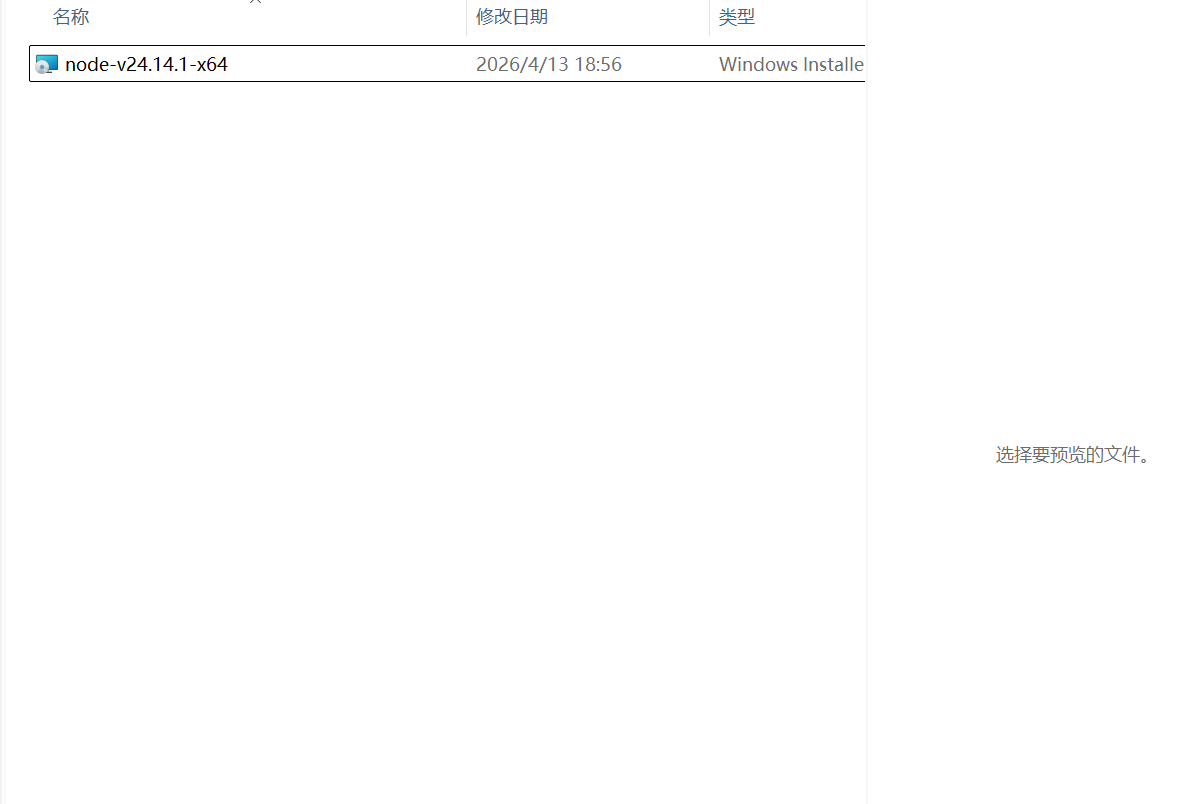
双击安装包,开始安装
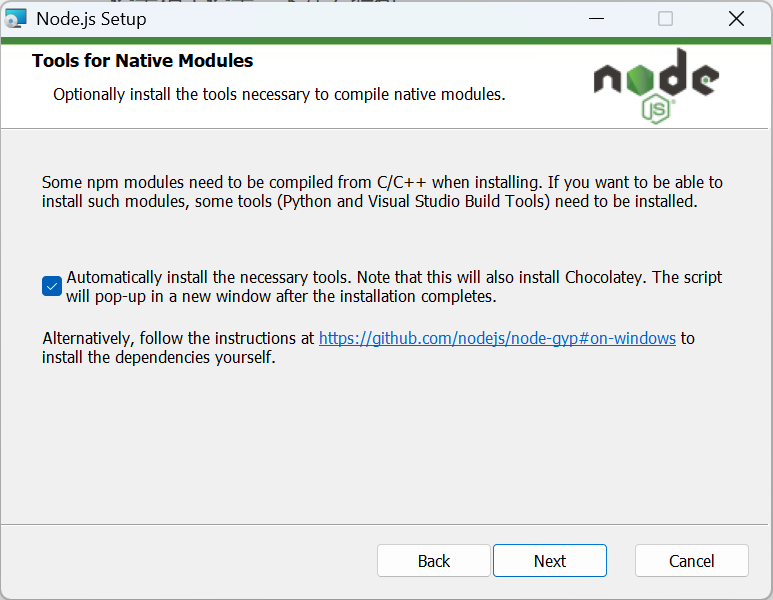
安装过程中,一直点next,以下设置需要打开。
3.确认安装结果
右键点击windows键,选择终端,进入windows PowerShell界面。而后,输入以下代码:
node -v
Set-ExecutionPolicy RemoteSigned
Get-ExecutionPolicy
npm -v
Set-ExecutionPolicy Restricted
Get-ExecutionPolicy
查看以下结果,确认安装结果。
PS C:\Users\SiNan> node -v
v24.14.1
PS C:\Users\SiNan> Set-ExecutionPolicy RemoteSigned
PS C:\Users\SiNan> Get-ExecutionPolicy
RemoteSigned
PS C:\Users\SiNan> npm -v
11.11.0
PS C:\Users\SiNan> Set-ExecutionPolicy Restricted
PS C:\Users\SiNan> Get-ExecutionPolicy
Restricted
若node -v命令的返回值大于v22,npm -v命令的返回值大于10,则认为安装成功
4.安装codex
输入以下代码,执行安装codex脚本:
注意,个人执行时,应当修改H:\software\software_location\codex路径到自定义安装路径。
Set-ExecutionPolicy RemoteSigned
Get-ExecutionPolicy
npm install --prefix H:\software\software_location\codex -g @openai/codex
若执行情况如下:
PS C:\Users\SiNan> Set-ExecutionPolicy RemoteSigned
PS C:\Users\SiNan> Get-ExecutionPolicy
RemoteSigned
PS C:\Users\SiNan> npm install --prefix H:\software\software_location\codex -g @openai/codex

added 2 packages in 34s
npm notice
npm notice New minor version of npm available! 11.11.0 -> 11.12.1
npm notice Changelog: https://github.com/npm/cli/releases/tag/v11.12.1
npm notice To update run: npm install -g npm@11.12.1
npm notice
则认为,安装成功。
5.修改codex路径
在powershell管理员里输入以下代码,修改codex路径
# 获取当前系统 PATH
$currentPath = [System.Environment]::GetEnvironmentVariable("PATH", [System.EnvironmentVariableTarget]::Machine)
# 添加新路径
$newPath = $currentPath + ";H:\software\software_location\codex\node_modules\@openai\codex"
# 设置新的 PATH
[System.Environment]::SetEnvironmentVariable("PATH", $newPath, [System.EnvironmentVariableTarget]::Machine)
# 输出新的 PATH
Write-Output "新的 PATH 已添加。"
使用时,请将命令#添加新路径#的后半部分路径,填写为codex安装路径的codex文件夹下。
此处的另一个方法是,在环境变量里,添加路径到codex的安装路径。
6.验证codex可使用
方法1:codex版本读取
在powershell中输入以下命令:
codex --version
若查看到类似以下的执行情况,则认为codex使用无误。
PS C:\Users\SiNan> codex --version
codex-cli 0.120.0
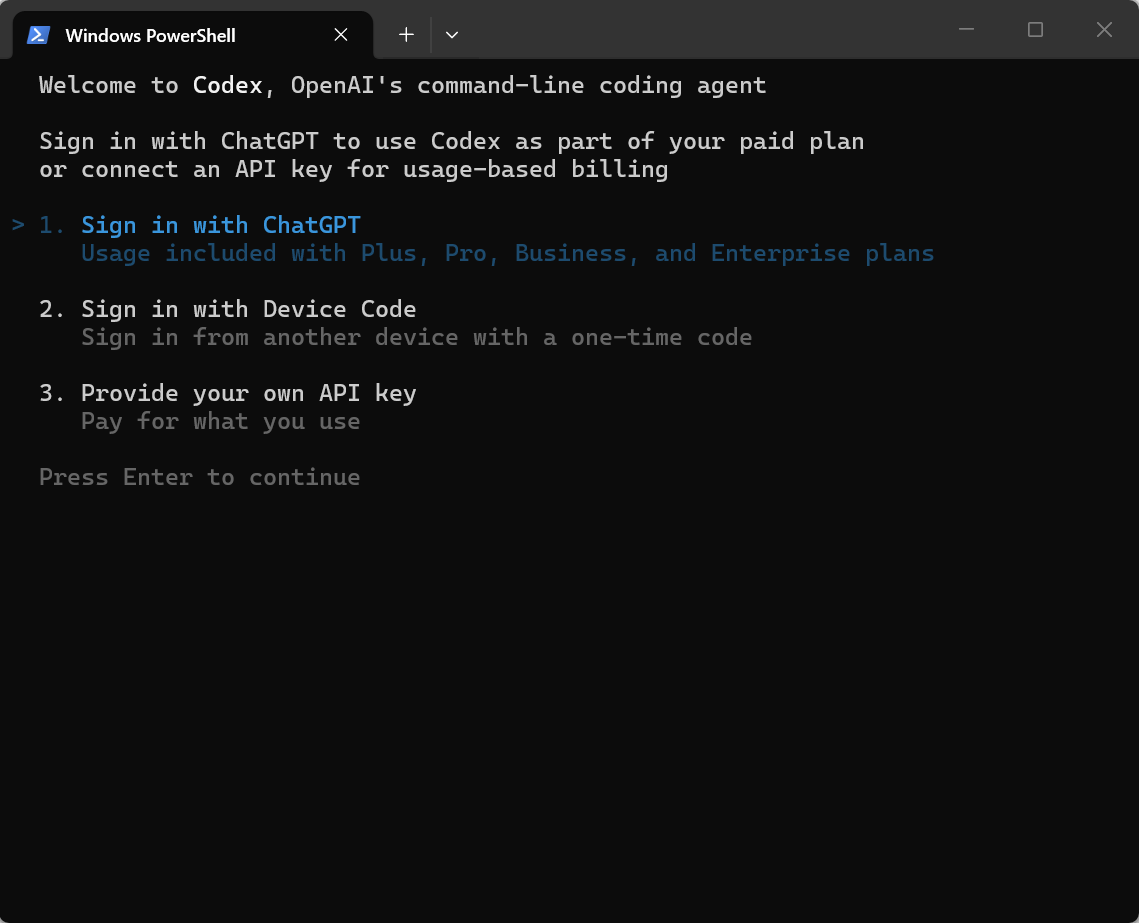
方法2:codex启动测试
在powershell中输入以下命令:
codex
若查看到类似以下的执行情况,则认为codex使用无误。
7.codex的api获取
后续更新。





 扫一扫
扫一扫


 8365
8365

 被折叠的 条评论
为什么被折叠?
被折叠的 条评论
为什么被折叠?
 到【灌水乐园】发言