


首先首页我们要完成的功能有:
左上角图片,点击图片播放指定音乐,图片并跟着一起360旋转
右下角,授权登陆,授权登陆成功后才会挑选下一页面,否则重新授权登陆

//index.js
const app = getApp()
const innerAudioContext = wx.createInnerAudioContext()
Page({
  data: {
    b2 : 'b3',
    ss : 1
    },
UserClick:function(event){
 wx.getSetting({
   success(res){
      console.log(res.authSetting['scope.userInfo'])
          if (res.authSetting['scope.userInfo']==true){
          wx.navigateTo({
           url:'../camera/camera',
         })
            wx.authorize({
                 scope: 'scope.userinfo',
                 success:function(){
                     wx.getUserInfo({
                            success(res){},
                            fail:function(err){console.log(err)}              })
     }
    })
      }
        }
        })
         },
         clickimg:function(){
          var ss = this.data.ss;
            if(ss === 1){
              innerAudioContext.play()
              this.setData({
                   b2 : 'b2',
                   ss : 2
                     })
                  }else{
                     innerAudioContext.pause()
                     this.setData({
                        b2 : 'b3',
                        ss : 1
                         })
                           }
                              },
      //事件处理函数
      bindViewTap: function() {     },
      onLoad: function () {
       innerAudioContext.autoplay = false
       innerAudioContext.src = 'http://antiserver.kuwo.cn/anti.s?useless=/resource/&format=mp3&rid=MUSIC_144541061&response=res&type=convert_url&'    innerAudioContext.onPlay(() => {
        console.log('开始播放')
        })
 innerAudioContext.onError((res) => {
     console.log(res.errMsg)
     console.log(res.errCode)
      })
 innerAudioContext.onPause( () =>{
     console.log('停止播放')
       }
         )
           },
    getUserInfo: function(e) {      },
   // onShow:function(){  //   this.onLoad();  // },})
<!--index.wxml-->
<image  class="b1" src="../images/1.jpg"></image>
<button class="n1" size="mini" open-type="getUserInfo" bindgetuserinfo="UserClick">请授权</button>
<image  class="{{b2}}" bindtap="clickimg" src="../images/2.jpg"></image>
/**index.wxss**/
.b1{
width: 100%;
height: 605px;
}
.n1{
position: absolute;
right: 10px;
bottom: 10px;
}
.b2{
 position: absolute;
 left: 10px;
 top: 10px;
 width: 50px;
 height: 50px;
 transform:rotate(-30deg);
 }
 @-webkit-keyframes animal {
   0%{
    transform: rotate(0deg);
    -ms-transform: rotate(0deg);
    -webkit-transform: rotate(0deg);
    }
    100%{
      transform: rotate(-360deg);
      -ms-transform: rotate(-360deg);
      -webkit-transform: rotate(-360deg);
       }}
.b2 {
  -webkit-animation: animal 1s infinite linear ;
  -webkit-transform-origin: center center;
  -ms-transform-origin: center center;
  transform-origin: center center;
  }
.b3{
  position: absolute;
  left: 10px;
  top: 10px;
  width: 50px;
  height: 50px;
  transform:rotate(-30deg);
  }
然后跳转到下一个界面,我们需要做的功能是:
点击上传自拍,可以选择相册选择,还是相机自拍,然后将图片显示在页面中间显示框中
点击开始分析,如果没有选择图片,或者显示框中没有图片,会弹出您没有选择图片,如果选择看图片,跳转到下一个页面
var list;
Page({
  takePhoto:function(e){
      var type=e;
      if(type==='photo'){
            getApp().chooseType=1
            wx.getStorage({
                    key: 'photo',
                    success(res){
                          if(res.data===undefined||res.data==''){
                                   getApp().isSame=false
                                   wx.setStorage({
                                           data: size,
                                           key: 'camera',
                                           })
                                                 }else{
                                                          var num=res.data;               if(res.data===size){
                                                getApp.isSame=true              }else{
                                                getApp().isSame=false
                                                          wx.setStorage({
                                                                         data: size,                  key: 'camera',
                                                                                })
                                                                                         }                }        }      })    }else{      getApp().chooseType=2    }    wx.showModal({      title: '提示',      content: '请选择',      cancelText:'自拍',      confirmText:'相册选择',      success :(res)=>{        if (res.confirm) {          console.log('相册选择')           wx.chooseImage({                  count:9,                  sizeType:['original', 'compressed'],                  sourceType:['album'],                  success:(res)=>{                    console.log(res.temFilePaths);                    list=res.tempFilePaths;                    this.setData({                      list : list                    })                  }                })        } else if(res.cancel) {          console.log('自拍')         wx.chooseImage({            count:9,            sizeType:['original', 'compressed'],            sourceType:['camera'],            success:(res)=>{              console.log(res.temFilePaths);              list=res.tempFilePaths;              this.setData({                list:list              })            }          })        }      }    })  },  imgClick:function(event){      console.log(event)      wx.previewImage({        urls:list,        current: event.currentTarget.dataset.img      })  },  fenxi:function(){     if(list=list){      wx.navigateTo({        url:'../fenxi/fenxi',      })     }else{       wx.showToast({         title: '您没有选择图片',       })     }  },  /**   * 页面的初始数据   */  data: {    item : ''  },
  /**   * 生命周期函数--监听页面加载   */  onLoad: function (options) {     var type=getApp.chooseType;     if(type===1){        if(getApp().isSame){          wx.getStorage({            key: 'photo_num',            success(res){              var num=res.data;            }          })        }else{          wx.getStorage({            key: 'photo_num',            success(res){              if(res.data===undefined||res.data==''){                var num=Math.floor(Math.random()*(8-1+1));                wx.setStorage({                  data: num,                  key: 'camera',                })               }else{                 var num=res.data;               }            }          })        }     }else{       wx.getStorage({         key: 'camera',         success(res){             if(res.data===undefined||res.data==''){              var num=Math.floor(Math.random()*(8-1+1));              wx.setStorage({                data: num,                key: 'camera',              })             }else{               var num=res.data;             }         }       })       var num=Math.floor(Math.random()*(8-1+1));       wx.setStorage({         data: data,         key: 'camera',       })     }  },
  /**   * 生命周期函数--监听页面初次渲染完成   */  onReady: function () {
  },
  /**   * 生命周期函数--监听页面显示   */  onShow: function () {
  },
  /**   * 生命周期函数--监听页面隐藏   */  onHide: function () {
  },
  /**   * 生命周期函数--监听页面卸载   */  onUnload: function () {
  },
  /**   * 页面相关事件处理函数--监听用户下拉动作   */  onPullDownRefresh: function () {
  },
  /**   * 页面上拉触底事件的处理函数   */  onReachBottom: function () {
  },
  /**   * 用户点击右上角分享   */  onShareAppMessage: function () {
}})<!--pages/camera/camera.wxml-->
<image class="l1" src="../images/4.png"></image>
<image class="l2" src="../images/5.png"></image>
<!-- <camera device-position="back" flash="off" resolution="high"binderror="error" style="width: 100%; height: 432px;"></camera> -->
<image mode="widthFix" src="{{src}}" class="l6"></image><image src="{{item}}" class="l6" wx:for="{{list}}" bindtap="imgClick" data-img="{{item}}"></image>
<button class="l3" bindtap="takePhoto">上传自拍</button>
<button class="l4" bindtap="fenxi">开始分析</button>
/* pages/camera/camera.wxss */
.l1{
  width: 100%;
  height: 605px;
  }
.l2{
  width:280px;
  height: 320px;
  position: absolute;
  left: 50px;
  top: 120px;
  border: 3px solid #cccccc;
  }
.l3{
   position: absolute;
   top:460px;
   left: 100px;
   border-radius: 3%;
   }
.l4{
  position: absolute;
  top:520px;
  left: 100px;
  border-radius: 3%;
  }
.l6{
  width:280px;
  height: 320px;
  position: absolute;
  left: 53px;
  top: 122px;
  }
到下一个页面,
需要做的功能有:
实现动画的效果,用到了隐藏和设置了时间显示
动画播完后接着跳转到最后一个页面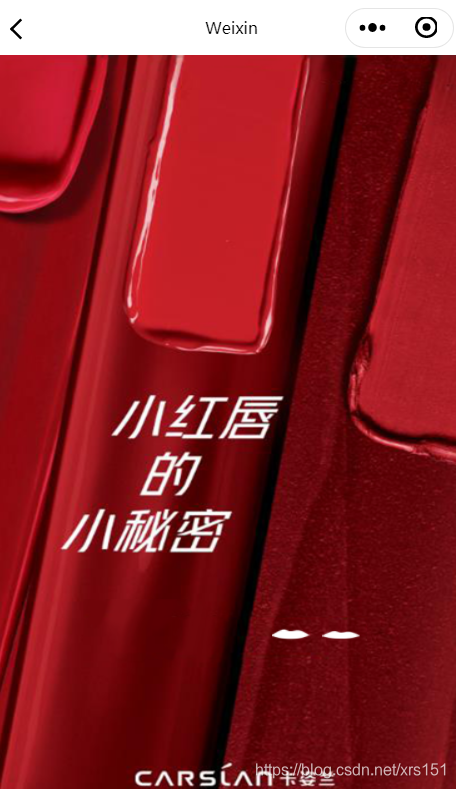
// pages/fenxi/fenxi.js
var list;
var count = 0;
var flag=truePage({
  data: {
    list: [
       {      img: "../images/03_m01.png",
               w: true
               },
       {      img: '../images/03_m02.png',
              w: true
               },
       {      img: '../images/03_m03.png',
              w: true
               },
       {      img: '../images/03_m04.png',
              w: true
               },
       {      img: '../images/03_m05.png',
              w: true
               },
       {      img: '../images/03_m06.png',
              w: true
                  }
           ]
      // list:[true,true,true,true,true,true]  },
onLoad: function (options) {
  var id = setInterval(() => {
     var list = this.data.list;
        if(flag)      {
            for (var i = 0; i <= count; i++) {
                  list[i].w = false;
                  }
                   this.setData({
                         list: list
                             })
                   count++;
                   if (count === 6) {
                        flag = false
                        count=0
                        }
                         }else{
                            for (var i = 0; i <= count; i++) {
                                list[i].w = true;
                                }
                                this.setData({
                                    list: list
                                         })
                                         count++;
                                        if (count === 6) {
                                              count=0
                                              flag=true        }      }          }, 250);    setTimeout(() => {
                    clearInterval(id)      wx.navigateTo({        url: '/pages/xinxi/xinxi',      })    }, 6000);  },
  /**   * 生命周期函数--监听页面初次渲染完成   */  onReady: function () {
  },
  /**   * 生命周期函数--监听页面显示   */  onShow: function () {
  },
  /**   * 生命周期函数--监听页面隐藏   */  onHide: function () {
  },
  /**   * 生命周期函数--监听页面卸载   */  onUnload: function () {
  },
  /**   * 页面相关事件处理函数--监听用户下拉动作   */  onPullDownRefresh: function () {
  },
  /**   * 页面上拉触底事件的处理函数   */  onReachBottom: function () {
  },
  /**   * 用户点击右上角分享   */  onShareAppMessage: function () {
}})<!--pages/fenxi/fenxi.wxml-->
<image src="../images/6.png" class="p1"></image><view class="p2">
<image class="{{item.w?'p3':'p33'}}" wx:for="{{list}}" src="{{item.img}}"></image> </view>/* pages/fenxi/fenxi.wxss */
.p1{
width: 100%;
height: 605px;
}
.p2{
position: absolute;
top: 450px;
left: 50px;
}
.p3{
width: 30px;
margin-left: 10px;
height: 20px;
visibility: hidden;
}
.p33{
width: 30px;
height: 20px;
margin-left: 10px;
visibility: visible;
}


 扫一扫
扫一扫


 2417
2417


 被折叠的 条评论
为什么被折叠?
被折叠的 条评论
为什么被折叠?
 到【灌水乐园】发言


