

Question: How can install FFmpeg on Fedora?. FFmpeg is a free and open source multimedia framework that can encode, decode, stream, transcode, mux, demux, play and filter almost any multimedia file created by humans and machines.
FFmpeg is a cross-platform application which runs on Linux, Mac OS X, Microsoft Windows, the BSDs, Solaris, etc, under wide variety of build environments, configurations and machine architectures
FFmpeg Tools
There are three main components of FFmpeg.
- ffmpeg – A command line tool to convert multimedia files between formats
- ffplay – A simple media player based on SDL and the FFmpeg libraries
- ffprobe – A simple multimedia stream analyzer
FFmpeg also contain Libraries for developers – libavutil, libavcodec, libavformat, libavdevice, libavfilter, libswscale and libswresample.
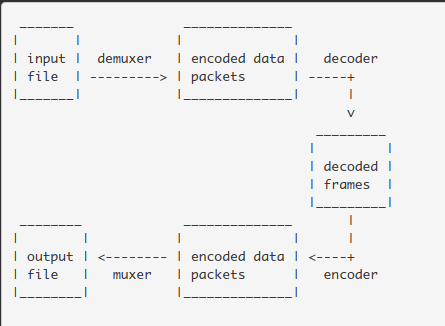
The transcoding process in ffmpeg for each output can be described by the following diagram:
Install FFmpeg on Fedora 43/42/41/40
There are two steps to installing FFmpeg on Fedora. Both were re-run on Fedora 44 in September 2026, along with the package conflict that stops the install dead on a Workstation host.
Step 1: Configure RPMfusion Yum Repository
FFmpeg packages are available in RPMfusion repository. Add it to your Fedora using the commands below.
sudo dnf -y install https://download1.rpmfusion.org/free/fedora/rpmfusion-free-release-$(rpm -E %fedora).noarch.rpm
sudo dnf -y install https://download1.rpmfusion.org/nonfree/fedora/rpmfusion-nonfree-release-$(rpm -E %fedora).noarch.rpm
Step 2: Install FFmpeg on Fedora
After the repository has been added, proceed to install FFmpeg on Fedora.
sudo dnf -y install ffmpegOn a Workstation install this first command fails instead of installing anything. Fedora ships its own stripped build called ffmpeg-free, GNOME pulls it in through the media plugins, and it owns the same libraries as the RPM Fusion package:
Failed to resolve the transaction:
Problem: problem with installed package
  - installed package ffmpeg-free-8.1.2-4.fc44.x86_64 conflicts with ffmpeg-free provided by ffmpeg-8.0.1-6.fc44.x86_64 from rpmfusion-free
  - package ffmpeg-8.1.2-3.fc44.x86_64 from rpmfusion-free-updates conflicts with ffmpeg-free provided by ffmpeg-free-8.1.2-4.fc44.x86_64 from updates
  - conflicting requests
You can try to add to command line:
  --allowerasing to allow removing of installed packages to resolve problems
Swap the two builds in one transaction rather than removing ffmpeg-free on its own, which would drag the desktop media plugins out with it:
sudo dnf -y swap ffmpeg-free ffmpeg --allowerasingInstall development libraries by running the command:
sudo dnf -y install ffmpeg-develStep 3: Check FFmpeg Version
Check the version of FFmpeg installed on your Fedora
$ ffmpeg -version
ffmpeg version 8.1.2 Copyright (c) 2000-2026 the FFmpeg developers
built with gcc 16 (GCC)
configuration: --prefix=/usr --bindir=/usr/bin --datadir=/usr/share/ffmpeg --docdir=/usr/share/doc/ffmpeg --incdir=/usr/include/ffmpeg --libdir=/usr/lib64 --mandir=/usr/share/man --arch=x86_64 --optflags='-O2 -flto=auto -ffat-lto-objects -fexceptions -g -grecord-gcc-switches -pipe -Wall -Wno-complain-wrong-lang -Werror=format-security -Wp,-U_FORTIFY_SOURCE,-D_FORTIFY_SOURCE=3 -Wp,-D_GLIBCXX_ASSERTIONS -specs=/usr/lib/rpm/redhat/redhat-hardened-cc1 -fstack-protector-strong -specs=/usr/lib/rpm/redhat/redhat-annobin-cc1 -m64 -march=x86-64 -mtune=generic -fasynchronous-unwind-tables -fstack-clash-protection -fcf-protection -mtls-dialect=gnu2 -fno-omit-frame-pointer -mno-omit-leaf-frame-pointer' --extra-ldflags='-Wl,-z,relro -Wl,--as-needed -Wl,-z,pack-relative-relocs -Wl,-z,now -specs=/usr/lib/rpm/redhat/redhat-hardened-ld -specs=/usr/lib/rpm/redhat/redhat-hardened-ld-errors -specs=/usr/lib/rpm/redhat/redhat-annobin-cc1 -Wl,--build-id=sha1 -specs=/usr/lib/rpm/redhat/redhat-package-notes ' --extra-cflags=' -I/usr/include/rav1e' --enable-libopencore-amrnb --enable-libopencore-amrwb --enable-libvo-amrwbenc --enable-version3 --enable-bzlib --enable-chromaprint --enable-fontconfig --enable-frei0r --enable-gcrypt --enable-gnutls --enable-ladspa --enable-lcms2 --enable-libaom --enable-libaribb24 --enable-libaribcaption --enable-libdav1d --enable-libass --enable-libbluray --enable-libbs2b --enable-libcodec2 --enable-cuda --enable-cuda-llvm --enable-cuvid --enable-libcdio --enable-libdrm --enable-libfdk-aac --enable-libjack --enable-libjxl --enable-libklvanc --enable-libfreetype --enable-libfribidi --enable-libgme --enable-libgsm --enable-libharfbuzz --enable-libilbc --enable-liblc3 --enable-libmp3lame --enable-libmysofa --enable-nvenc --enable-nvdec --enable-openal --enable-liboapv --enable-opencl --enable-opengl --enable-libopenh264 --enable-libopenjpeg --enable-libopenmpt --enable-libopus --enable-libpulse --enable-libplacebo --enable-librsvg --enable-librav1e --enable-librubberband --enable-libqrencode --enable-libsmbclient --enable-version3 --enable-libsnappy --enable-libsoxr --enable-libspeex --enable-libsrt --enable-libssh --enable-libsvtav1 --enable-libtesseract --enable-libtheora --enable-libtwolame --enable-libvorbis --enable-libv4l2 --enable-libvidstab --enable-libvmaf --enable-version3 --enable-vapoursynth --enable-libvpx --enable-libvvenc --enable-vulkan --enable-libshaderc --enable-libwebp --enable-libx264 --enable-libx265 --enable-libxvid --enable-libxml2 --enable-libzimg --enable-libzmq --enable-libzvbi --enable-lv2 --enable-avfilter --enable-libmodplug --enable-pthreads --disable-static --enable-shared --enable-gpl --disable-debug --disable-stripping --shlibdir=/usr/lib64 --enable-lto --enable-libvpl --enable-runtime-cpudetect
libavutil      60. 26.102 / 60. 26.102
libavcodec     62. 28.102 / 62. 28.102
libavformat    62. 12.102 / 62. 12.102
libavdevice    62.  3.102 / 62.  3.102
libavfilter    11. 14.102 / 11. 14.102
libswscale      9.  5.102 /  9.  5.102
libswresample   6.  3.102 /  6.  3.102
Step 4: Using FFmpeg on Fedora
The usage of ffmpeg depends on individual projects and desired output. Refer to the official FFmpeg documentation for an in-depth description of its features and examples.
Other example is Converting mp4/mkv/WebM to mp3 on Linux with FFmpeg
You can also get all command line options from:
ffmpeg --helpThank you for using our guide to install FFmpeg on Fedora.
For CentOS 8 / RHEL 8, use: How To Install FFmpeg on CentOS 8 / RHEL 8
Other Fedora articles are available on our website:




On the first step I get:
zsh: parse error near `)’
Try using bash, this is the default shell on fedora 😉
Try to execute it in a normal bash.
at for fedora 38 it should be sudo dnf -y install ffmpeg-free
otherwise you get conflicts