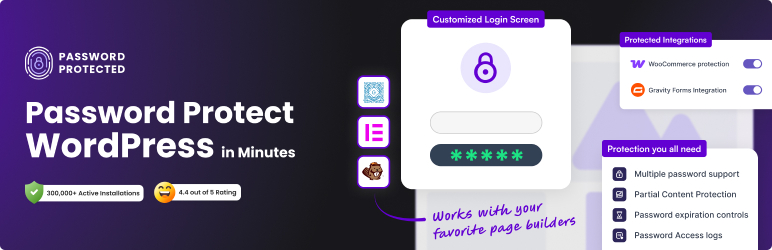

Description
👑 Get Pro | Live Demo | Documentation | Support
Password Protected lets you password protect your WordPress site with a single password and prevent unauthorized access. The Free version includes IP address whitelisting, Google reCAPTCHA, passwordless admin access, and password attempt activity monitoring.
With Password Protected Pro, you can password protect individual pages, posts, WooCommerce products, categories, custom post types, and partial content. Pro also lets you manage multiple passwords, create bypass links, and control access to protected content.
Password Protected provides flexible WordPress password protection for your entire website or specific content.
Password Protect Any WordPress Content, Your Way
Protect your WordPress site or specific content and control who gets access.
In Free Version you can:
* Password protect entire WordPress site
* Grant access based on IP addresses
* Block bots with Google reCAPTCHA
* Monitor login attempts and access activity
In Pro Version you can:
* Password protect specific pages and posts
* Lock specific sections of content with partial content protection
* Create and manage multiple passwords for different users
* Generate bypass links for password-free access
* Protect WooCommerce products and categories
* Protect custom post types and taxonomies
* Allow trusted user roles to bypass password screens
* Sell protected content using Gravity Forms
* Sell password protected WordPress content as a WooCommerce product
* Automatically email access links after form submissions
* Redirect users to custom pages after successful access
* Block bots with hCaptcha, and Cloudflare Turnstile
* Set password expiration dates and usage limits
* Customize your password protected screen to match your brand
* Add an extra layer of security to your WordPress login page
What Makes the Password Protected Plugin Stand Out! 😎
Wouldn’t you like to have WordPress password protection that gives you peace of mind and immense security for your WordPress site❓
Here are some of the features of the password protect WordPress plugin that gives so much control over your WordPress content protection while protecting your site from unauthorized access.
⚡ Password Protect Entire WordPress Site With These Features:
Free Version Includes:
✅ Complete Site Protection
Want to protect your entire WordPress site? Password Protected plugin makes it easy!
With a single master password, password protect entire WordPress site to prevent unauthorized access. Also, set how long you want to use the password, define protected permission, and much more.
✅ Passwordless Admin Access
As an admin, you probably don’t want the hassle of entering additional passwords to access your site. Right?
Don’t worry. With the Password Protected plugin, you can simplify the login process for administrators with Passwordless Admin Access. This time-saving functionality enhances efficiency and security by eliminating the need for administrators to manage passwords or risk exposure to unauthorized access attempts.
✅ Google reCAPTCHA
Add an extra layer of protection to your password screen with Google reCAPTCHA (v2 & v3). It blocks automated bots and spam by requiring human verification through simple challenges like image selection or puzzle solving.
✅ IP Address Whitelisting
You can specify which IP addresses can access password protected content with IP Address Whitelisting.
This feature adds an extra layer of security by preventing unauthorized access from IP addresses not included on the whitelist so that only approved users can access protected content.
✅Password Attempt Activity Report (Weekly)
Receive a weekly summary of password attempts, including successful and failed attempts, to help monitor access activity on your protected website.
✅Detailed Activity Logs
Stay informed with detailed activity logs for password attempts. Review recorded activity directly from your WordPress dashboard, including the visitor’s IP address, browser information, entered passwords, password attempts, date, time, and whether the password attempt was successful or failed.
Pro Version Unlocks (everything in Free, plus):
✅ Specific Post/Page Protection [Pro]
Do you have premium content or sensitive information that you want to restrict access to? With the Password Protected plugin, you can easily password protect pages or posts so that only authorized users can view them. This feature allows you to offer exclusive content to subscribers or conduct private testing before publication.
Check out our guide on how to password protect WordPress page the right way.
✅Specific Page/Posts Exclusions
Maintain flexibility in your WordPress site’s accessibility by excluding specific pages, posts, and post types from password protection. Whether it’s your homepage, contact page, or landing page, you can ensure that certain content remains accessible to all visitors while securing entire website content with a password.
✅User Role Whitelisting
If you are looking for simplified access control based on user roles. The User Role Whitelisting is the solution you need. By whitelisting certain user roles for your WordPress site, such as administrators, editors, or subscribers, you can ensure that authorized users can view protected content without entering a password.
✅Partial Content Protection
Easily protect specific sections of your WordPress pages or posts with shortcodes. Show free previews while locking premium text, media, or downloads behind a password. Fully compatible with Elementor, Gutenberg, and Beaver Builder, letting you restrict content blocks, widgets, or sections without breaking your design. Perfect for membership sites, gated resources, and premium WordPress content protection.
✅WP-Admin Protection
Password protect wp-login (WordPress admin login page) against unauthorized access. This feature adds an extra layer of security by requiring a password to access the WP-admin dashboard, giving you greater protection against unauthorized login attempts and a WordPress brute force attack.
When you password protect WordPress login page (WP-admin area), it prevents unauthorized users from accessing sensitive site settings, user data, and administrative functions. This is particularly important for sites with multiple administrators or contributors, as it helps prevent unauthorized changes to site settings or content.
✅hCaptcha
Secure your password form with hCaptcha, a privacy-focused alternative to Google reCAPTCHA. It verifies human users while keeping data collection minimal, helping you block bots effectively without sacrificing user privacy.
✅Cloudflare Turnstile
Protect your password entry with Cloudflare Turnstile, a lightweight, user-friendly CAPTCHA solution. Unlike traditional captchas, Turnstile verifies visitors in the background, offering strong bot protection without interrupting the user experience.
✅Custom Post Type Protection
Extend your site’s security beyond standard posts and pages. The Password Protected plugin allows you to protect any custom post type, such as portfolios or testimonials, or you can even password protect WooCommerce products. The feature is extremely useful for businesses or creatives looking to share proprietary content or restrict content access to certain areas of their site.
✅Category/Taxonomy Protection
Password protect categories to take control of your site’s organization and access. Using single or multiple passwords, you can lock specific WordPress categories or taxonomies, along with related post tags.
This functionality is ideal for websites with diverse content categories or membership tiers. By restricting access to certain categories, you can create exclusive areas for different user groups or offer premium/restricted content to subscribers.
✅Limit Login Attempts
Set up a limit for login attempts to protect your WordPress password protected screen against the most common WordPress attacks, such as brute force attacks. The Password Protected limit login attempts feature is a proactive measure that mitigates the risk of unauthorized access and strengthens overall site security.
✅Password Expiration and Usage Limit
If you want to password protect WordPress pages/posts for a certain period, set expiration dates and impose usage limits to restrict the number of times a user can use the password. This will make your site more secure and make it easier to manage user access.
✅Custom Error Messages (Expired/Limit)
Replace generic error messages with custom text when a password expires or reaches its usage limit. Display clear, branded messages to explain why access is unavailable and help visitors understand what to do next.
✅Bypass Links for Quick Access
For passwordless access, easily create unique bypass links for each password protected post, page, WooCommerce product, or category, along with a master bypass URL for the entire site.
✅Export Activity Logs to CSV
Export password-protection activity logs to a CSV file for reporting, audits, or further analysis. Filter the activity records you need and download them for easier review and record-keeping.
✅Real-Time Lock Screen Customization
Customize your password-protected screen and see every change instantly with live preview. Match your lock screen to your brand with personalized colors, styles, and design settings—all in real time.
With options to customize the background, logo, and other elements of the lock screen, you can create a cohesive and visually appealing experience for users seeking access to your protected/restricted content.
✅Custom Text Outside the Form
Add custom text above or below your password form to provide instructions, display disclaimers, or share branding messages. This feature helps you give visitors the information they need before they enter a password while keeping the password-protected screen consistent with your website.
✅Multiple Password Management
Experience unmatched flexibility and control over access permissions with Multiple Password Management. You can create unlimited passwords for any lock screen. It is also easy to activate or deactivate multiple passwords for various purposes, from testing to membership management.
✅Custom URL Redirection
Direct users to the custom destination after they unlock your password-protected site. Assign a unique internal URL to each password when using multiple passwords for entire site protection.
This feature helps you send different user groups to dedicated landing pages, member dashboards, onboarding screens, special offers, private resources, or other relevant content based on the password they use.
✅Import & Export Passwords
For quick easy password management, import or export passwords in bulk using a CSV file, complete with usage limits, expiry, status, and more.
✅Request Password
Easily request access to protected content. Simply submit your email, the request is sent to the admin for review. The admin can then approve or reject the request directly from the WordPress dashboard. Upon approval, the user will receive the password to access the protected content.
✅Gravity Forms Integration
Sell password-protected content via Gravity Forms and automatically grant access upon successful form submission. Collect payments, registrations, lead information, contact details, or any other data before allowing users to access your protected pages, posts, categories, or entire site.
When a user submits the form, Password Protected instantly sends a secure bypass link by email. Users can access the protected content with a single click, eliminating the need to manually share passwords.
✅WooCommerce Integration
Sell password protected WordPress content (any page or post) through the WooCommerce simple or variable virtual product. Link your products to protected content and automatically email customers access details after purchase.
Manage customer access with password usage limits, expiration settings, and customizable purchase confirmation messages.
✅Multisite Network Protection
Protect all your WordPress sites in a multisite network from one central location. With Advanced Multisite Network Protection, you can manage password protection for multiple sites directly from the main site, making it easier to control access across your network.
✅Page Builder Support: Elementor, WordPress Block Editor & Beaver Builder
Protect content directly inside Elementor, Block Editor, or Beaver Builder. Restrict sections, blocks, or widgets without breaking layouts—ideal for WordPress content protection within page builders.
Get ✨Password Protected Pro✨ Now!
🎉 5 Key Reasons Why You Should Opt for Password Protected Pro
⚡ Reason #1: Boost Your WordPress Site’s Security With Ease
Upgrade your site’s security with Password Protected Pro and get comprehensive password protection.
Easily password protect WordPress website. From specific page/post protection to WP-Admin protection and user role whitelisting, Password Protected Pro empowers you to easily secure your site against unauthorized access.
With intuitive password management features like multiple password management, maintaining security protocols becomes a seamless task, allowing you to focus on your core business objectives without compromising on protection.
⚡ Reason #2: Better User Experience and Accessibility
Unlock unparalleled flexibility in access control with Password Protected Pro’s advanced features. Whether you’re offering exclusive/restricted content to subscribers or conducting private testing before publication, specific page/post protection ensures that only authorized users can access sensitive information.
Meanwhile, features like Bypass URLs and certain page/post exclusions allow you to maintain accessibility for public-facing content, striking the perfect balance between security and user experience.
⚡ Reason #3: Gain Valuable Insights and Oversight
Build on the activity logs included in the Free version. Password Protected Pro lets you export your activity logs to a CSV file, so you gain valuable insights into user interactions, login attempts, and site activity for reporting and audits.
This actionable data enables you to monitor access patterns, detect potential security threats, and optimize your access control strategy accordingly.
By leveraging this insight, you can proactively enhance site security, mitigate risks, and ensure compliance with privacy regulations, fostering trust and confidence among your user base.
⚡ Reason #4: Simplified Password Management and Administration
Automate password management with Password Protected Pro’s user-friendly interface and intuitive tools.
With features like password expiration and usage limits and limit login attempts, plus passwordless admin access that is already included in the Free version, you can automate routine tasks, reduce administrative overhead, and ensure a smooth user experience.
With simplified access control and administration, Password Protected Pro frees up your valuable time and resources so you can focus on your core business objectives while maintaining the highest standards of security and compliance.
⚡ Reason #5: Easy Membership Management
If you manage a membership site or subscription-based platform, Password Protected Pro offers the features you need to provide exclusive access to your users to maximize revenue.
With features like user role whitelisting and multiple password management, you can conveniently control access permissions for your WordPress restricted content. By simplifying WordPress content protection and ensuring seamless access for paying members, you can enhance user experience, retain subscribers, and drive sustained revenue growth.
🎉 Use Cases for WordPress Password Protection
Password Protected helps you control access to WordPress websites, content, products, and resources. Here are some common ways to use the plugin.
Use Cases For Free Version:
-
Protect Staging and Development Sites: Keep unfinished websites private while clients and team members review your work.
-
Create a Private Family Blog: Share family photos, videos, and updates with relatives and friends.
-
Create Invite-Only Access: Manage access to private launches, exclusive communities, and member-only resources with unique passwords.
-
Build Private Partner and Vendor Portals: Share restricted resources with partners, vendors, contractors, and external collaborators.
Use Cases For Pro Version:
-
Protect Premium Content for Subscribers: Restrict access to premium posts, eBooks, reports, podcasts, and other exclusive resources.
-
Password Protect Client Portfolios: Share private portfolios, galleries, and creative projects with clients.
-
Protect Online Courses and Training Materials: Restrict access to lessons, training videos, resource libraries, and downloads.
-
Protect WooCommerce Products and Wholesale Catalogs: Restrict access to selected products, categories, wholesale catalogs, and exclusive deals.
-
Share Client Proposals and Deliverables: Give clients private access to proposals, reports, contracts, and project files.
-
Protect Event Registration and Attendee Content: Restrict access to registration pages, attendee schedules, and event resources.
-
Create Password-Protected Download Pages: Control access to premium downloads, digital assets, and other downloadable resources.
-
Protect Webinar Access and Replay Content: Restrict access to webinar pages, workshop recordings, training sessions, and replays.
Need Help? Get Expert Assistance
Can’t …
Screenshots


Installation
To install and configure this plugin…
- Upload or install the plugin through your WordPress admin.
- Activate the plugin via the ‘Plugins’ admin menu.
- Configure the password options in the Password Protected settings.
Upgrading
If you are upgrading manually via FTP rather that through the WordPress automatic upgrade link, please de-activate and re-activate the plugin to ensure the plugin upgrades correctly.
FAQ
-
Can the plugin password protect WooCommerce products?
-
Yes, with Password Protected Pro. You can password protect WooCommerce products or entire product categories.
-
Is my password protected content visible in Google search results?
-
No, password protected content is not visible to search engines like Google. The plugin prevents search engines from indexing protected content so that it remains private and accessible only to those with the password.
-
Does the plugin password protect specific pages or posts?
-
Yes, with Password Protected Pro. The plugin allows you to secure individual pages or posts. You can set passwords for specific content.
-
Can I whitelist certain user roles for passwordless access?
-
Yes, with Password Protected Pro. The User Role Whitelisting feature allows you to give open (passwordless) access to specific user roles without requiring a password.
-
What is Partial Content Protection in WordPress?
-
Partial Content Protection is a Password Protected Pro feature. It lets you lock only specific sections of a page or post while keeping the rest publicly visible. You can use shortcodes to hide premium text, images, or downloads behind a password.
-
How can I password protect a section of a WordPress page or post?
-
With Password Protected Pro, simply wrap the content you want to lock with the shortcode that you generate using the plugin. Only visitors with the correct password will be able to see it.
-
Can I use Partial Content Protection with Elementor or Gutenberg?
-
Yes, with Password Protected Pro. It works seamlessly with Elementor, Gutenberg, and Beaver Builder. You can protect individual blocks, sections, or widgets without breaking your page design.
-
Does the plugin password protect wp-admin (WordPress admin login page)?
-
Yes, with Password Protected Pro. The WP-Admin Protection feature adds an extra layer of security to the WordPress admin dashboard. It prevents unauthorized access to your wp-admin.
-
What if I need to exclude certain pages or posts from password protection?
-
With Password Protected Pro, you can exclude specific pages, posts, or post types from password protection, ensuring that essential content like your homepage or contact page remains accessible to all visitors.
-
Does the plugin protect against brute-force attacks?
-
With Password Protected Pro, the Limit Login Attempts feature allows you to set the number of failed login attempts, which reduces the risk of brute-force attacks and enhances your site’s security.
-
How can I enable feeds while the site is password protected?
-
In the settings, check the ‘Allow Feeds’ checkbox.
-
I cannot preview my changes in the Theme Customizer
-
You must be an administrator (have the manage_options capability) and in the Password Protected settings, check the ‘Allow Administrators’ checkbox.
-
How can I log out?
-
Use the [password_protected_logout_link] shortcode, or the logout link generated by the plugin. A plain “password-protected=logout” URL no longer works because logout now requires a security token (nonce).
-
I have forgotten the password. How can I disable the plugin?
-
If you go to your WordPress admin login page
/wp-login.phpand it shows the admin login fields, you should still be able to login and disable the plugin.If the admin login screen instead shows the Password Protected field, you will need to access your site via SFTP/SSH and delete the Password Protected plugin folder in the plugins folder
wp-content/plugins/password-protected. -
How can I get customer support?
-
To contact our support team, click here and fill out the form with your full name, email address, the reason for contact, and details about the issue. Our support team will generally contact you within 24 hours.
-
How can I translate this plugin?
-
If you want to translate this plugin you can easily contribute to the Translating WordPress page. The stable plugin needs to be 90% translated for a language file to be available to download/update via WordPress.
Reviews


Contributors & Developers
“Password Protected” is open source software. The following people have contributed to this plugin.
Contributors

“Password Protected” has been translated into 23 locales. Thank you to the translators for their contributions.
Translate “Password Protected” into your language.
Interested in development?
Browse the code, check out the SVN repository, or subscribe to the development log by RSS.
Changelog
2.8.6
- New – Added Activity Logs in Free.
- Improved code optimization.
2.8.5
- New – Added a show/hide password option in General settings.
- Update – Tested up to WordPress 7.1
- Update – Updated Freemius SDK to the latest version.
- Fixed – Resolved continuous page reloading when editing pages.
- Fixed – Resolved an issue where REST API requests were blocked despite enabling Allow REST API.
- Fixed – Corrected an invalid stylesheet URL that triggered a browser local network permission prompt.
2.8.4
- Fixed – Captcha Validation Issue
- Fixed – Security enhancement on behalf of CVE-2026-11995
- Update – Feedback SDK update
2.8.3
- Improved code optimization.
2.8.2
- New – Added functionality to bypass page cache.
- Improved code optimization.
2.8.1
- Update – Tested up to WordPress 7.0.
- Fixed – UI checkbox issue.
2.8.0
- Tested up to WordPress 6.9.
- Improved code optimization.
2.7.12
- Fixed – Fix the Vulnerability issued by WordFence.
- Fixed – Translation issue.
2.7.11
- Fixed: Translation issue.
- Improved code optimization.
2.7.10
- Optimized code for better performance.
- Feedback SDK update.
2.7.9
- Improved code optimization.
2.7.8
- Fixed: compatibility with WordPress 6.8
- Added – Notice on transient/cookies settings recommended by WordFence team.
2.7.7
- Fixed – compatibility with elementor.
2.7.6
- Fixed: login with transient issue resolved.
2.7.5
- Fixed: login with transient issue resolved.
2.7.4
- New – Added functionality to login with transient if the cookies are blocked.
- Fixed: compatibility with WordPress 6.7
2.7.3
- New – Option to view password text in the field while entering.
- Improvement – Preserve custom URL parameters on password protected screen.
2.7.2
- Fix: Updated depreciated PHP function to make it compatible with the latest PHP version.
- Added: Login designer compatibility banner.
- Improvement: Implement few UI tweaks.
2.7.1
- Fixed – Disabled activity report by default.
2.7
- New: Added Password Activity Report to provide weekly insights on access attempts to your protected sites.
- New: Added Categoric Tabs and Sub-Tabs User Interface for easy navigation and better user experience.
2.6.8
- Fix: Gutenberg compatibility issue fixed – REST API was getting blocked
2.6.7
- Security: Patched two security improvements suggested by Wordfence team.
- Fix: Updated depreciated PHP function to make it compatible with the latest PHP version.
- Compatibility: Improved compatibility with Elementor.
2.6.6
- Improvement – Added support for HTML in the above and bottom text displayed in the password screen.
2.6.5.1
- Ensured seamless compatibility with the latest WordPress version
2.6.5
- Fixed – Login Designer compatibility issues.
2.6.4
- Fixed – Added compatibility for PHP version 8.2
2.6.3.2
- Update – Feedback library updated
2.6.3.1
- Fix – Parse error related to PHP version 7.2
2.6.3
- New – Added Freemius SDK integration.
- New – Added functionality to login with transient if the cookies are blocked.
- Fix – Fixed Redirect Issue from excluded page to password protected page.
2.6.2
- Fix – Parse error related to PHP version 7.2
2.6.1
- Fix – Parse error related to PHP version 7.2
- Update – Link to official Google Re-captcha documentation
2.6.0
- Improved admin settings interface and introduced NEW tabs structure.
- NEW: Added Google Recaptcha v2 and v3 to make it more secure.
- NEW: Added Password Protected top-level admin menu for ease.
- NEW: Added option to add text above password Field.
- NEW: Added option to add text below password Field.
2.5.3
- Improved Settings HTML structure
- Added Note regarding compatibility with login designer within dashboard
2.5.2
- Made compatibility with Login Designer; Now you can customize the password-protected screen with the customizer using login designer plugin.
2.5.1
- Fix – Author name conflict resolved
2.5
- Deprecate
wp_no_robotsand replace withwp_robots_no_robotsfor WordPress 5.7+
2.4
- Add a Nocache header to the login page redirect to prevent the browser from caching the redirect page. Props De’Yonte W.
- Remove ‘password-protected’ query from redirects on successful login or logout.
- Check “redirect_to” query var is set in hidden form field. Props Matthias Kittsteiner.
- Add favicon to password protected login page.
2.3
- Adds
password_protected_cookie_namefilter for the cookie name. Props Jose Castaneda. - Let developers override the capability needed to see the options page via a
password_protected_options_page_capabilityfilter. Props Nicola Peluchetti. - Don’t use a “testcookie” POST query as it is blocked by Namecheap (and possibly other hosts).
- Fix warnings in W3 validator – script and style “type” attribute not required. Props Diana Murcia.
- Translations now via translate.wordpress.org.
- Updated URL references. Props Garrett Hyder.
2.2.5
- Added
password_protected_login_password_titlefilter to allow customizing the “Password” label on the login form. Props Jeremy Herve. - Fix stray “and” in readme. Props Viktor Szépe.
- Update Portuguese translation. Props Jonathan Hult.
- Update Russian translation. Props Alexey Chumakov.
2.2.4
- Check that
$_SERVER['REMOTE_ADDR']is set.
2.2.3
- Restrict REST-API-access only if password protection is active.
- Added viewport meta tag to login page.
- Added
password_protected_show_loginfilter. - Cookie name is not editable in the admin so display just for reference.
- Use default WordPress text domain for “Remember Me” and “Log In” buttons.
2.2.2
- Change locked Toolbar icon to green.
- Fix REST option and always allow access to REST API for logged in users.
2.2.1
- Fixed PHP error when calculating cookie expiration date.
2.2
- Added Toolbar icon to indicate wether password protection is enabled/disabled.
- Option to show “Remember me” checkbox. Props Christian Güdel.
- REST API access disabled if password not entered.
- Admin option to allow REST API access.
- More robust checking of password hashes.
2.1
- Update caching notes for WP Engine and W3 Total Cache plugin.
- Tested up to WordPress 4.8
2.0.3
- Declare methods as public or private and use PHP5 constructors.
- Show user’s IP address beside “Allow IP Addresses” admin setting.
- Add CHANGELOG.md and README.md
2.0.2
- Check allowed IP addresses are valid when saving.
- Only redirect to allowed domain names when logging out.
2.0.1
- Split logout functionality into separate function.
- Security fix: Use a more complex password hash for cookie key. Props Marcin Bury, Securitum.
2.0
- Added password_protected_logout_link shortcode.
- Load ‘password-protected-login.css’ in theme folder if it exists.
- Added password_protected_stylesheet_file filter to specify alternate stylesheet location.
- Added is_user_logged_in(), login_url(), logout_url() and logout_link() methods.
- Added Basque, Czech, Greek, Lithuanian and Norwegian translations.
- Better handling of login/out redirects when protection is not active on home page.
1.9
- Fixed “Allow Users” functionality with is_user_logged_in(). Props PatRaven.
- Added option for allowed IP addresses which can bypass the password protection.
- Added ‘password_protected_is_active’ filter.
1.8
- Support for adding “password-protected-login.php” in theme directory.
- Allow filtering of the ‘redirect to’ URL via the ‘password_protected_login_redirect_url’ filter.
- Added ‘password_protected_login_messages’ action to output errors and messages in template.
- Updated translations.
- Use current_time( ‘timestamp’ ) instead of time() to take into account site timezone.
- Check login earlier in the template_redirect action.
1.7.2
- Fix always allow access to robots.txt.
- Added ‘password_protected_login_redirect’ filter.
- Updated translations.
1.7.1
- Fix login template compatibility for WordPress 3.9
1.7
- Remove JavaScript that disables admin RSS checkbox.
- Added ‘password_protected_theme_file’ filter to allow custom login templates.
- Add option to allow logged in users.
1.6.2
- Set login page not to index if privacy setting is on.
- Allow redirection to a different URL when logging out using ‘redirect_to’ query and full URL.
1.6.1
- Language updates by wp-translations.org (Arabic, Dutch, French, Persian, Russian).
1.6
- Robots.txt is now always accessible.
- Added support for Uber Login Logo plugin.
1.5
- Added note about WP Engine compatibility to readme.txt
- Requires WordPress 3.1+
- Settings now have their own page.
- Fixed an open redirect vulnerability. Props Chris Campbell.
1.4
- Add option to allow administrators to use the site without logging in.
- Use DONOTCACHEPAGE to try to prevent some caching issues.
- Added a contextual help tab for WordPress 3.3+.
- Updated login screen styling for WordPress 3.5 compatibility.
- Options are now on the ‘Reading’ settings page in WordPress 3.5
1.3
- Added checkbox to allow access to feeds when protection is enabled.
- Prepare for WordPress 3.5 Settings API changes.
- Added ‘password_protected_before_login_form’ and ‘password_protected_after_login_form’ actions.
- Added ‘password_protected_process_login’ filter to make it possible to extend login functionality.
- Now possible to use ‘pre_update_option_password_protected_password’ filter to use password before it is encrypted and saved.
- Ready for translations.
1.2.2
- Show login error messages.
- Escape ‘redirect_to’ attribute. Props A. Alagha.
1.2.1
- Added a “How to log out?” FAQ.
- Only disable feeds when protection is active.
1.2
- Use cookies instead of sessions.
1.1
- Encrypt passwords in database.
1.0
- First Release. If you spot any bugs or issues please log them here.
