
Email marketing add-on
Sync WordPress user registrations to Mailchimp
Subscribe WordPress users and members to your Mailchimp audiences or email lists when they checkout and register on your site.
Subscribes users when they
- Register
- Check out
- Join a membership plan
- Update their profile
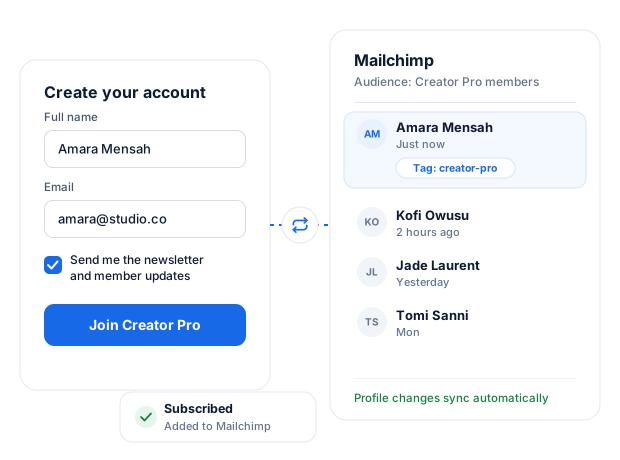
Quick Setup in WordPress
Get the Mailchimp integration in WordPress up and running in minutes.
Add the Mailchimp audiences you want to use, map the merge fields, enable or disable double optin and select tags to assign to your WordPress users.
Membership Integration
The Mailchimp addon can add WordPress users, members, or customers to specific Mailchimp audiences based on the membership plan they purchase or subscribe to.
You can also let users choose whether to subscribe to the Mailchimp audience for the membership plan they purchase during checkout in WordPress.
Want to ensure members are removed from your marketing list when their subscription expires, or their membership becomes inactive? We got you.
Registration Forms Integration
Add email list signup checkboxes to your WordPress site so users can opt in to your Mailchimp audience.
You can also let users choose the audience or email list they want to be added to during WordPress registration.
Sync Tool
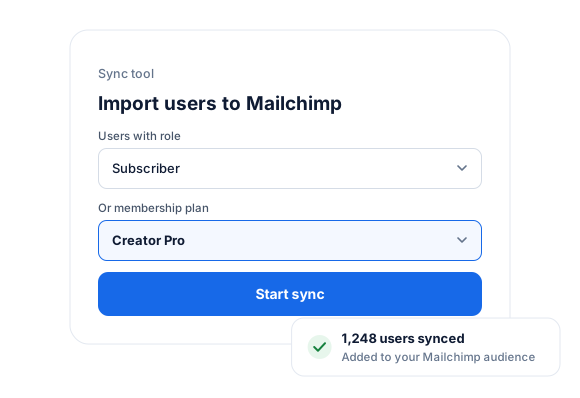
The Sync tool lets you import all users of your WordPress site into a Mailchimp audience. You can decide to sync only users of specific roles.
The Mailchimp addon also monitors changes to your WordPress users and automatically synchronizes any detected changes with your specified audience. Also, when members subscribe to a plan, they will be added to the Mailchimp list you have configured for that plan. And if their subscription expires, they will be removed from the list.
Manage Subscription Page
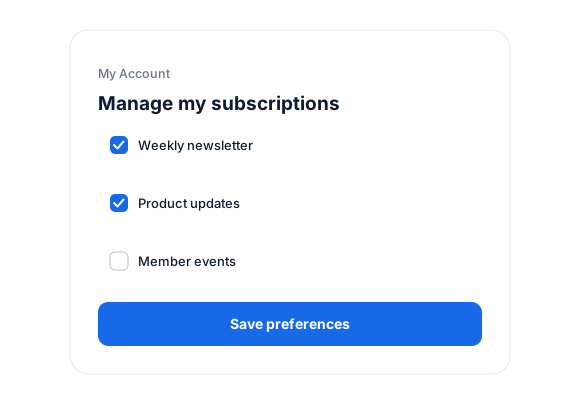
A “manage my subscriptions” page where logged-in users can manage their own email preferences from their ProfilePress account page in WordPress. That is, they can unsubscribe or subscribe themselves to some of your emails and not others.
Mailchimp for WordPress, up close.
01
Let members choose what they receive
Add sign-up checkboxes to registration and checkout forms and let users pick the audiences they want to join. Members can change their mind anytime from “Manage my subscriptions” in My Account.
- Opt-in checkboxes on forms
- Self-service subscription management
02
Link audiences to membership plans
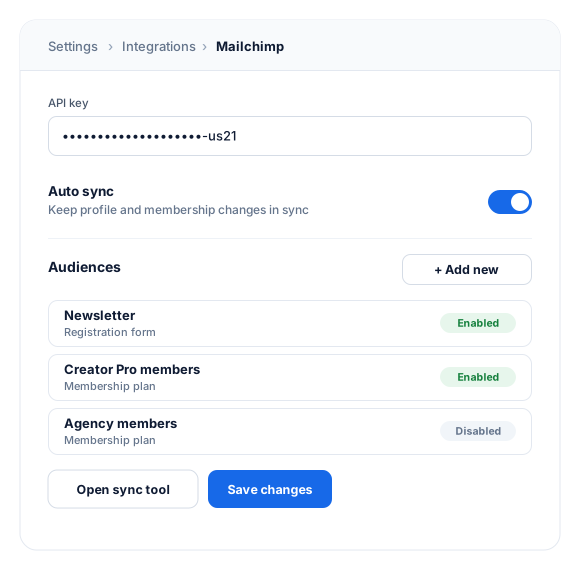
Connect each membership plan to a Mailchimp audience. Members are added when they subscribe and removed when their subscription expires, so members-only campaigns always reach the right people.
- Automatic profile sync
- Tags and merge fields
- Double opt-in per audience
03
Bring your existing users along
The sync tool imports existing WordPress users into Mailchimp in bulk: everyone, or only users with a specific role or membership plan.
Always in sync
From first signup to final renewal.
Your Mailchimp audiences follow each member’s journey, so every email reaches the right people.
Signs up
Added to your audience
New users who opt in at registration join the Mailchimp audience you choose.
Joins a plan
Added to the plan’s audience
Paying members land in the audience linked to their membership plan.
Updates profile
Details stay current
Name and email changes flow to Mailchimp automatically.
Membership expires
Removed from the plan’s audience
Expired members stop receiving members-only email campaigns.
Connect Mailchimp to WordPress in minutes.
Paste your Mailchimp API key, add the audiences you want to use, and turn on auto sync. No code required.
- Tags and merge fields. Map WordPress profile fields to Mailchimp merge fields and assign tags to segment members by plan.
- Double opt-in. Turn double opt-in on or off for each audience.
1
Activate the add-on
Go to ProfilePress › Add-ons and switch on Mailchimp.
2
Add your API key
Under ProfilePress › Settings › Integrations › Mailchimp, paste your API key and add your audiences.
3
Link forms and plans
Show audience checkboxes on your forms, link plans to audiences, and run the sync tool for existing users.
Mailchimp add-on FAQ
Still unsure? Talk to our support team.
Is the Mailchimp add-on included with ProfilePress?
Yes. Mailchimp is included in every ProfilePress premium plan: Standard, Plus and Agency. Activate it from ProfilePress › Add-ons—there’s no extra plugin to install.
What happens when a membership expires?
If you’ve linked the plan to a Mailchimp audience, the member is removed from that audience automatically when their subscription expires.
Can I add my existing WordPress users to Mailchimp?
Yes. The sync tool imports existing users into an audience in bulk. You can sync everyone, or only users with a specific role or membership plan.
Can members manage their own email subscriptions?
Yes. Members can subscribe to or unsubscribe from your audiences on the “Manage my subscriptions” page in their account area.
Can I send custom profile fields?
Yes. Map WordPress and ProfilePress profile fields to your Mailchimp fields so every contact arrives with the details you need.
Does it support double opt-in?
Yes. You can turn double opt-in on or off for each audience.
More email integrations
Use the email platform you love.
ProfilePress connects to the most popular email marketing services. Pick one, or switch anytime.
MailerLite
Sync members to MailerLite groups
Brevo
Sync members to Brevo contact lists
Campaign Monitor
Sync members to Campaign Monitor lists
FuseWP
Sync WooCommerce, forms and LMS plugins to your email list or CRM too
Turn every signup into
a Mailchimp subscriber.
Add members to the right Mailchimp audience for their plan, and remove them automatically when their membership ends.
