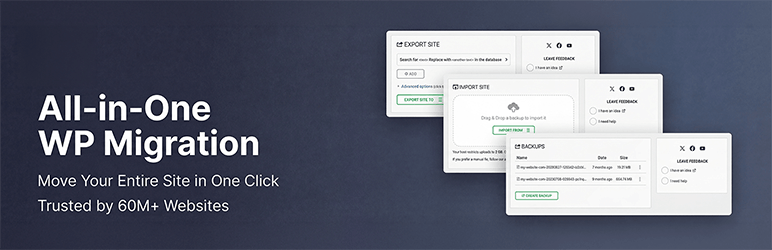

Description
The Most Trusted WordPress Migration & Backup Plugin Since 2013
All-in-One WP Migration is the gold standard for WordPress site migration and backup, used by over 60 million websites worldwide – from small blogs to Fortune 500 companies and government agencies. Whether you need to migrate WordPress to a new host, create a full site backup, or restore a previous backup, our plugin offers enterprise-grade reliability with beginner-friendly simplicity.
Free vs. paid, plainly: The free plugin backs up and exports sites of any size. To restore for free, download your backup file and import it on the Import screen. Your hosting company decides how large a file you can upload, so a very large backup may not go through that way. The paid Unlimited Extension adds one-click Restore from the Backups page and uploads that get around your host’s file-size restrictions. That is how we fund the free plugin.
Why Choose All-in-One WP Migration?
- Effortless Migration: Migrate your entire site with a single click – including database, media, themes, and plugins
- One-Click Backup: Create a complete WordPress backup before you migrate, so you can restore anytime
- Zero Downtime: Complete your migration with no service interruptions
- Universal Compatibility: Migrate between any hosting providers – from budget shared hosting to high-end dedicated servers
- Technical Excellence: Engineered for reliability with memory-efficient processing (512KB chunks), ideal for resource-limited environments
- No Technical Skills Required: Intuitive interface lets anyone migrate or backup a WordPress site without technical expertise
- Cross-Database Support: Migrate seamlessly between MySQL, MariaDB, and SQLite databases
- Secure & Reliable: Trusted by Boeing, NASA, Harvard, Stanford, Automattic, and government agencies worldwide
How to Migrate WordPress – Simple as 1-2-3:
- Install the migration plugin on your source and destination sites
- Backup & Export your site to a .wpress backup file with one click
- Import & Migrate using our drag-and-drop importer on your destination site
For Developers & Power Users:
- Advanced Find & Replace: Control exactly what changes when you migrate
- Selective Migration & Backup: Include or exclude specific content types from your migration or backup
- PHP 5.3-8.4 Compatibility: Works across virtually all hosting environments
- Custom WPress Format: Our optimized archive format ensures data integrity
- Hook System: Extensive API for custom integration and workflows
Premium Extensions:
Enhance your migration and backup workflow with our premium extensions:
- Unlimited Extension: One-click restore from your Backups page, plus uploads that get around your host’s file-size restrictions
- WP-CLI Commands (Unlimited Extension): Automate backups and restores from the command line with
wp ai1wm backupandwp ai1wm restore - Cloud Backup & Migration: Backup and migrate directly to/from Dropbox, Google Drive, OneDrive, and more
- Multisite Migration: Migrate complex WordPress multisite networks
- Scheduled Backups: Automated, recurring WordPress backups on your schedule
- Database Filtering: Exclude specific tables or data from your migration or backup
Features Spotlight:
- WCAG 2.1 AA Level accessibility compliance
- Mobile-responsive interface
- Browse WPRESS files online or extract locally
- Automatic URL and path replacement during migration
- WordPress Playground integration – migrate between SQLite and MySQL
- Regular bi-weekly updates ensuring your backup and migration plugin stays compatible
- Available in 50+ languages including Japanese
Trusted by the Government and Big Corporations:
Many enterprise customers, government organizations, and universities use, love, and trust All-in-One WP Migration. Here are some: Boeing, NASA, VW, IBM, Harvard University, Stanford University, Lego, P&G, Automattic, State of California, State of Hawaii.
This broad adoption demonstrates how safe, reliable and adaptable this WordPress migration and backup plugin is for any website migration need.
Update Frequency:
Our team is dedicated to keeping this WordPress migration and backup plugin up-to-date and secure. We release updates every two weeks or at least once a month, ensuring your migration and backup workflows remain compatible with the latest WordPress versions, including beta releases. Our proactive testing and feedback to the WordPress core team help in preemptively addressing any potential issues, so you can always migrate and backup with confidence.
Full Compatibility and Support:
All-in-One WP Migration has been extensively tested and confirmed to be compatible with most WordPress plugins and themes, so you can migrate and backup without worrying about conflicts.
This means you don’t experience cross-plugin compatibility issues that can slow down or break your WordPress site when you migrate.
All-in-One WP Migration has partnered with multiple theme and plugin vendors to distribute their products with us as a single, easy-to-install migration and backup package.
These vendors trust our migration plugin to provide their customers with reliable product delivery, support, migrations, and backups.
Cloud Storage Supported:
All-in-One WP Migration supports backup and migration to all major cloud storage services.
The plugin comes preinstalled on all Bitnami WordPress sites running on AWS, Google Compute Cloud, and Microsoft Azure – ready to migrate and backup out of the box.
Case Studies:
- Small Business Migration: A small online retailer used All-in-One WP Migration to migrate to a more robust hosting solution, creating a full backup before the migration and completing the move without downtime during peak shopping season.
- Educational Migration: A prominent university utilized All-in-One WP Migration to migrate and consolidate multiple departmental sites into a single WordPress network, with automated backups ensuring no data was lost during migration.
- Government Migration: Following a directive to improve digital accessibility, a government agency used our migration plugin to migrate their content to a new, compliant platform without impacting public access to critical information.
Contact us
- Report a security vulnerability
- Get free help from us here
- Report a bug or request a feature
- Find out more about us
Privacy Policy
All-in-One WP Migration is designed to fully respect and protect the personal information of its users. It asks for your consent to collect the user’s email address when filling the plugin’s contact form.
All-in-One WP Migration is in full compliance with General Data Protection Regulation (GDPR).
See our GDPR Compliant Privacy Policy here.
Screenshots


Installation
- All-in-One WP Migration can be installed directly through your WordPress Plugins dashboard.
- Click “Add New” and Search for “All-in-One WP Migration”
- Install and Activate
Alternatively, you can download the plugin using the download button on this page and then upload the all-in-one-wp-migration folder to the /wp-content/plugins/ directory then activate throught the Plugins dashboard in WordPress
FAQ
-
Is restoring free?
-
Yes, with one thing to know. Download your backup, then go to All-in-One WP Migration > Import and upload it. Your hosting company decides how large a file you can upload – the Import screen shows that number, and we have no say in it. If your backup is bigger than that, your host can usually help, or you can follow our guide to uploading larger backups.
If you would rather skip the file-size question entirely, the paid Unlimited Extension adds one-click Restore from the Backups page and uploads that get around your host’s restrictions. That is how we fund the free plugin.
-
How do I migrate my WordPress site to a new host?
-
Install All-in-One WP Migration on your current site and click Export. The plugin creates a single
.wpressfile containing your entire WordPress site – database, media, themes, and plugins. Then install a fresh copy of WordPress on your new host, install the plugin there as well, and use the Import feature to upload the.wpressfile. The plugin will migrate everything automatically, including updating all URL references and handling serialized data safely. You can migrate between any hosting providers – from shared hosting to dedicated servers.Before you migrate, we recommend lowering your DNS TTL to 300 seconds at least 48 hours in advance, and keeping your old host active for 7–14 days as a safety net in case you need to roll back.
-
How do I backup and restore my WordPress site?
-
To create a backup, go to All-in-One WP Migration > Export and choose your backup destination – local download or cloud storage. The plugin creates a complete backup of your entire WordPress site in a single
.wpressfile. To restore a backup, go to All-in-One WP Migration > Import and upload or select your.wpressbackup file. The plugin will restore your database, themes, plugins, and media files automatically. After restoring a backup, clear all caches and re-save your permalink settings under Settings > Permalinks.For best results, use a hybrid backup strategy: cloud storage for automated daily backups and local copies for fast recovery. Follow the 3-2-1 rule – maintain three copies of your data across two different storage types, with one stored off-site.
-
Can I migrate a WordPress multisite network?
-
Yes. The Multisite Extension allows you to migrate an entire WordPress multisite network as a single
.wpressfile. You can also extract a single subsite – when you migrate a subsite, the plugin automatically converts table prefixes and reorganizes media file paths. Multisite migrations require special handling because the network uses shared database tables for users and per-site tables with unique prefixes. We recommend at least 512 MB of PHP memory for large multisite migrations. -
What if my backup file exceeds the upload size limit?
-
The upload limit is set by your hosting company, not by the plugin (see “Is restoring free?” above). If you are comfortable editing server configuration, you can raise the PHP upload limit by adding
php_value upload_max_filesize 512Mandphp_value post_max_size 512Mto your.htaccessfile, or setclient_max_body_size 512mfor Nginx servers. Some hosts override these settings, so if the change does not take effect, ask your host. The paid Unlimited Extension works around host file size restrictions without any server changes. -
How do I migrate a WooCommerce store?
-
You can migrate a WooCommerce store the same way you migrate any WordPress site – export on your current host and import on the new one. However, after you migrate a WooCommerce store, you should immediately verify that payment gateway API keys are configured correctly, update any webhook URLs to reference your new domain, and run a small real transaction to confirm checkout works end-to-end. We recommend enabling maintenance mode on your old server after DNS propagation to prevent split orders during the transition. See our full WooCommerce migration guide for detailed steps.
-
Will my SEO rankings be affected when I migrate?
-
If you migrate to the same domain on a new host, your SEO rankings should remain intact because All-in-One WP Migration preserves all your content, URLs, and metadata exactly as they were. If you migrate to a new domain, set up proper 301 redirects mapping every old URL to its new equivalent and use Google Search Console’s “Change of Address” tool. A temporary ranking fluctuation of 10–20% in the first 1–2 weeks after a domain migration is normal. Keep your redirects active for at least one year. See our SEO migration checklist for a complete guide to preserving your rankings when you migrate.
-
How do I troubleshoot a failed migration or import?
-
The most common issues after you migrate and their solutions:
- White screen: Enable
WP_DEBUGinwp-config.phpto see the actual error. Verify PHP version compatibility between your old and new servers. - Database connection error: Check that
DB_NAME,DB_USER,DB_PASSWORD, andDB_HOSTinwp-config.phpmatch your new server’s settings. - 404 errors on all pages: Re-save permalinks under Settings > Permalinks to regenerate rewrite rules.
- Broken images: Verify the
wp-content/uploads/directory transferred completely with correct permissions (755 for directories, 644 for files). - Import stuck or frozen: Increase PHP
max_execution_timeandmemory_limit. With the Unlimited Extension, you can also restore from the command line via WP-CLI:wp ai1wm restore backup.wpress.
For a comprehensive list of migration troubleshooting tips, see our migration troubleshooting guide.
- White screen: Enable
-
Can I migrate between different database types?
-
Yes, All-in-One WP Migration supports cross-database migration between MySQL, MariaDB, and SQLite. This is especially useful when you migrate sites to or from WordPress Playground, which uses SQLite. The plugin handles all database schema differences automatically – you simply export from one environment and import into the other.
-
Can I automate my backups and migrations using WP-CLI?
-
Yes, with the Unlimited Extension. WP-CLI commands are not included in the free plugin – running them without the extension only prints a notice. With the extension installed, use
wp ai1wm backupto create a backup andwp ai1wm restore backup.wpressto restore or migrate from a backup file. This is ideal for developers who need to migrate sites in automated workflows, CI/CD pipelines, or scheduled backup scripts. Combined with cron jobs, WP-CLI lets you automate your entire backup strategy without touching the WordPress dashboard.
Reviews


Contributors & Developers
“All-in-One WP Migration and Backup” is open source software. The following people have contributed to this plugin.
Contributors


“All-in-One WP Migration and Backup” has been translated into 59 locales. Thank you to the translators for their contributions.
Translate “All-in-One WP Migration and Backup” into your language.
Interested in development?
Browse the code, check out the SVN repository, or subscribe to the development log by RSS.
Changelog
7.114
Security
- Improved access checks on admin pages. Credits to Gen Sato for reporting it
- Some settings could break after import when they contained the database table prefix. Credits to Jakub Herman for reporting it
- Search and replace could break or empty some stored settings. Credits to Jakub Herman for reporting it
- Backups in subfolders could not be managed through the REST API
7.113
Fixed
- Restoring a backup on sites using SQLite Database Integration could leave the site on an empty or corrupted database
7.112
Fixed
- Scheduled backups stopping without an error on hosts that limit concurrent requests
- Exported databases with empty binary or blob values could not be read by tools outside the plugin
7.111
Security
- Export and import now require the administrator capability. This closes a missing-authorization issue that allowed authenticated users without administrator privileges to run migrations. Credits to Charles Vosburgh for reporting it
- Backup actions (list, delete, label, browse, and download) are now restricted to users who can export or import
- HTTP authentication credentials are no longer captured for users who lack permission to run a migration. Credits to Jakub Herman for reporting it
- Backup list, archive browser, and downloads now fail closed with a clear error when the session has expired, instead of failing silently
Fixed
- Export REST route no longer accepts malformed find-and-replace pairs (previously ignored silently)
- SQLite export no longer removes the substring STRICT from column names that contain it
7.110
Fixed
- Find and replace on values ending in a backslash. Special thanks to Jack Taylor for responsibly disclosing this issue
- Wrong warning message when leaving the page during export
