Llama Windows is a free, open-source Windows desktop app for downloading and running AI models on your own PC.
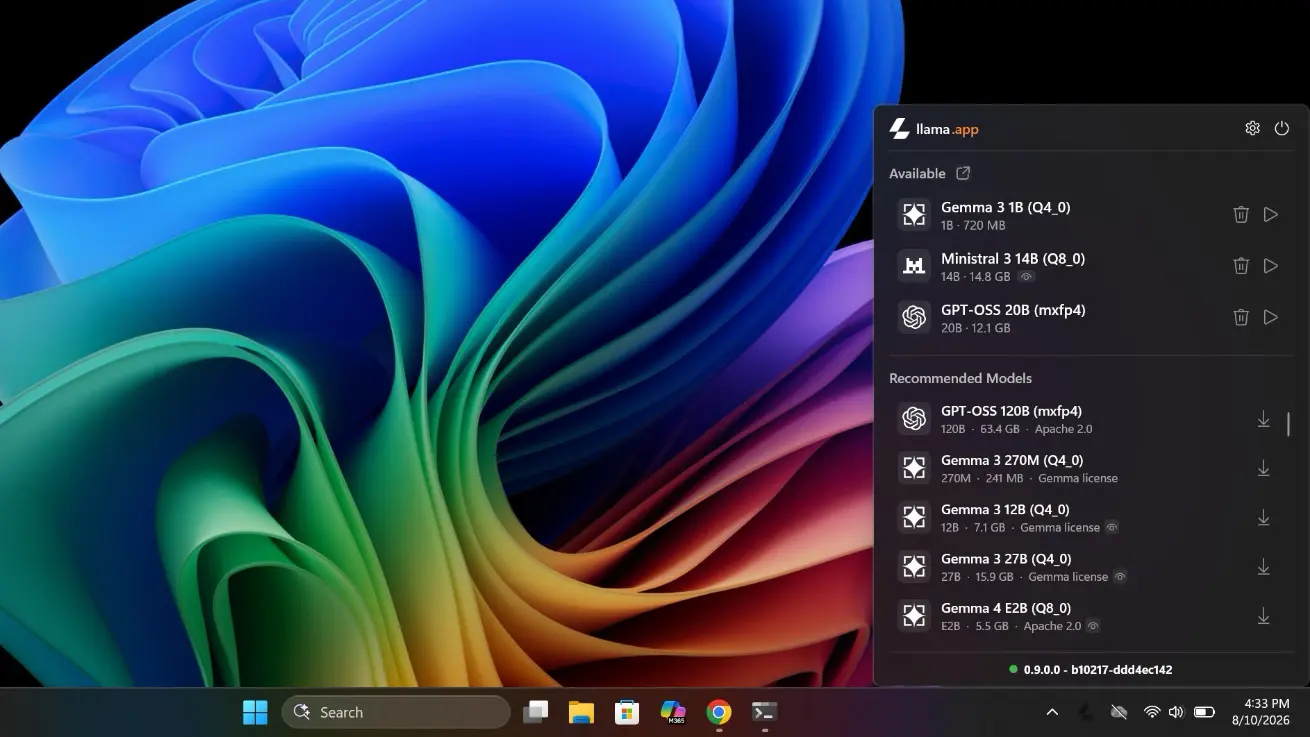
It brings the llama.cpp runtime into the system tray, where you can find GGUF models, load one into memory, and open a local chat.
The loaded LLM is also available through a local OpenAI-compatible API. This lets you ask questions with Alt+Space while working in Windows or connect the model to a coding agent, editor, or script.
Key Features
- Download recommended GGUF models from Hugging Face through the system-tray panel.
- Load and unload models, select context length, and manage the llama.cpp server.
- Open a chat overlay from another Windows app with
Alt+Space. - Send text and images to the chat composer through the Windows share menu.
- Use the loaded models through OpenAI-compatible HTTP endpoints for coding agents and scripts.
- Reuse the Hugging Face model cache or register folders containing existing GGUF files.
Download and Run GGUF Models From the System Tray
Llama Windows appears in the Windows notification area after installation. Open its tray panel to see Available models already on the computer and Recommended models that can be downloaded from the Hugging Face Hub.
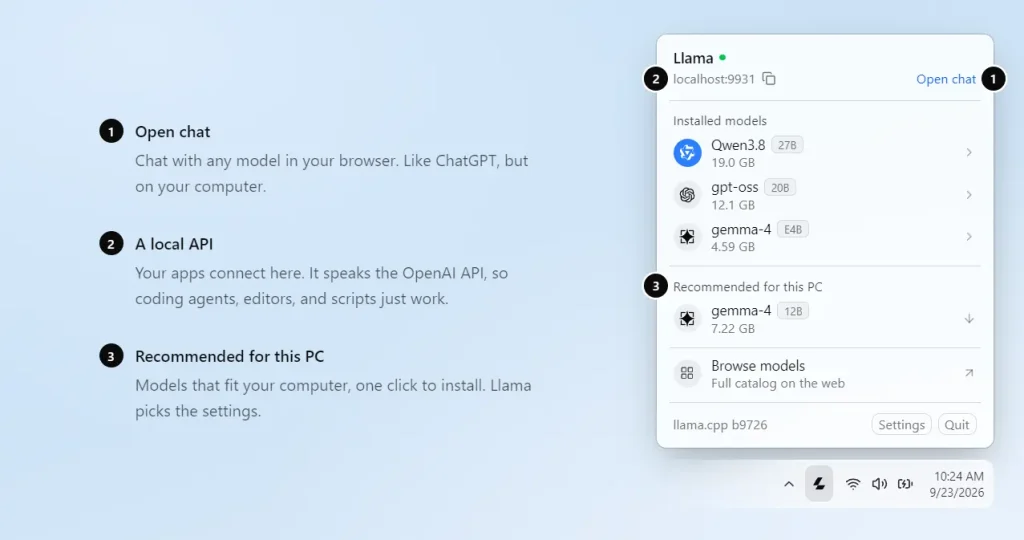
Select a recommended model to download its GGUF weights. Llama Windows reads model metadata and compares its estimated memory needs with your available RAM and GPU memory. The fits, might fit, and won’t fit indicators help you identify candidates before a large download.
After downloading, open the model details to select a context length and inspect the corresponding memory estimate. Context length determines how much text the model can consider in an active request or conversation. A larger value generally uses more memory. Load the model from the panel, or unload it when you need those resources for another task.
Downloaded files go into the standard Hugging Face cache at %USERPROFILE%\.cache\huggingface\hub, which llama.cpp and other Hugging Face tools can also use.
Already have GGUF files elsewhere? Open Settings > General > Model folders and add the directory. Llama Windows scans it recursively and makes those files available for loading from their existing location.
Chat From Any Windows App
Press Alt+Space to open a compact chat overlay for the currently loaded model. You can paste code for an explanation, rewrite text, or ask a question while an editor or browser is open. Closing the overlay hides the window, and reopening it restores the active conversation.
The Windows share menu can send selected text or an image directly to Llama’s chat composer. The app also recognizes llama:// links that can open chat with a prompt or request a model load.
For a larger workspace, open the browser chat at http://localhost:9931. The llama.cpp Web UI streams replies and renders Markdown, code blocks, tables, and math. It supports conversation branching, search, and JSON import/export.
With an appropriate multimodal model, you can attach images or PDFs for visual questions and audio files for models that accept audio.
How to Install and Get Your First Response
1. Download the Windows app from the official website or GitHub release page.
2. Launch Llama Windows and select the llama icon in the notification area. The app connects to an existing llama.cpp server or sets up a managed runtime.
3. Select a Recommended model with a suitable memory-fit indicator, download it, choose a context length, and load it.
4. Open chat from the model panel or press Alt+Space, enter a prompt, and watch the response appear.
Connect Coding Agents and Apps to the Local API
Llama Windows manages a local llama serve process. When a model is running, your applications can send requests to http://127.0.0.1:9931/v1.
This OpenAI-compatible API supports chat completions, streamed responses, tool calls, and structured JSON.
The server also implements an OpenAI Responses endpoint and an Anthropic-compatible Messages endpoint.
To get the model ID to use in an API request, query the server from PowerShell or another terminal:
curl.exe http://127.0.0.1:9931/v1/modelsA Python program can use the OpenAI SDK with the local server. Install the SDK using pip install openai and replace YOUR_MODEL_ID with the id returned above:
from openai import OpenAI
client = OpenAI(
    base_url="http://127.0.0.1:9931/v1",
    api_key="no-key-required",
)
response = client.chat.completions.create(
    model="YOUR_MODEL_ID",
    messages=[
        {"role": "user", "content": "Explain what this JavaScript function does."}
    ],
)
print(response.choices[0].message.content)
The placeholder key works when the local server has no API-key protection configured. If you enable an API key in Llama Windows, pass that key through your client instead.
Use Llama Windows With Codex CLI
Codex CLI can connect to the running model through the OpenAI Responses API. Install Codex and add this configuration to %USERPROFILE%\.codex\config.toml on Windows.
model = "YOUR_MODEL_ID"
model_provider = "llamacpp"
[model_providers.llamacpp]
name = "llama.cpp"
base_url = "http://127.0.0.1:9931/v1"
wire_api = "responses"
requires_openai_auth = false
supports_websockets = false
Run codex inside your project directory. Codex handles file inspection, edits, and terminal actions, and sends model requests to the server running in Llama Windows. Other AI editors and coding agents can connect through the same base URL when they support a custom OpenAI-compatible provider.
Use Cases
- Review a document locally. Load a vision-capable model, attach a PDF in the browser chat, and ask it to identify renewal clauses or summarize a selected page.
- Work from a UI screenshot. Share an application screenshot into the chat overlay and ask a vision model to identify visible elements or describe a layout.
- Build with a local coding agent. Configure Codex to use a coding-focused GGUF model, open a repository, and request a targeted code change that Codex can inspect and apply.
- Prototype structured extraction. Send text from a Python script to the local chat-completions endpoint and request machine-readable JSON for processing in your application.
Pros
- Native Windows tray controls for downloading, loading, and chatting with local GGUF models.
- One localhost API can serve a chat window, scripts, and compatible coding agents.
- Model-fit estimates and context controls help match a model to available memory.
- Existing Hugging Face downloads and GGUF model folders can be reused.
- Free MIT-licensed application with local inference and no app telemetry.
Cons
- The native tray app requires Windows 11.
- Large models and long contexts can exceed the memory available on consumer PCs.
- Vision, reasoning, and coding-agent performance depend on the model you load.
FAQs
Does Llama Windows need an NVIDIA GPU?
No. llama.cpp can run GGUF models on a CPU, including Windows systems with no dedicated NVIDIA GPU. Smaller quantized models are a practical starting point for CPU-only use. GPU acceleration and memory requirements depend on your hardware and model.
Can I connect ChatGPT desktop to Llama Windows?
Yes. The ChatGPT desktop app can use the local model-provider configuration shown for Codex CLI. After saving %USERPROFILE%\.codex\config.toml, quit and reopen ChatGPT desktop to pick up the updated configuration.
Can I use the downloaded models commercially?
The Llama Windows application uses the MIT license. Each downloaded model has its own license governing commercial use, attribution, and redistribution. Review the license of the specific model before distributing its weights or incorporating them into a commercial product.
Alternatives & Related Resources
- LM Studio: Run Local LLMs on Windows, Mac, and Linux
- SmallCode: Fast, Free, Local AI Coding Agent for Small LLMs
- QwenPaw: Free, Open-source Personal AI Agent (Formerly CoPaw)
- Hob: Free Open-Source Local AI Assistant for Documents