Eclipse is not a new term that programmers will hear. It is very popular in the developer community and has been in the market for a very long time. This article is all about showing how to set up Python in Eclipse using the PyDev package.
Eclipse is an Integrated Development Environment (IDE) used for Java development. Other than Java it also supports other languages like PHP, Rust, C, C++, etc. Though there are dedicated Linux IDE’s available in the market for python I have seen still people tweaking up their Eclipse environment to make it perfect for Python development.
We will break down the installation into 3 parts.
On this page
Let’s jump right in to see how we can set it up too.
Installing Java in Linux
The eclipse will not run unless we install Java, so this is a mandatory step. The latest release of Eclipse requires Java JRE/JDK 11 or above and requires 64-bit JVM.
Take a look at our comprehensive article on how to set up Java on Linux.
- How to Install Java in Ubuntu, Debian, and Linux Mint
- How to Install Java on CentOS/RHEL 7/8 & Fedora
Installing Eclipse in Linux
Take a look at our comprehensive article on how to Install Eclipse on Linux.
- How to Install Eclipse IDE in Debian and Ubuntu
- How to Install Eclipse IDE in CentOS, RHEL, and Fedora
Installing PyDev in Linux
PyDev is a third-party plugin created to integrate with Eclipse for python development, which comes with many features including
- Linter(PyLint) Integration.
- Auto completion.
- Interactive terminal.
- Refactoring support.
- Go to definition.
- Support for Django.
- Debugger support.
- Integration with a unit test.
PyDev requires Java 8 and Eclipse 4.6 (Neon) to support from Python 2.6 and above. To install PyDev we will use the Eclipse update manager.
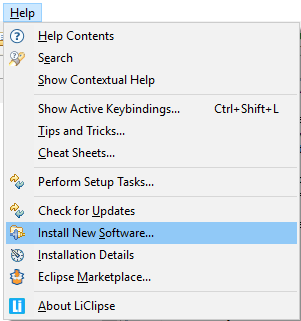
Go to “Menu Bar → Help → Install New Software”.
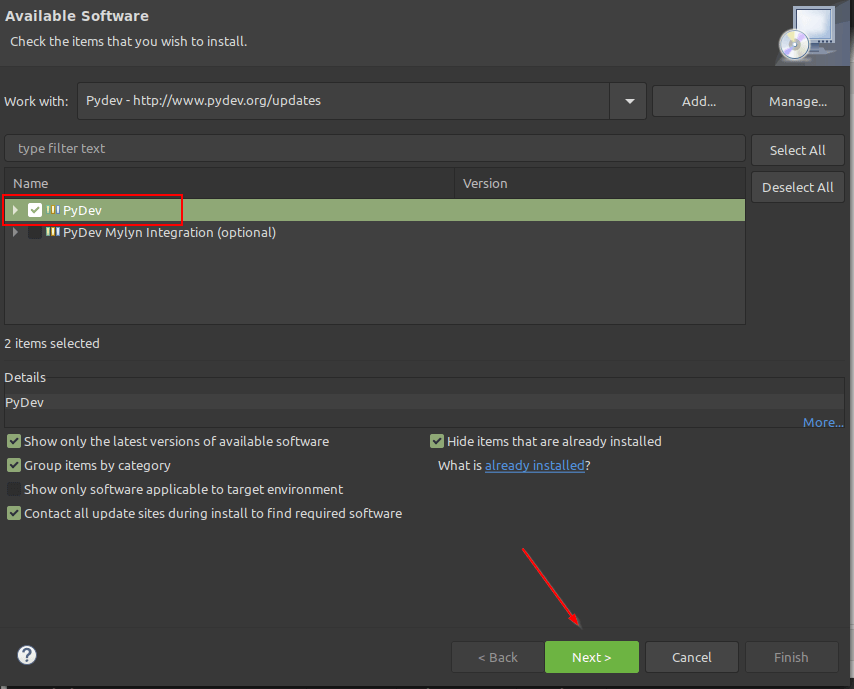
You will get a window opened as shown in the below image. Click on “Add” and type the URL “http://www.pydev.org/updates”. The eclipse will take care of installing the latest version of PyDev from the URL provided. Select the PyDev package and press and “Next” as shown in the image.
Once the installation is completed go to “MenuBar → Window → Preferences”. On the left-hand side, you will find PyDev. Go ahead and expand it. This is where you can configure the PyDev environment.
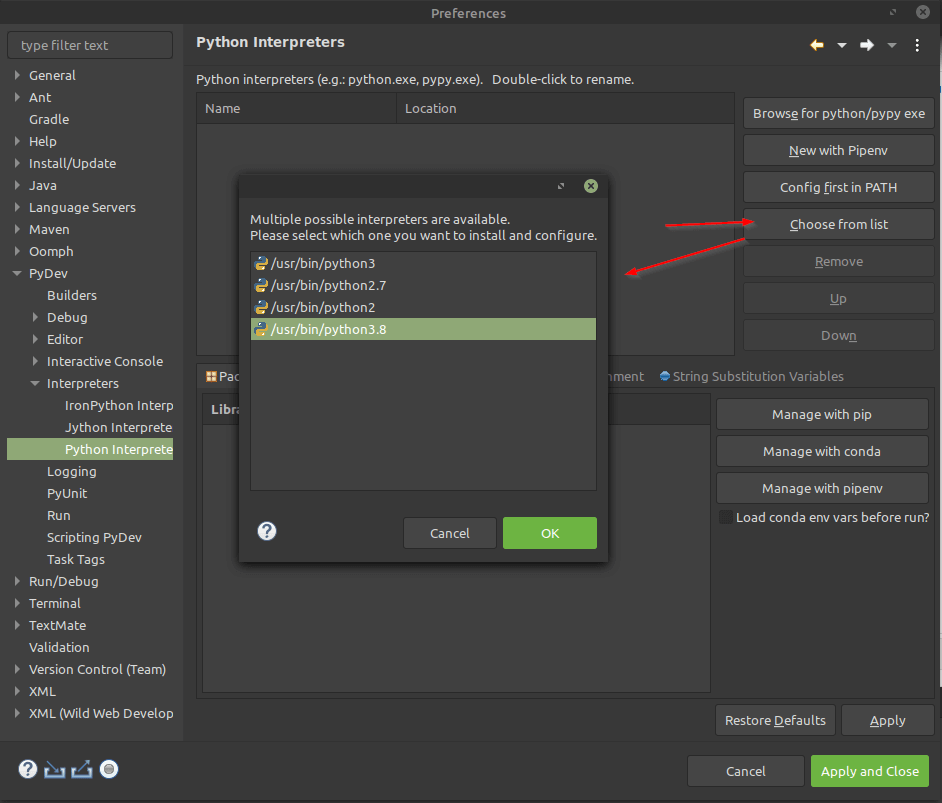
The next step would be to configure the Python interpreter. Press “Choose From List” as shown in the image. This will check for all the installed python versions in your machines. In my case, I have Python2 and Python3.8 installed. I will choose Python 3.8 as my default interpreter. Click “Apply and Close” and you have successfully set up a Python Interpreter.
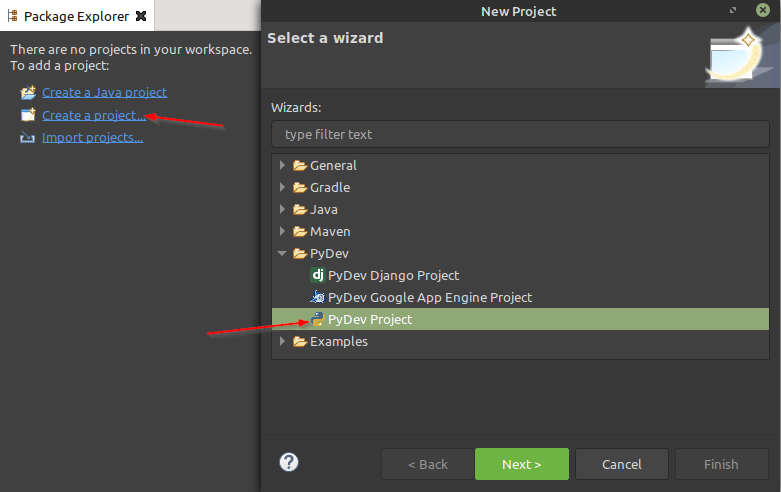
It’s time to run some code. Create a new project by selecting “Project Explorer → Create a Project → PyDev → PyDev Project”.
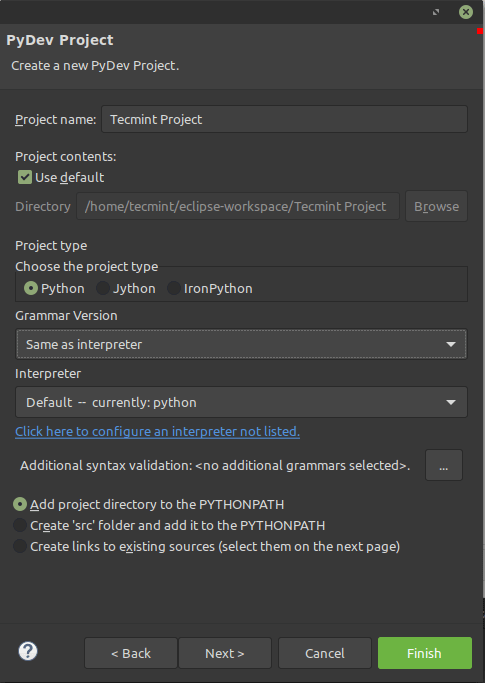
It will ask to configure project-related information like Project Name, Directory, Python Interpreter version. Once these parameters are configured click “Finish”.
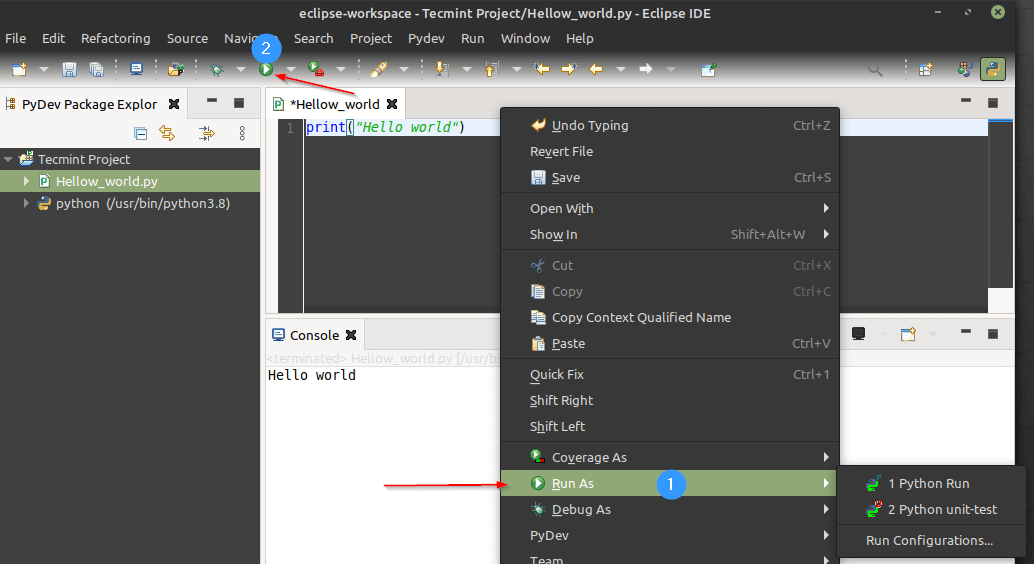
Create a new file with a .py extension and place your code. To run the program, right-click and choose “Run As → Python Run” or press the run icon from the menu tray. You can also press “CTRL+F11” to run the program.
That’s it for this article. We have seen how to setup PyDev on Eclipse. There are a lot more features PyDev offers. Plays with it and share your feedback.