


Walk into any living room, and you can tell within five seconds whether the TV has ever been properly set up. Blown-out colors, faces that look like wax figures, and movies that feel like they were shot on a Handycam from 2004 — it's all there. The worst part, of course, is that most people think that it's just how their expensive new 4K TV is supposed to look.
Almost every smart TV today ships in a showroom state, and that's not what works for living rooms. They're all tuned to scream for attention under the most fluorescent lights, but they don't deliver accurate or cinematic picture quality at home. Even though fixing the picture only takes a few minutes, it requires a deep dive into your TV's settings. You don't need a calibration disc or a PhD in display tech to fix a lot of your smart TV's problems, either. You just need to know which default "features" are quietly sabotaging your viewing experience.
The built-in power saver mode
Its heart is in the right place, but no, thank you


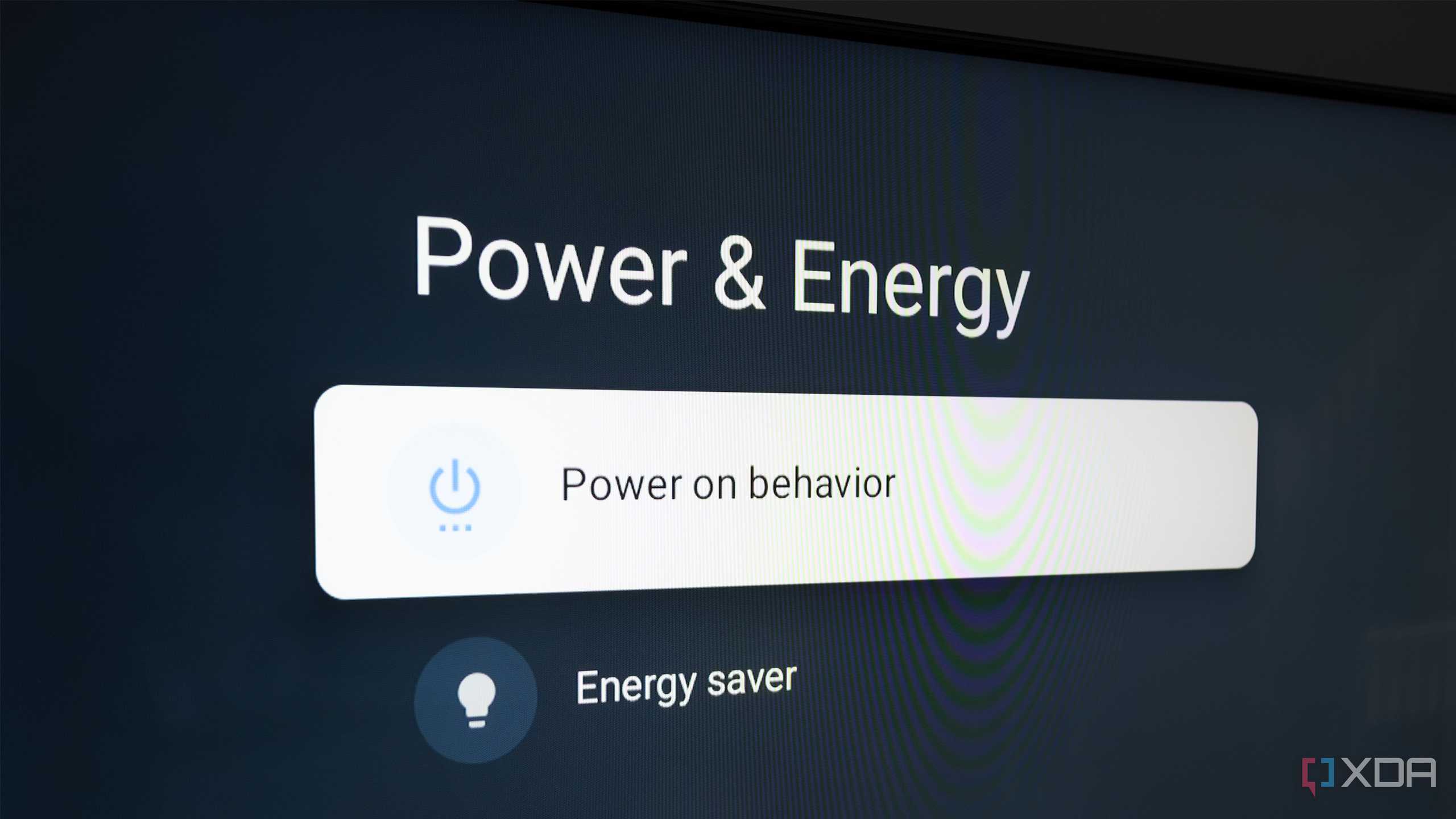
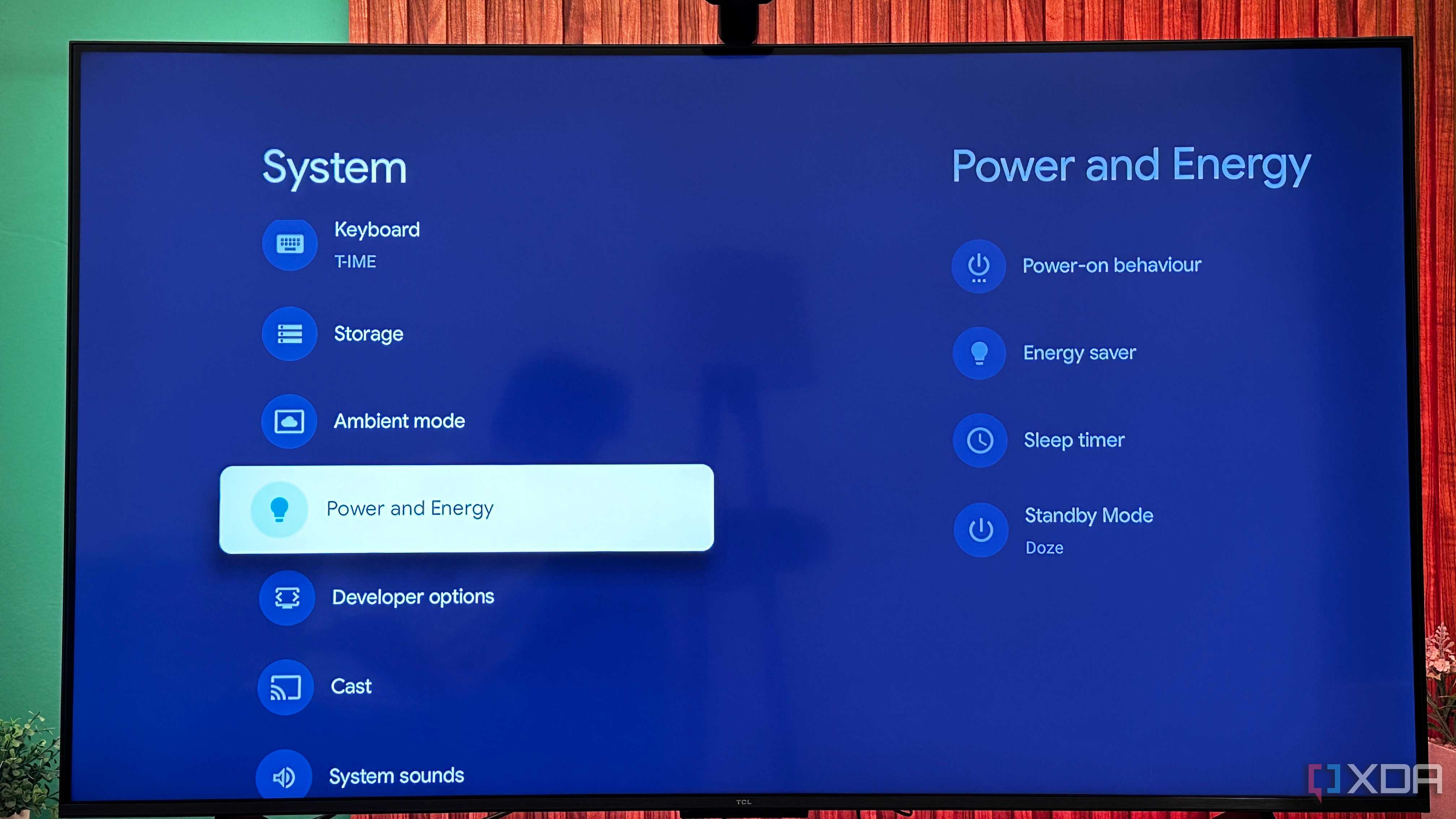
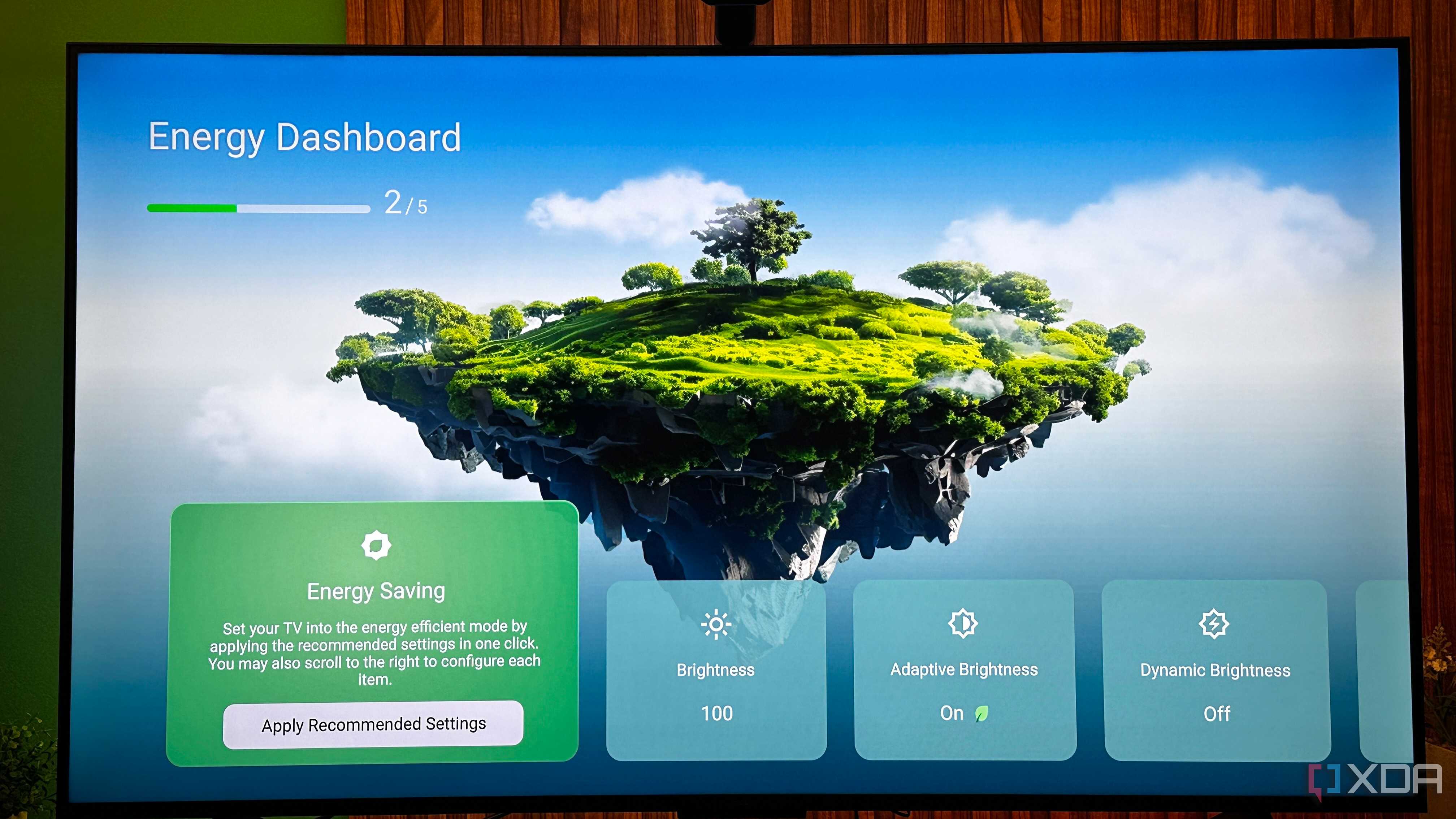
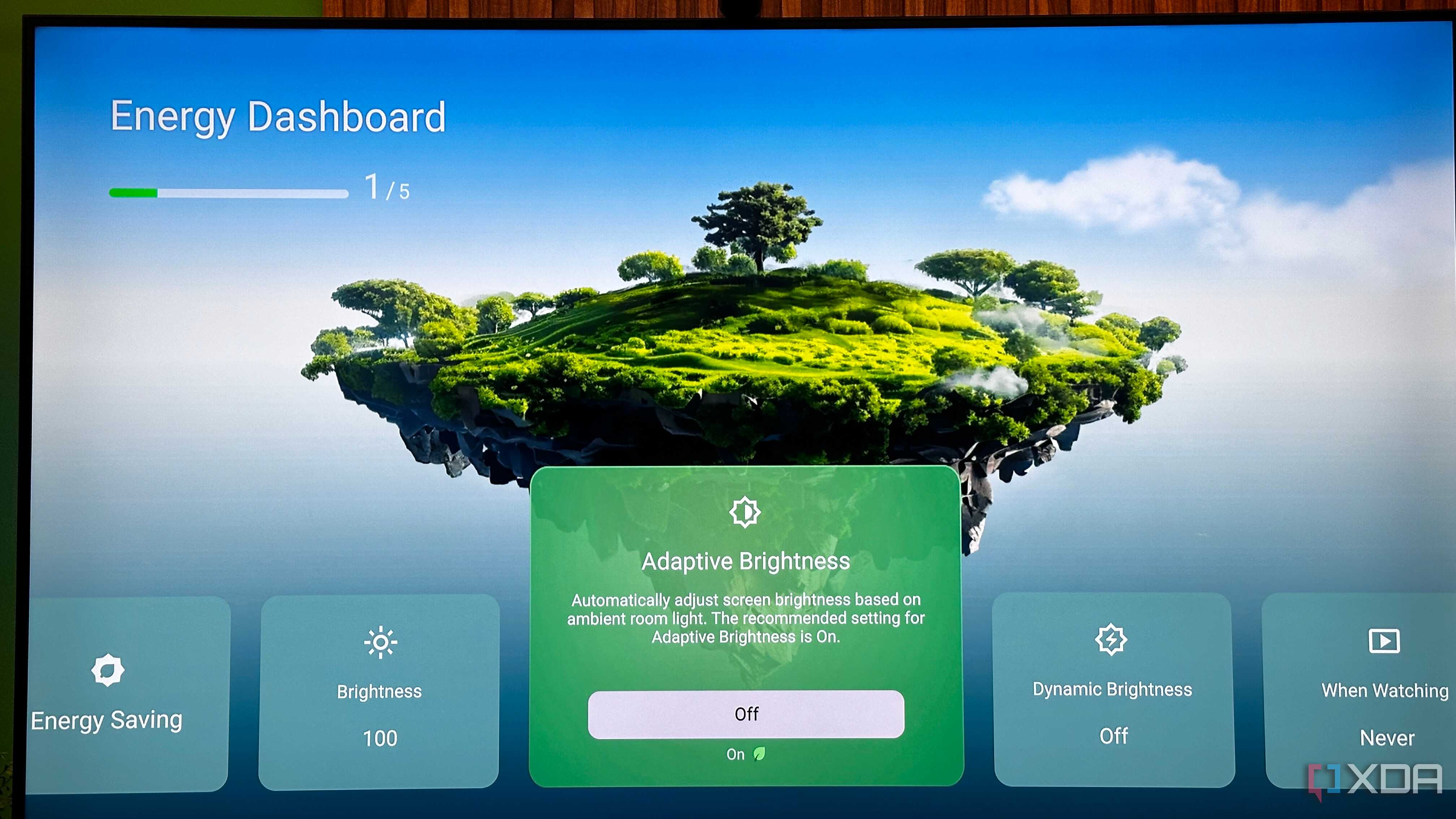
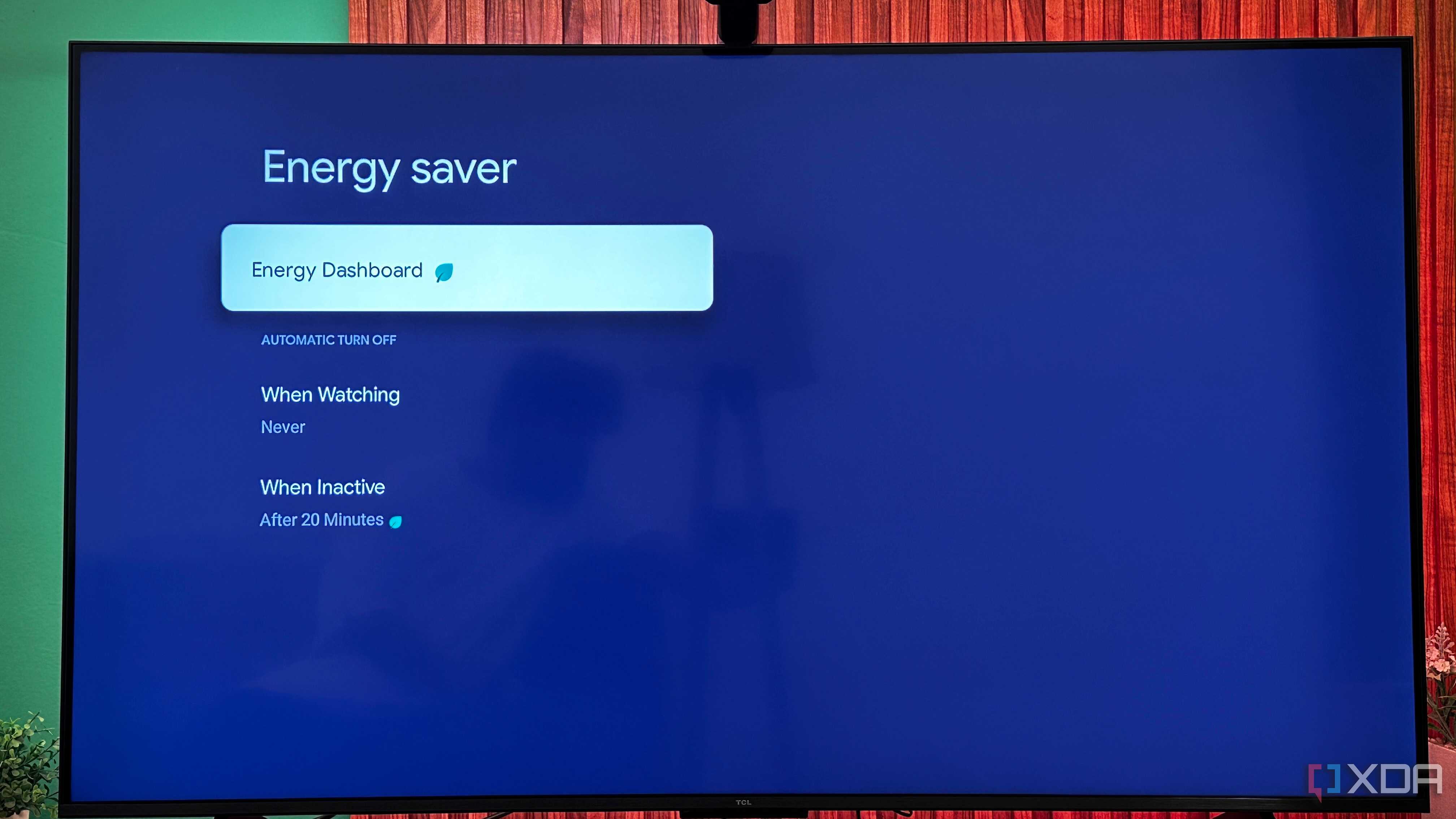




Right out of the box, your TV ships with a power-saving or efficiency mode turned on. It's usually called "Eco Mode," and common symptoms of it being turned on are your picture quality constantly looking bad. If the TV still looks dim to you, no matter what settings you change, the Eco Mode could be to blame here. It also limits a TV's maximum brightness, which is particularly detrimental with OLED and QD-LED screens.
On paper, it does sound sort of intelligent, with how it manages dynamic brightness and screen wake times to save you a few bucks on the power bill, but its downside to the overall picture quality and visual experience is too much of a cost. So, make sure you turn off the Eco Mode or any power-saving setting on your smart TV the moment you start using it. Everything else comes later.
Motion smoothness is public enemy number two
Perhaps the biggest "feature" making modern TVs worse


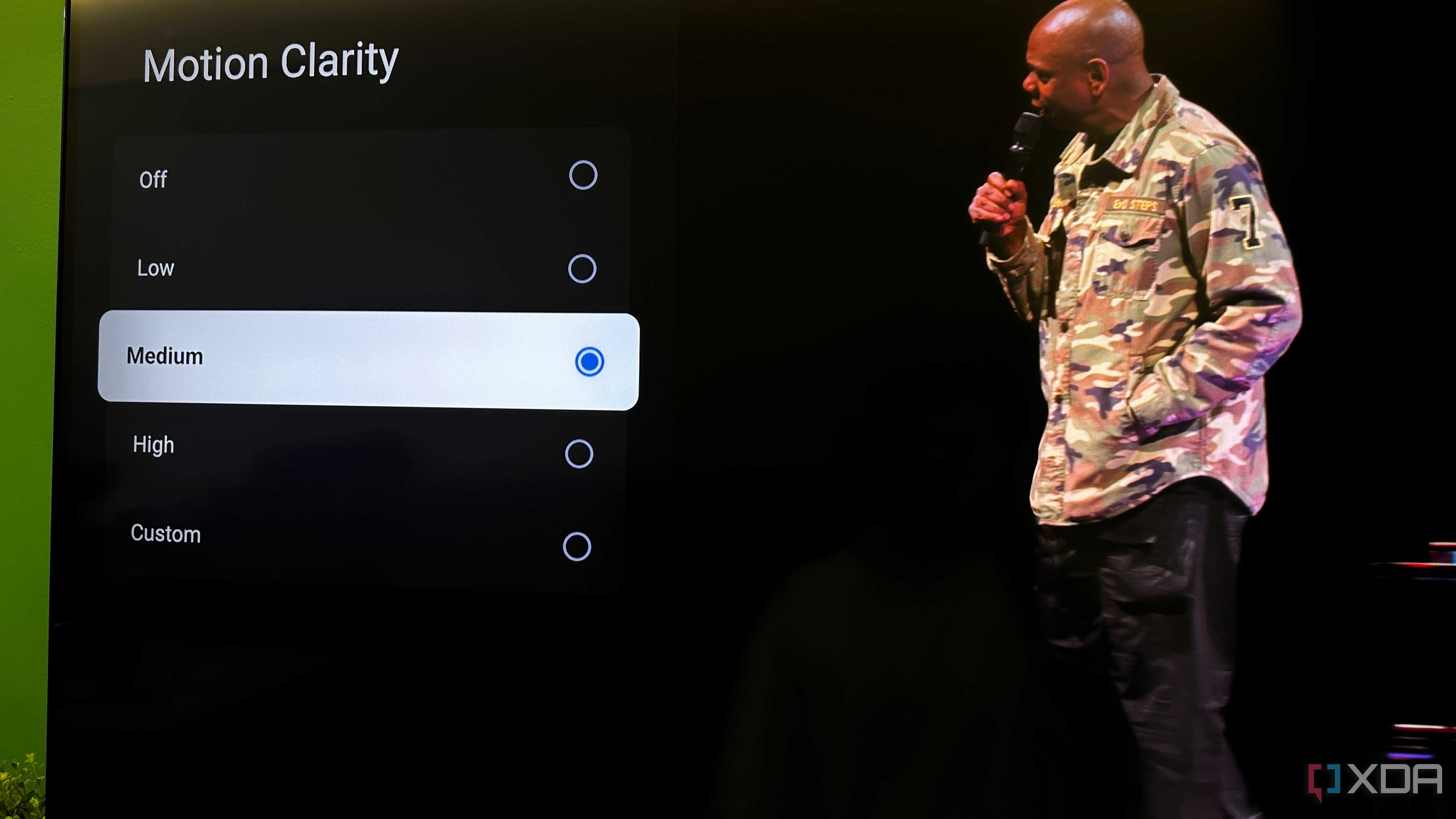
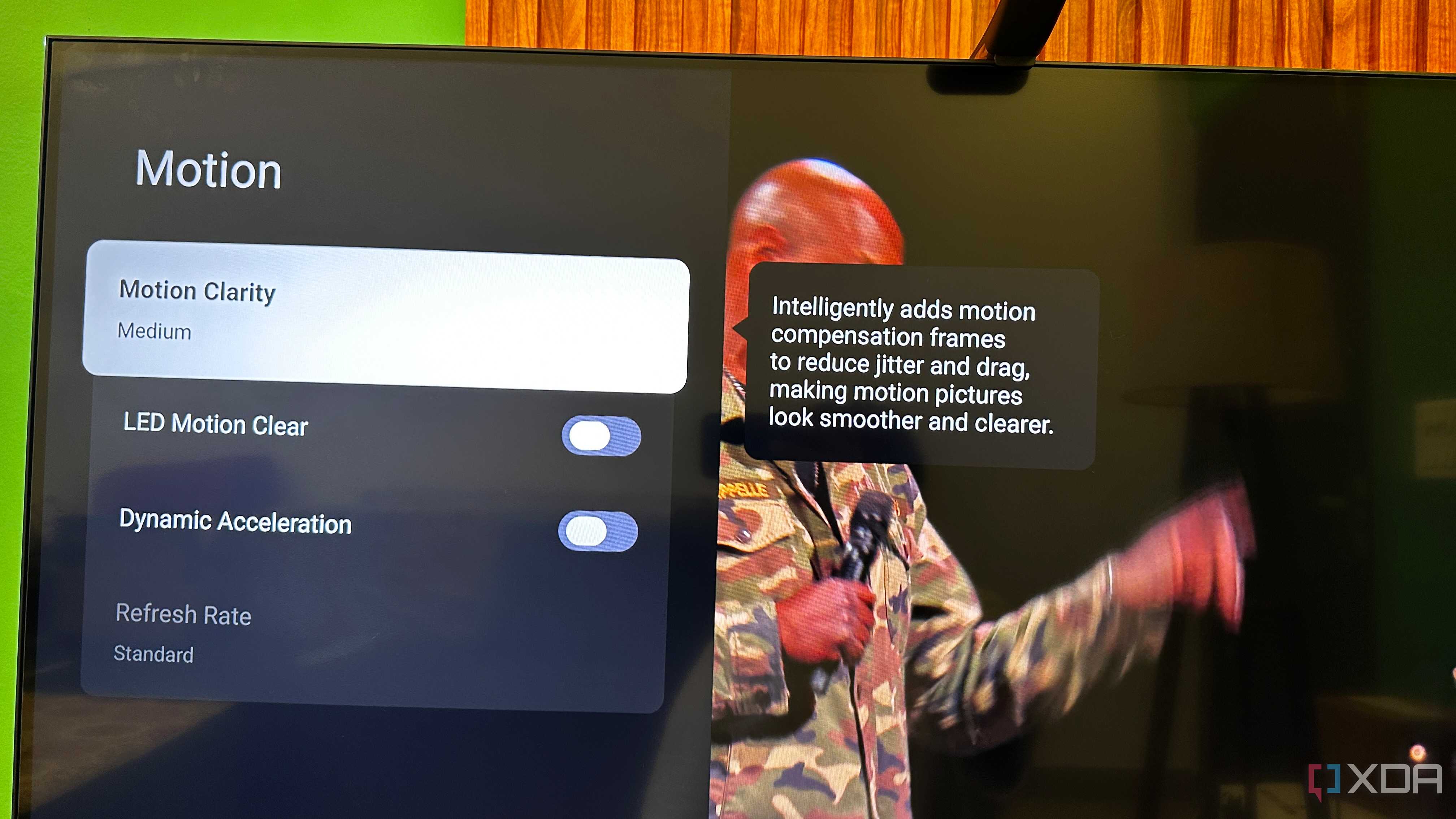
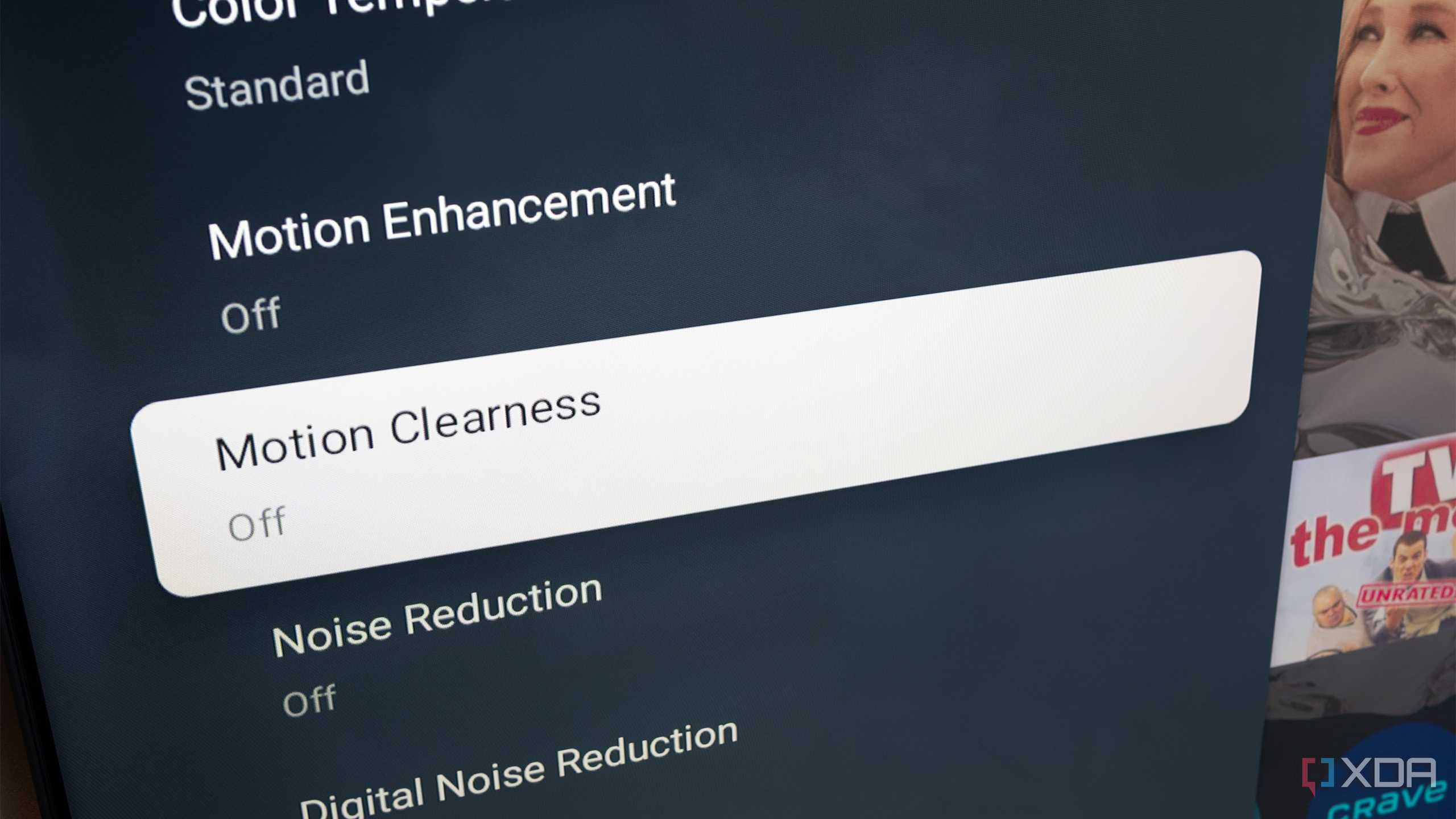
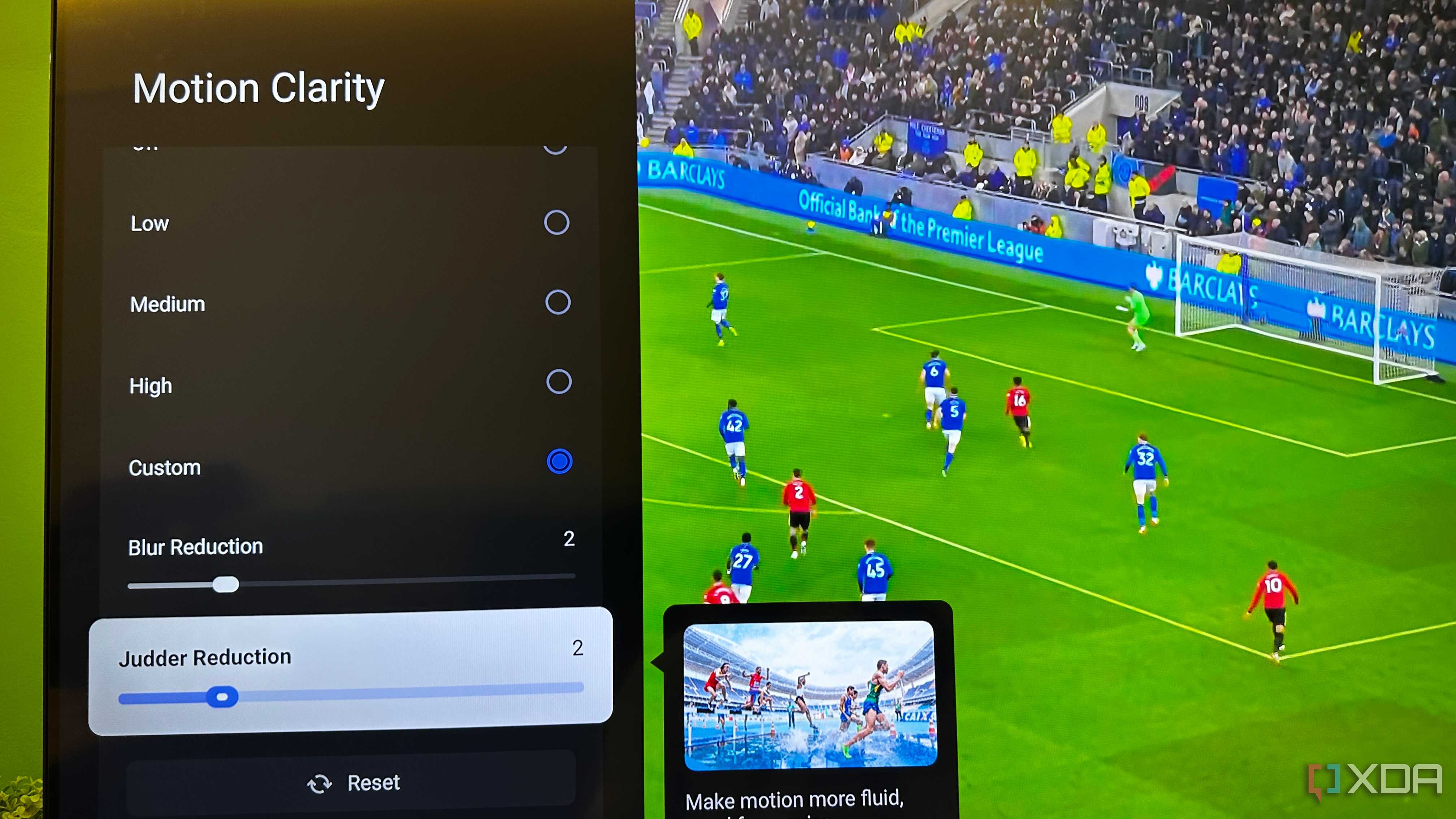
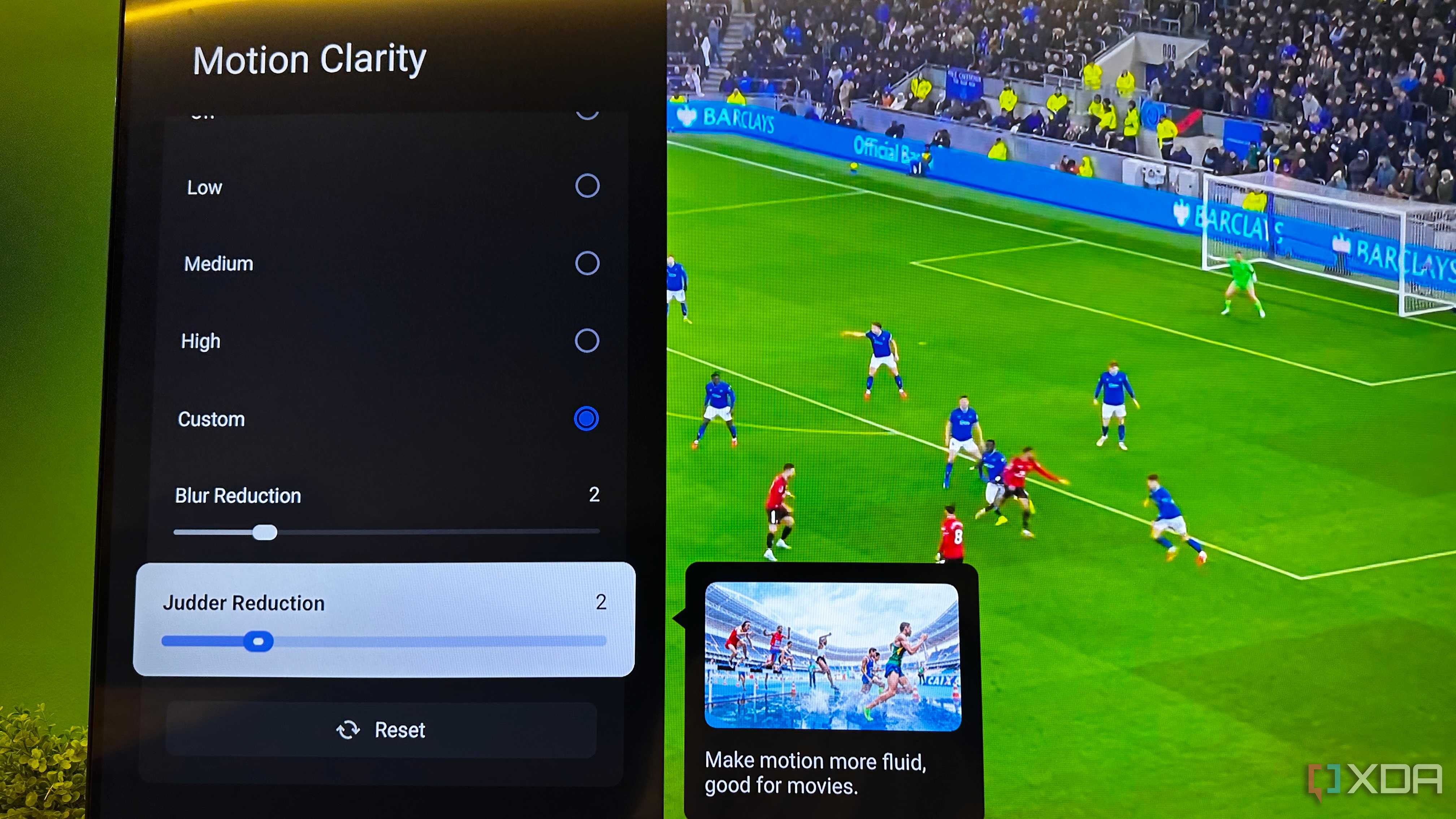

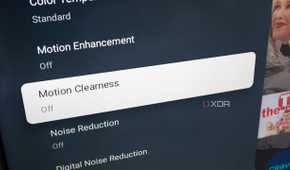
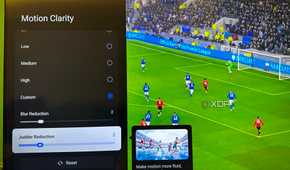
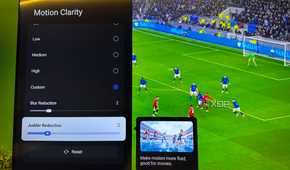
This setting is what I consider a modern plague on all new TVs, and it's been going around for quite a while now. If you've ever looked at someone's TV (or even your own) and thought that every movie, sport, or game has a weird "soap-opera" effect where it's just so smooth it takes you into the uncanny valley, it's the TV's motion settings at fault. This is an AI feature that tries to generate half-frames between frames to smooth out jitter.
While watching sports, it's even a welcome addition, but when it comes to movies and TV, any motion settings only make the content feel cheaper. And yet, at the same time, its effectiveness, when used correctly, can't be denied, because choppy motion is just as visible and visually jarring.
The problem, however, is that your TV's "TruMotion," "ClearMotion," or any other motion settings are always tuned up high. Most smart TVs allow you to lower them, and if you have a custom setting option, set the blur reduction and judder reduction to 2. This is a good starting place. It'll make your soccer matches look remarkably smoother, while never feeling too intrusive if you watch a regular movie.
Your TV's sharpness setting could take you for a spin
A tough setting to figure out, but less is better

Even if you're familiar with TV settings and are the go-to person for your friends and family for anything tech-related, there is one setting that could throw you off, too. That's the sharpness or detail-enhancing feature most modern 4K TVs come with. In fact, extra sharpness and detail are enabled by default in the standard or "vivid" picture presets. The problem? Modern 4K TVs already have great resolution, and 4K-tailored content does, too. They don't need more artificial sharpness or detail, so the extra sharpness your TV is adding is just edge enhancement.
This introduces more visual noise into the picture, makes faces look highly unnatural, and you only need to look at a close-up of a face to see the difference. If the TV's sharpness is set too high, skin textures on the screen will look too noisy or harsh. This setting is usually dialed up to 50, so the first thing you should do is turn down the sharpness to 10, 5, or even 0. If you see other "detail enhancer" settings in the same menu, turn those off too, without a second thought.
After all, you should see what the TV panel and the source are capable of achieving in terms of picture quality before letting unnecessary "detail enhancers" or sharpeners intrude. Such detail enhancers can't magically improve old SD content, or even a low-bitrate live telecast. In fact, they make them look worse. Turning off sharpness or significantly reducing it is only going to make your images look more natural. Your content will be easier on the eyes and clearer, all before you even have to apply any other specific "filmmaker" picture presets.
HDMI compatibility holds back your picture quality
It's why your console graphics look "just fine"

If you ever plug in an Apple TV, a console, or even a PC into your 4K television and find yourself wondering why the picture doesn't look as good as you thought, your HDMI settings might be limiting your experience. By default, modern smart TVs' HDMI settings are set to standard format, which is the most compatible setting. This avoids any issues with signals sent and received between the source and the output display, ensuring that the HDMI handshake between your TV and your PS5 goes through smoothly, with no interruptions or problems.
However, the standard mode also leaves some quality on the cutting-room floor to achieve this compatibility. The TV deliberately limits the signal to make sure every HDMI device you plug into it works properly. And yet, at the same time, it also means that the HDMI device you currently have attached isn't working at its best or at its full signal strength. This could manifest as reduced color bandwidth, lower frame rates, or HDR not looking as good as it did in the store.
On the opposite end of this "standard" HDMI signal format is the enhanced format, which prioritizes image quality and 4K images. With this setting turned on, you'd effectively take over the reins from your TV, telling it to pass the full HDMI signal for maximum visual quality. The result will be richer colors and deeper images. When you change your HDMI signal settings, make sure you set the enhanced format toggle for each HDMI port.

So many people never see their TV's true potential
The good thing here is that none of this is "advanced tweaking." To get the full potential and picture quality from the TV you paid for, you won't have to dive into service menus meant for engineers or pore over a full handbook for hours. All you'd be doing is simply undoing retail-floor and factory-toggled decisions that were made for you before that TV ever entered your home.
A good TV doesn't need gimmicks screaming at you from every submenu, but that's a memo that has completely missed every single television maker in the past decade. So, even though every modern smart TV comes packed to the brim with unnecessary image-enhancing features that only do the opposite, you can always see your TV the way it was actually meant to look with just a few right changes.
