XMB (GUI)
XMB was the default user interface for RetroArch, until it was succeeded by Ozone in RetroArch 1.7.6. It is based on Sony's "cross-media bar" GUI, most widely known from the PSP and PlayStation 3.
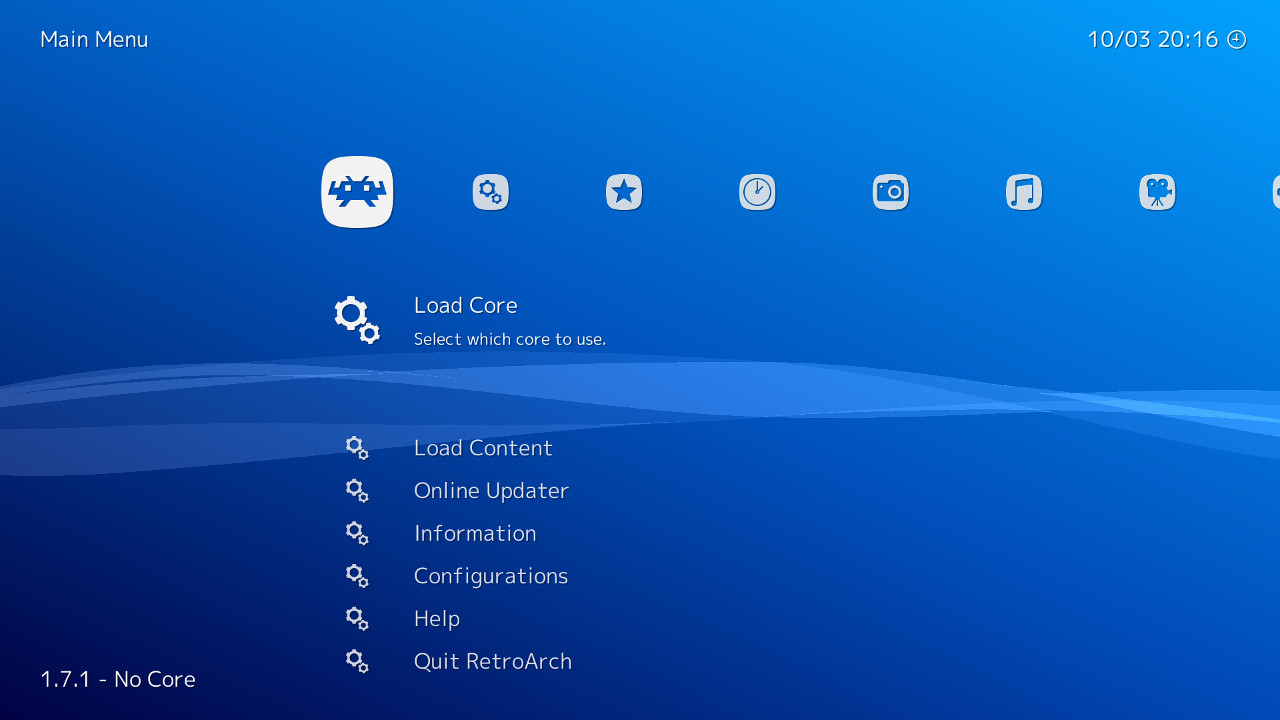
Menu Structure
The top-level menus and playlists are displayed in a single "primary" row, running from left to right. For the selected row item, a submenu column will appear below it.
Navigating the menus
XMB is designed for use with a gamepad or keyboard.
Press left or right to move along the primary row, and press up or down to scroll the column. The selected item in this column is always the first line under the primary row.
The user can press backspace to go back a step.
Input
Content is controlled using a keyboard or gamepad, connected via USB or Bluetooth.
Thumbnails
By default, no thumbnails are displayed. Up to 2 can be enabled: The primary thumbnail will appear on the lower right side of the screen when a Playlist entry is selected. The secondary thumbnail will appear on the left. Press the spacebar key to view the thumbnails full-screen (press spacebar again to toggle the view off).
Thumbnails can be enabled in Settings> User Interface> Appearance, toggling the Primary Thumbnail and/or Secondary Thumbnail option. Thumbnails can be boxart, a title screen screenshot, or a gameplay screenshot.
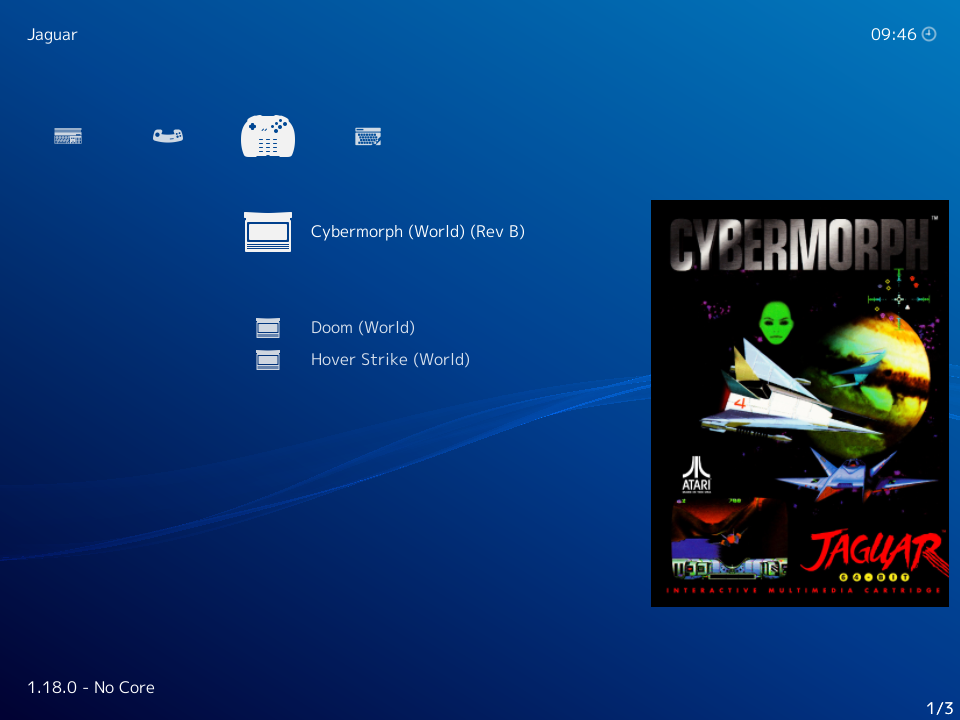
Themes
XMB has a number of styles built-in. They can be changed in the Settings > User Interface > Appearance menu.
-
The background color can be changed: Scroll through
Color Themeto select a color. -
The animated background "wallpaper" can also be changed (
Shader Pipeline), the default being a PlayStation-style animated ribbon.- XMB can even show different wallpapers depending on the playlist selected, see Dynamic backgrounds below.
-
XMB also has a selection of icon sets to choose from (
Icon Theme).
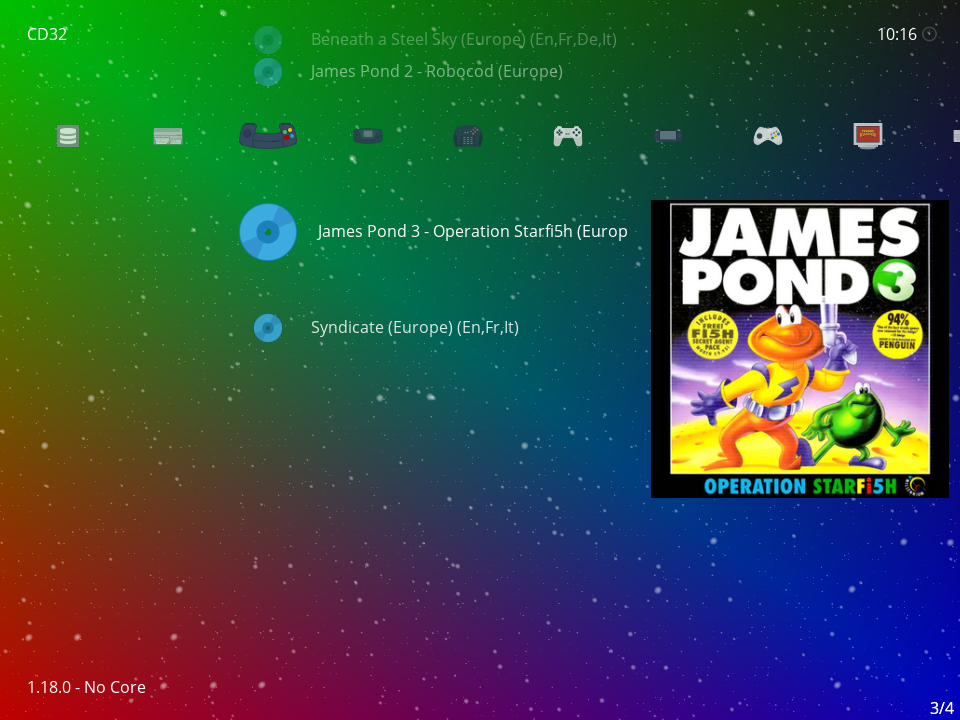 XMB with an alternative background color, background animation, and icon set.
Dynamic backgrounds
XMB can show a different background for each tab of the horizontal menu, for example one per system playlist.
- Enable
Settings > User Interface > Appearance > Dynamic Background. - Point
Settings > Directory > Dynamic Backgroundsto a folder with the images. - Name each image after the title XMB shows in the top-left corner when that tab is selected, with a
.pngextension, for exampleNintendo - Super Nintendo Entertainment System.pngfor the SNES playlist.
Ready-made sets, named this way, are in the wallpapers folder of retroarch-assets; each set has a subfolder per resolution. A tab without a matching image keeps the regular background (Background Image, or the color theme's). If an animated Shader Pipeline covers the image, set it to Off.
