

- Support Center
- Multiple Languages
- Language
- Help Us Translate
Expert in
PC Health Solution

All-in-one PC health solution: clean, optimize and secure
Comprehensive PC cleaning, optimization and protection

Keep drivers always up-to-date

More stable performance with less system crashes

Protect millions of computers against malware

Top computer security with full-round protection

Protect against viruses & boost PC performance
This free laptop battery tester helps check your current battery level, charging status, estimated time remaining, and time to full charge directly in your browser.
%
Full Charged
N/A
Not Supported
Battery Status
Battery Condition
Charging Status
On Battery
Time to Empty
Time to Full
The data is updated automatically. Connect or disconnect charger to see live changes.

Check laptop battery health online in one click—no login, no registration, and no download. Instantly view your battery health score, status, and the estimated time to drain or fully charged.

Battery Health Score
Visit this site to know the health condition of your laptop battery.

Charging Status
Check if your battery is charging or not

Battery Drain Time
Estimate how long it takes your battery to drain

Time to Full Charge
Estimate how long it takes for battery to be fully charged
Check laptop battery health online for your Dell/HP/ASUS/Lenovo laptops. 4 intuitive metrics help you know your battery conditions.
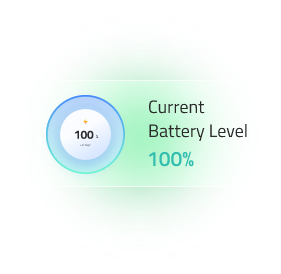
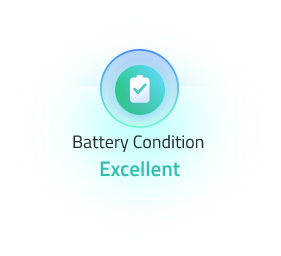
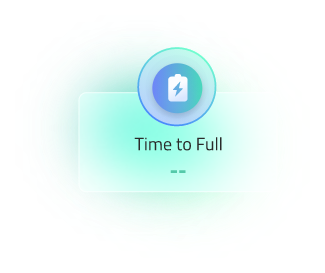
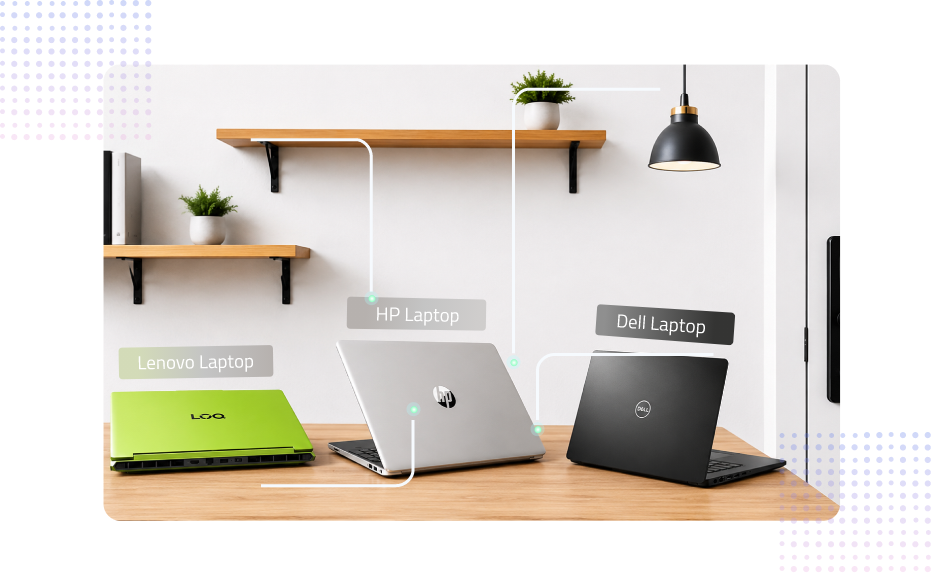
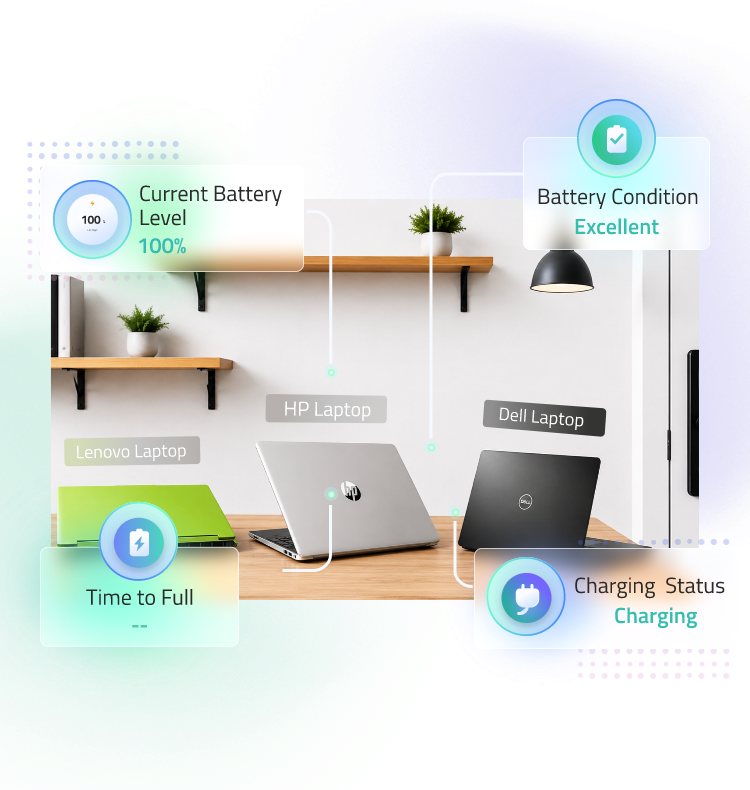

Step 1. Open IObit Battery Test on your laptop.
Make sure you use a browser that supports Battery API, or this website cannot obtain relative info to test your battery

Step 2. Get the results right away.
IObit Laptop Battery Test gives 4 metrics based on the condition of your laptop battery. The health score, the status of charging, and the estimated time for full charging and draining.

Step 3. Fix your battery problems accordingly.
Try healthier battery maintenance habits to extend the lifespan of your laptop battery.
Based on the tested metrics to check laptop battery health online. See if your battery is charging or not, if your battery is wore, etc.
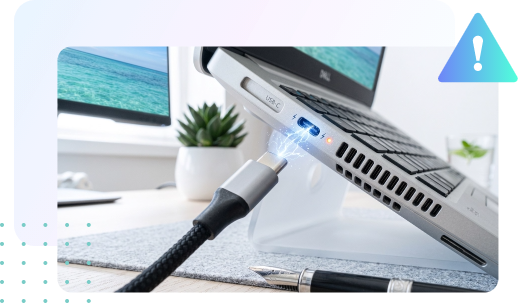
 Confirm if your battery is working or not
In one specific scenario, your laptop shows it is charging but actually the battery level doesn’t change at all.
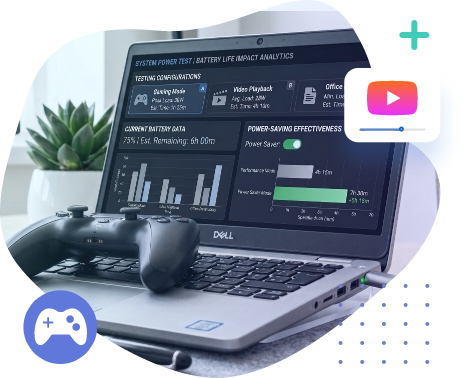
 Calculate what programs consume your battery level
Unplug the charger and check the ‘Time to Empty’ metrics.

 Estimate the time your battery can sustain without a charger
Normally, your laptop can handle 6-10 hours without a charger if you only do text editing and webpage surfing. Playing games or editing videos largely reduces this time span to 1-2 hours. If the reality is not what you expect, an overall battery health check Dell/HP laptop is needed.
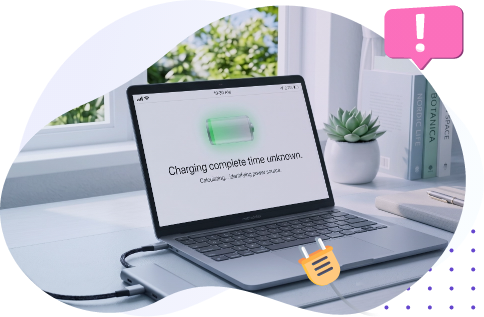
 Check the Slow Charging/Not Charging Problem
When the ‘Time to Full’ metrics become abnormally long, it may indicate the ASUS laptop not charging/HP laptop light blinking. Possible reasons behind:

1. Perform a Full Battery Calibration Once a Month
Do a complete 0% to 100% battery cycle at least once a month to keep your laptop's battery meter accurate.
2. Cool Your Battery During Heavy Workloads (If Possible)
If your laptop has a cooler/outside fan, consider using it during demanding tasks such as gaming, video editing, or 3D rendering. High temperatures can accelerate battery wear.

3. Keep Your Battery Between 20% and 80%
For the best long-term battery health, try to maintain your battery charge between 20% and 80% whenever possible.

4. Give Your Laptop Room to Breathe
Don't place your laptop directly on a desk. Leave some space underneath for proper airflow and cooling. Always avoid using your laptop on hard, flat surfaces, and ensure proper airflow around the device.

What is a battery health checker/laptop battery health tester?
Battery Health Checker is a free online tool for Dell/ASUS/HP/Lenovo laptop users to monitor and analyze their batteries’ current conditions and status. It provides detailed information about battery wear, battery level, time to drain/fully charge, and lets you be fully aware of your battery health.

What can you do with the tested metrics?
Check battery health and identify battery wear.
Quickly know whether your laptop identifies its battery or not.
Estimate remaining runtime before the battery runs out.
Predict charging time until the battery reaches 100%.
Detect abnormal battery behavior or slow charging issues.
Locate which programs take up your battery level the most.
Plan your work sessions based on available battery life.
Decide whether a battery replacement is needed.
Troubleshoot charging and power problems.

Does it work on all Windows laptops?
This tool handles laptop battery health check Windows 10/11/8/7. It works on almost all mainstream laptops, including Lenovo, Dell, HP, and ASUS. This tool gets information from WMI (Windows Management Instrumentation), only some old laptops fail to offer such info and IObit can work on them.

How does this laptop battery health checker work?
Battery Health Checker Laptop reads the battery information provided by WMI. It analyzes data such as battery capacity, charge level, and charging status to calculate metrics like Battery Health, Time to Full, and Time to Empty. The tool does not collect your personal information—it just collects info, calculates metrics, and presents results for you.

Understanding battery lifespan/battery wear
Laptop battery life HP/Dell gradually loses capacity as it ages. But some unhealthy habits can accelerate battery wear. Here are the top 10 common poor battery habits:
1. Charging the laptop on soft surfaces like beds or couches that block air vents
2. Keeping the battery at 100% all the time
3. Frequently draining the battery to 0%
4. Exposing the laptop to high temperatures
5. Gaming or rendering for hours while the laptop is overheating
6. Using low-quality or underpowered chargers
7. Storing the battery fully charged or completely empty for long periods
8. Constantly using fast charging when unnecessary
9. Frequently unplugging and reconnecting the charger unnecessarily
10. Allowing dust buildup to block cooling vents

Do I need to change my laptop battery?
If your laptop is old and the battery has the problems below, and the results from laptop battery test are negative, you can consider replacing your battery:
1. Battery Health is below 70–80%.
2. Battery life has become much shorter than before.
3. The laptop shuts down unexpectedly.
4. The battery won't charge or gets stuck at a certain percentage.
5. The battery drains very quickly, even during light use.
6. You receive a battery replacement warning from Windows or the manufacturer.