Repository navigation
CSV Manipulation
The simplest thing you can do with CSV data is view it.
If you're working with Data in Python, CSV is a convenient import/export format for tabular data, which is more commonly represented in Python as a Pandas Dataframe. Consequently there are two steps needed to view a CSV: load it into a Pandas Dataframe, then view it in a spreadsheet.
For those unfamiliar with Jupyter, this will reveal a significant improvement on the "vanilla" Jupyter Notebook interface, which shows you only truncated views of your data, and in somewhat inconveniently formatted blocks of monospace text. Wouldn't a spreadsheet be nice? Read on.
For the purposes of this example, we'll need some publicly available CSV data. I'll choose a simple one that's likely familiar to data scientists: the Iris data set. Go ahead and copy/paste this link into your clipboard:
To view this as a spreadsheet in Orchestra:
- Open Orchestra (start with a fresh cell)
- Search for the
Read CSVcomponent:
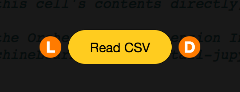
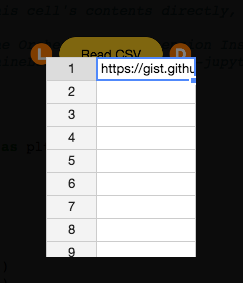
- Click the input (which represents the Location of the CSV data, either on your computer or the internet)
- Paste the CSV URL above:
- Search for the
Spreadsheetcomponent. Add it to your workspace, and wire the two together:
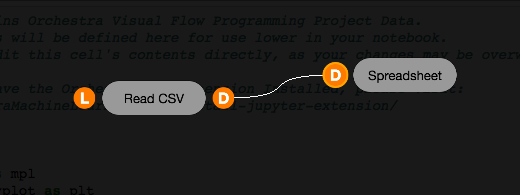
- Left-click the
Spreadsheetcomponent once. You'll see a spreadsheet interface take over the screen:
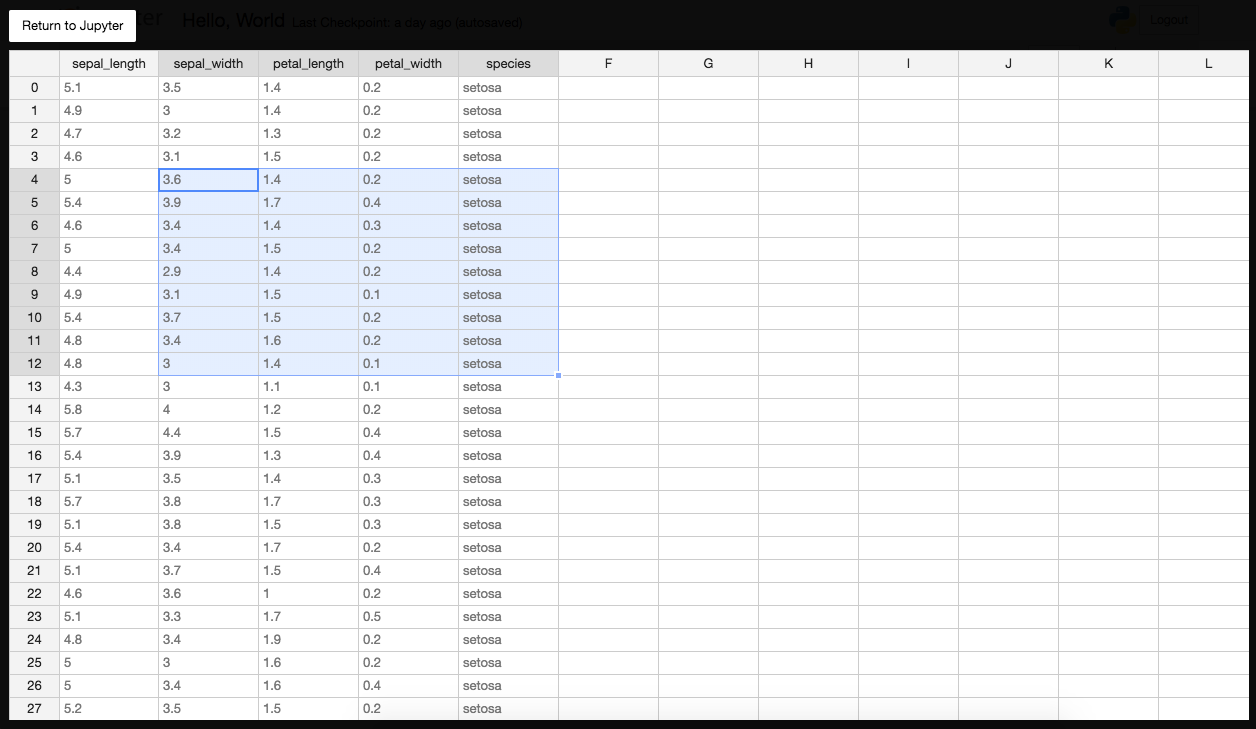
- Note that this spreadsheet view has some conveniences that Jupyter presentations of CSVs don't:
- You can select arbitrary sections of cells and copy/paste them into your spreadsheet program of choice
- It should be able to handle fairly large amounts of data at once, and continue to scroll performantly. There are limits of course, but these limits are much higher than many other forms of CSV viewing.
Say you wanted to add a column full of random numbers to your CSV, perhaps for some sort of data sampling purpose later in your workflow.
- To get started, it helps to work backwards through the problem. What do I want to do?
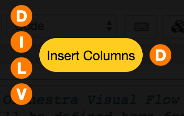
- Right! What are all those inputs, and what do they mean?
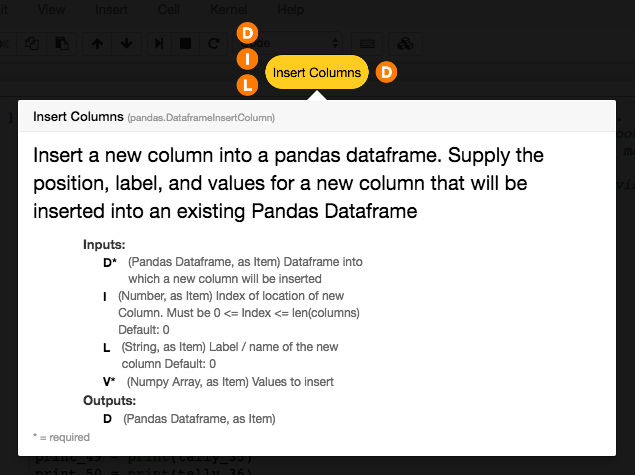
- Those inputs are mostly pretty easy. We need to wire up the Dataframe in question, then choose where the new column appears (Index), its Label, and what Values it should have. Simple enough.
- For the Dataframe, we can wire up the Iris CSV from the previous example.
- For the purposes of this example, the first column is fine (
Ican be left empty, using the default value of0) -
Lshould be something helpful. Let's call it "random"
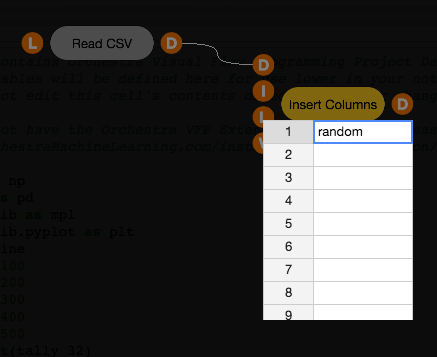
-
Values is a bit harder. The tooltip on
Insert Columntells us to attach a "Numpy Array", but we need to make that first. Fortunately, the search bar helps provide a path forward:
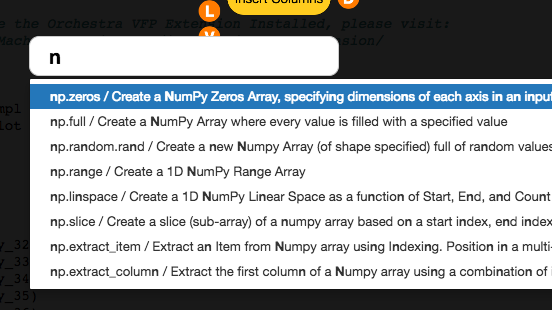
- There's even a "random" NumPy option. Let's start there and wire it up, even though we don't know what inputs that will need, yet.
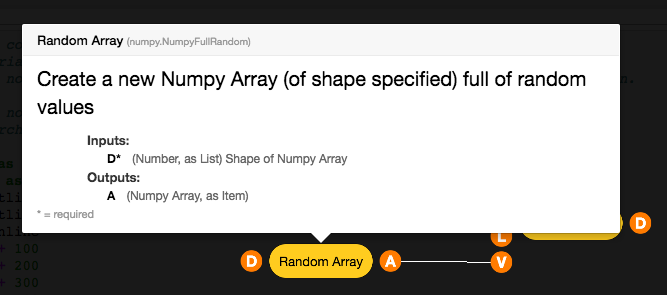
- Ok, now I need to provide the "shape" of the NumPy array. This term, "shape", may be unfamiliar. It refers to the size of each dimension of an n-dimensional array. More simply, a list of 10 numbers would be a "10,1" shape. So basically, we need a list of random numbers the same length as the number of rows in the CSV.
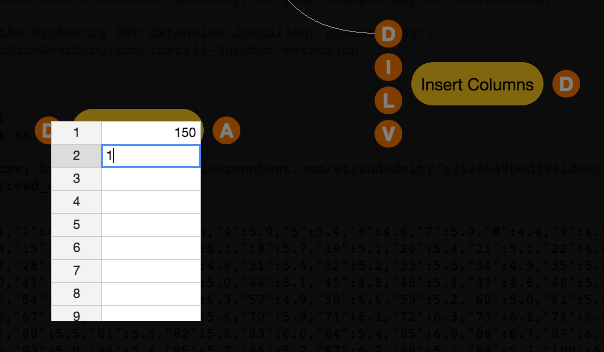
150in the case of the Iris dataset. So this will be a 150x1 array. We can enter that into theRandom Arrayinput directly:
-
There's an important note to be made here: the input is specified as being interpreted "as a list" in the tooltip. That means that when we enter two values,
150and1, they'll be interpreted as a single array,[150,1], instead of as two individual numbers. This is the simplest part of list management, a complex topic of its own. -
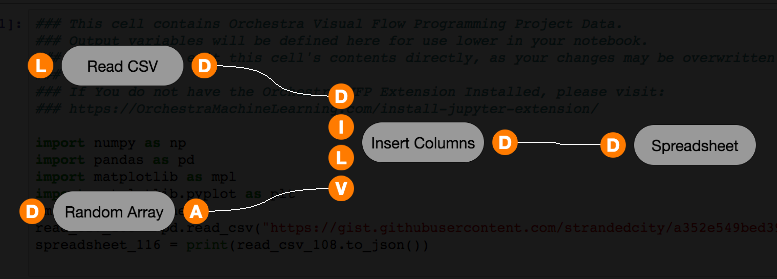
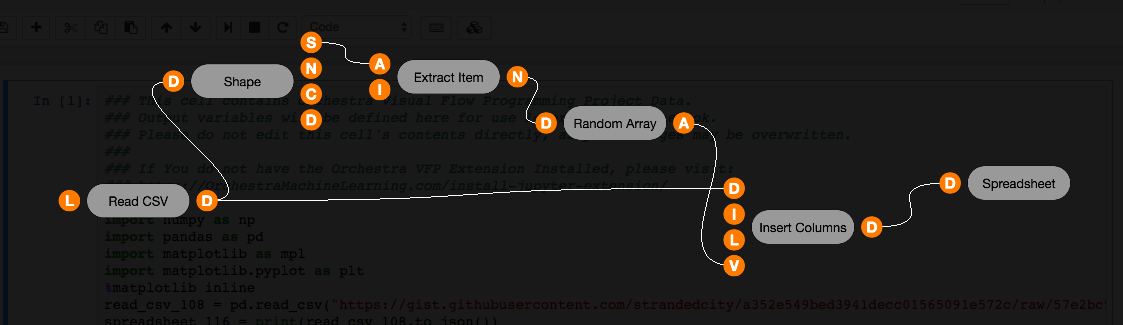
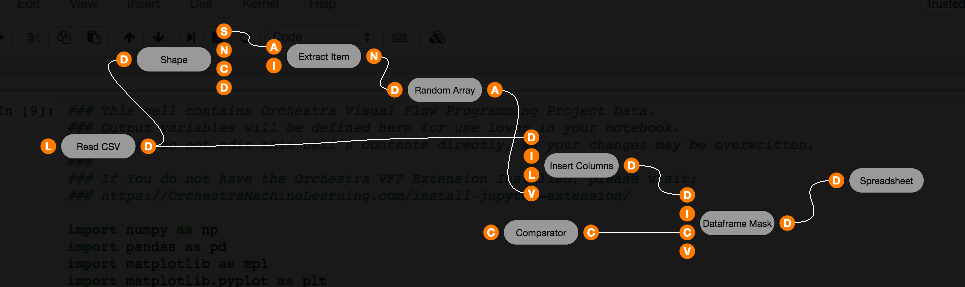
This is what we've got at this point: four components wired up that together Read a CSV file into a Pandas Dataframe, Create an array of random numbers, add that as a column called "random" to the CSV, then make it possible to view that CSV data in a spreadsheet.
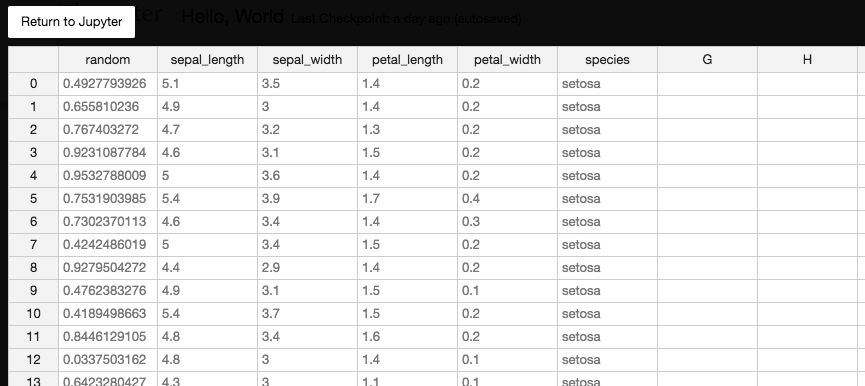
- Click the "spreadsheet" component and we can confirm that there's a new column of random numbers. It's the first one on the left, at index
0as we specified.
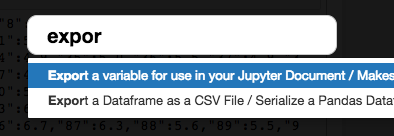
Sometimes you may want to do more than view a spreadsheet. Sometimes, it's useful to export a CSV. Orchestra has you covered in two ways. Explore by typing "export" into the component search bar:
-
If you want to use the Dataframe in some python code directly in Jupyter, you can use the "export variable" component, which will let you name a variable for use in other cells in your notebook.
-
If you want the CSV exported as data, you can use the "export csv" component.
Both components are easy to use. Give it a shot -- the tooltips should help get you started with what inputs are required!
In the previous example, we used four components to add a column to a CSV, then view or export it. This is already very powerful, but it could be usable in more contexts if we selected our parameters with care. In particular, there are two issues we should consider:
- It assumes the CSV has 150 rows, because that value is the hard-coded length of the random numbers array. If the CSV changes, or we use another CSV, we'll have to make changes to the Orchestra definition. Not hard on this scale, but if we're juggling numerous files and large datasets, this gets painful fast.
- It only works for one CSV at a time, and we have to paste the url or filepath for that CSV each time.
We'll tackle (1) here, and save (2) for the Microservice tutorial coming up.
We can improve the flexibility of our "add column to CSV" Orchestra definition if we derive the size of the Numpy Random Array from the size of the incoming CSV! Here's how:
- Type "shape" into the search bar, and select the option that extracts the shape of a Pandas Dataframe. Wire up "read CSV" to the shape component, and print its top output:
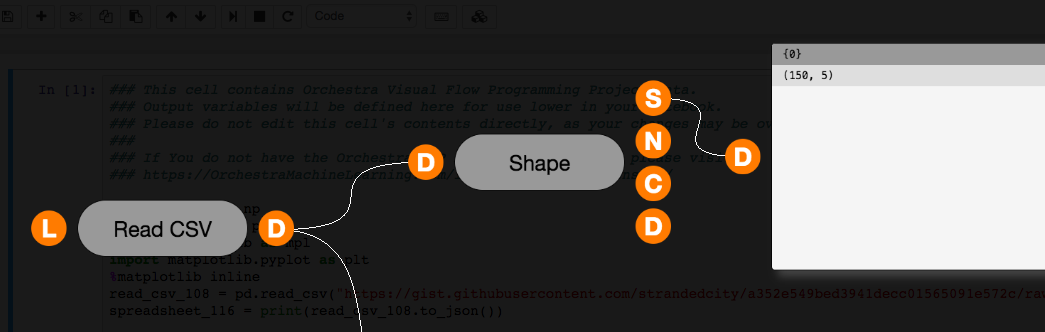
- Perfect! But...
150x5needs to become150x1so that we don't get five columns of random numbers. To do that, we need to extract a value from theshapearray. Add a Numpy Extract Item component to the workspace, and wire it up. The "Index" to extract defaults to0, which is correct in this case because we want to extract150, not5. Print the result:
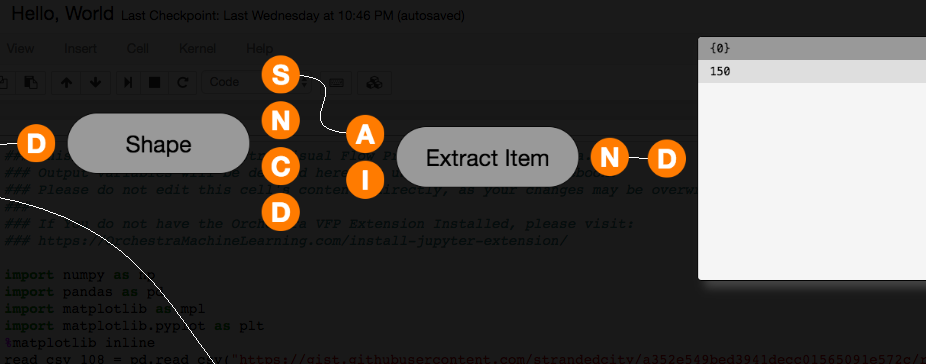
- Now we just need to pass that into the Numpy Random Array (NOTE: The connection, if present, will override our previously hard-coded value of 150!), and suddenly our definition does not require us to know the number of rows in our CSV! We can prove it by deleting the hard-coded
150. Here's the whole definition together:
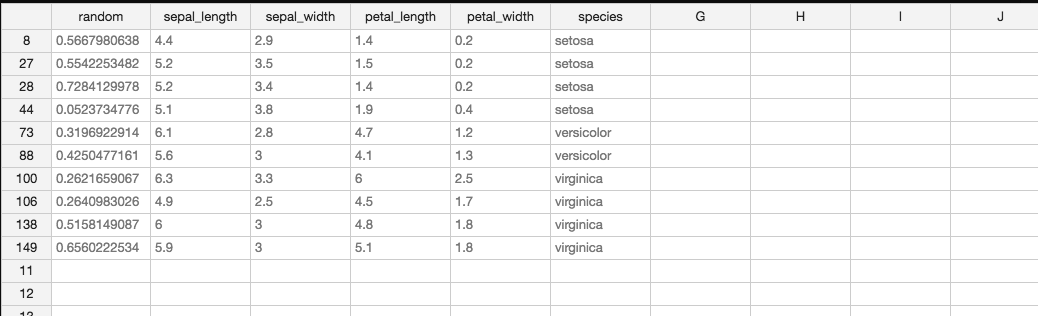
Adding a random number column is one (somewhat roundabout) way of sampling data from a CSV. A more straightforward way would have been to use the Sample component which preserves the row indices. Note that this spreadsheet shows a random 10 rows from the iris dataset, but keeps them labeled correctly:
But as an example, it's helpful to learn how to add a column. Additionally, if we did want to sample this way, we can learn one more topic: masks.
To sample the spreadsheet based on our random number column (or perhaps any other data you might be interested in "selecting" from the CSV), we primarily need to use the "Dataframe Mask" component.
"Masking" is the idea that you can run a test on every cell of a Dataframe, filtering the dataframe such that it only includes rows where the test passes. You're basically asking a question like "is the value of a particular column greater than 0.5? If so, include the row in the resulting dataframe. Otherwise, don't." If you're familiar with graphics, you can think of masking as working like an alpha channel: it's a black and white filter that affects what's visible in the dataframe underneath.
The single-step way to use a mask for simple tests is the Dataframe Mask component, which simply filters a Dataframe to show only those rows where a particular column's value is greater than, less than, equal to, or not equal to, a provided value. For the sampling question at hand, if you wanted a 50% sample, you can mask with the following values:
-
D: The Dataframe you want to mask -
I: The index you want to mask, in this case the stringrandom(which is the name of our column) -
C: The Comparator to use (<,>,==,!=,is, oris not) -
V: The value to compare to. Type0.5for a 50% random sample
And voila!
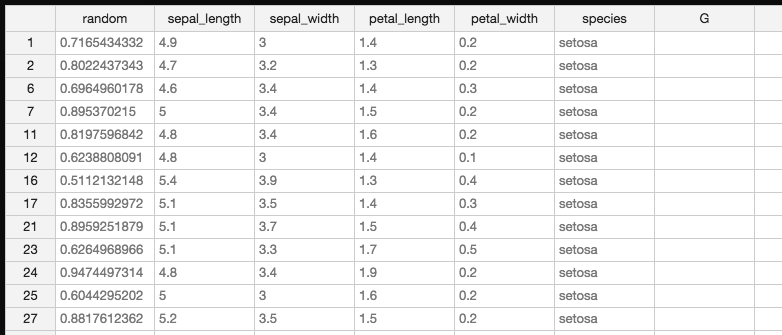
(notice every row's "random" value is > 0.5 in the second screenshot)
