Repository navigation
Hello, World
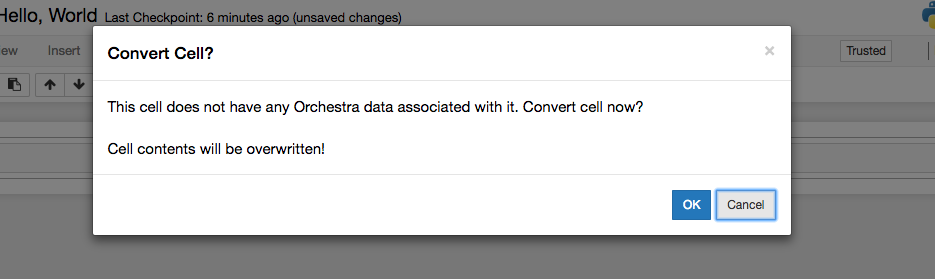
Orchestra attaches itself to the metadata properties of a normal Jupyter Notebook code cell. Once a given cell has been used for Orchestra, it is strongly recommended that you not edit the code in that cell directly, as it will be overwritten by Orchestra. When you highlight a given cell that has no Orchestra metadata attached to it, you'll see a warning reminding you that the cell will be "taken over":
If you click "ok", you'll be taken straight to the Orchestra interface, which is very spare. So that you don't completely lose context, you can see the Jupyter notebook behind Orchestra. But as you can see, there's not a lot of help out of the gate:
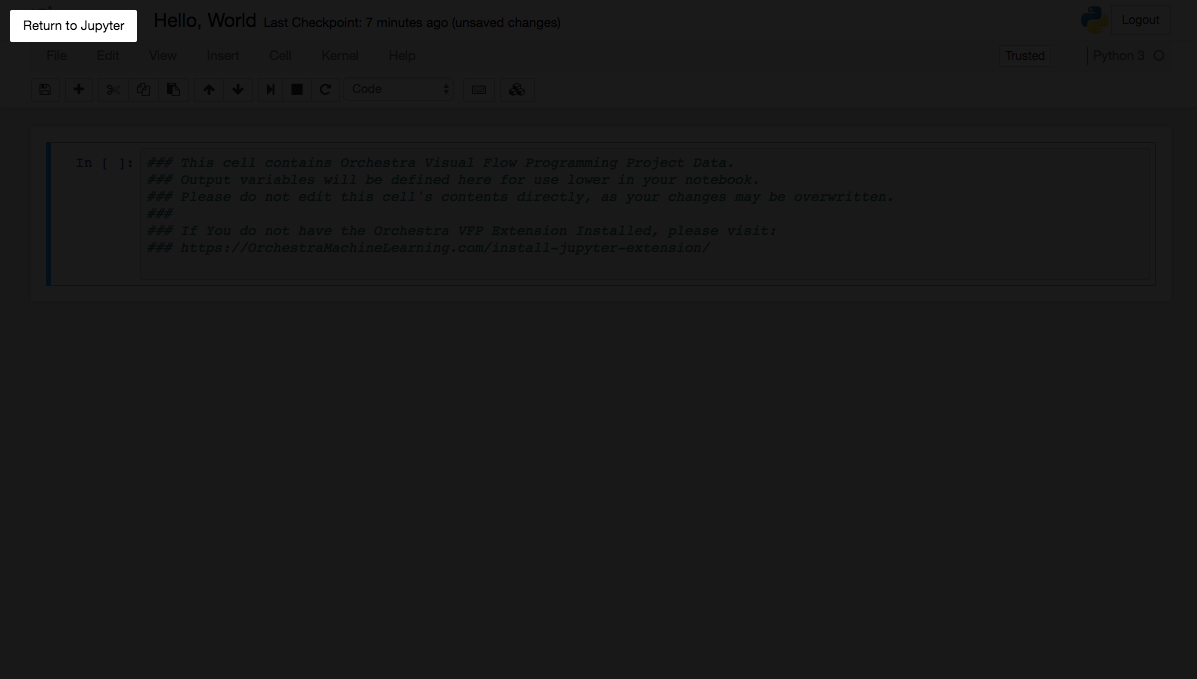
Clicking "return to Jupyter" takes you back to where you were, but the highlighted cell now contains a Python comment:

Getting around Jupyter is designed around simple mouse interactions. There are only a few you need to know:
- Zooming, via your mousewheel or dragging up/down on your trackpad
- Double-Clicking the background brings up the "component search" so you can add components to your definition
- When a component is on screen, left-clicking its inputs will bring up a spreadsheet-like text-entry interface, so you can directly enter numeric and string values
- Right-clicking components gives you context options, such as giving it a friendly name that you can recognize, or deleting it
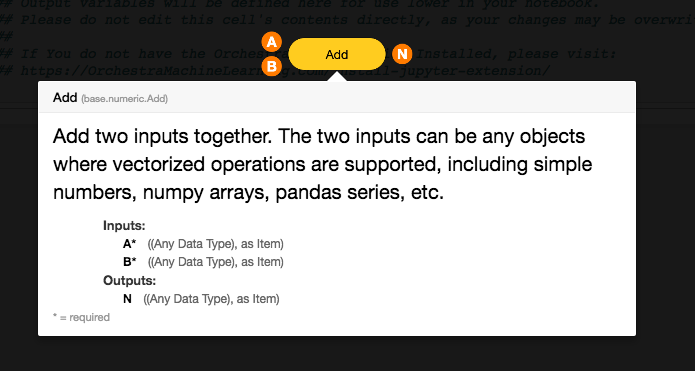
- Hovering brings up a tooltip full of information about the component's behavior, inputs, and outputs
Let's put all of this to use by creating a simple "Hello World" definition: one that adds 1+1 and prints the result.
- Open Jupyter as before
- Double click the background. You should see a search bar:
- Type "ad" and look at the autocomplete options (you may see slightly different options, as the list of components is growing all the time!):
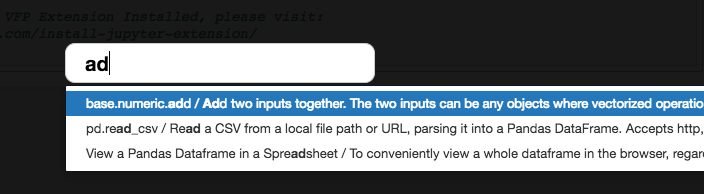
- Notice the first option,
base.numeric.addwhich "Adds two inputs together". Awesome. Select it by clicking, or tapping the arrow key until it's highlighted, and hitting "enter". - Congrats, an addition component!
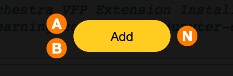
- It's worth noting the color of the component: orange. That means that the component doesn't have enough data to run. It's missing inputs. When components do have enough data, they turn grey. When they have errors, they turn red. More on that later.
- Hover over the component. You should see a tooltip that tells you all about what the component is, what its inputs are, and what data types and defaults they have. In the case of an "addition" component, you can add pretty much anything (two numbers, two numpy arrays, two pandas series, or any mix of any of those).
- Single click the
Ainput, and enter the number1into the dropdown.
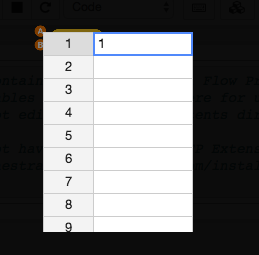
- To "commit" that value, click anywhere outside the dropdown.
- Single click the
Binput, and enter the number1into the dropdown. The component should turn grey:
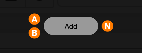
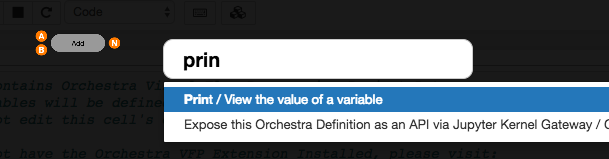
- To see the result of your calculation, create a "Print" component. Double click the background, and start typing Print. Select the print component:
- Drag the output from the "Add" component to the input of the Print component. Drop it in place. You should see a connection appear:
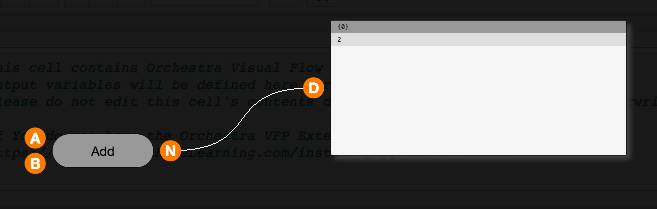
- Zoom in, and you'll see the Print dialog shows your first result. Congratulations,
1+1=2!
For/While Loops in Visual Flow Programming are implicit. You don't need to iterate over any lists of things; operations are always applied to all the items in the list. The details of this can become quite complex, and Orchestra supports quite complex behavior. But the simple version is easy to experiment with. Let's leave "A" as the value 1, but enter a series of values into "B": 100,200,300,400,500. When we click out, the print component will automatically show the new result: 101,201,301,401,501.
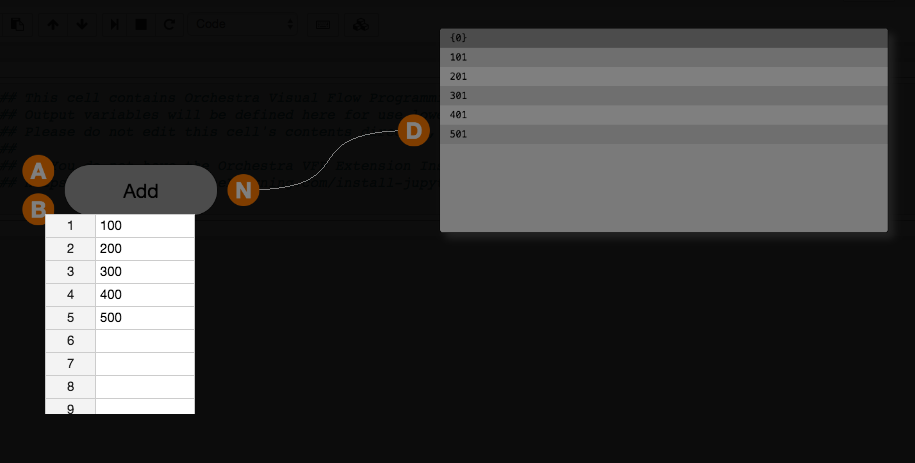
This makes it very easy to perform similar operations on multiple Python objects. Want to add a column to each of 200 different pandas dataframes? No problem. Want to chart 200 variables against each other in a single chart? Yep. Want 200 charts for 200 variables? Sure, but you'll have to spend some time learning Orchestra for that. There's a lot you can do with very little learning, but ultimately Orchestra will reward you for becoming an expert.
List management is probably the most complex issue in Visual Programming. Orchestra inherits its behavior 100% from Grasshopper, a well developed and loved visual programming extension for Rhinoceros 3D, a popular CAD package. The behaviors will be documented here, in the Orchestra Wiki, but additional material can be found in Grasshopper forums and manuals that will apply here.
In the example above, we have a single component "Add". Say it has some sort of symantic meaning for us. It's not just "addition", but actually a tally of something. We could name it "tally" by right-clicking the component and typing a new name:
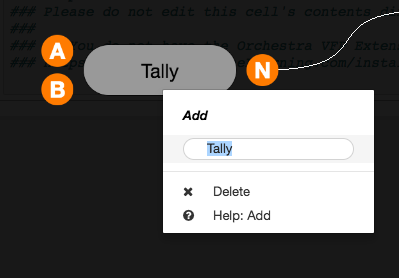
This will persist when you exit Orchestra, save your notebook, and return to it later.
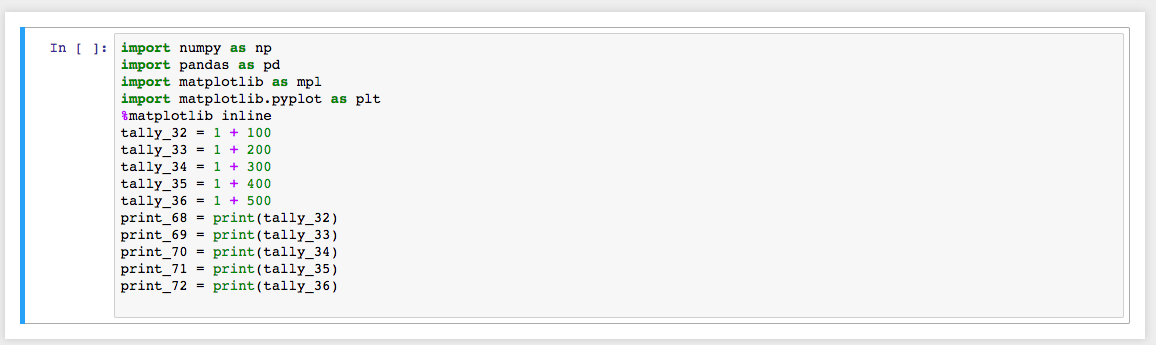
On return to Jupyter, the cell's contents will contain a transcript of the python you've written while using Orchestra. This can be useful if you want to mix Orchestra and typed Python. Simply "export" your variables and give them names (there's a component for that) and you're off to the races.