


Having recently picked up a 55-inch 4K mini-LED panel with a 144Hz refresh rate, I absolutely love it. It's bright, responsive, and honestly a massive leap over anything I've owned before. But as I started using it more, switching between my console, PC, and streaming apps, I realized that I didn't always feel like I was using all that horsepower.
That's when I dove into the HDMI settings of the TV, and found plenty that were lacking. Of course, there are always a bunch of settings to change with a new TV, but there are also those that are buried a couple of layers deep that a lot of folks never end up touching. Turns out, these toggles make a far bigger difference than any Vivid or Cinema modes ever could.
Enabling Enhanced HDMI or Deep Color
Unlock your TV's actual capabilities

This is the first thing I changed, and the one that most people rarely realize exists in the first place, is very important. Out of the box, most TVs have HDMI ports in a standard mode that prioritizes compatibility over performance. It's designed to smooth over HDMI handshakes, especially with older devices, so you don't end up staring at a blank screen, wondering what went wrong, and demanding a refund at the storefront.
 Quiz
Quiz
The World of HDMI
From living room TVs to bleeding-edge displays — how well do you really know the cable that changed everything?
In what year was HDMI (High-Definition Multimedia Interface) first introduced to the consumer market?
Which HDMI version was the first to officially support 4K resolution at 60Hz?
What is the maximum bandwidth supported by HDMI 2.1?
Which feature, introduced with HDMI 1.4, allows a TV remote to control connected devices like a Blu-ray player?
What does the 'ARC' in HDMI ARC stand for?
Which of the following companies was NOT part of the original HDMI founding consortium?
What was the primary interface that HDMI was designed to replace in home theater setups?
Which HDMI 2.1 feature dynamically adjusts a display's refresh rate to match the frame rate output of a gaming console or GPU?
Your Score
Thanks for playing!
The problem here is that this default mode also ends up capping bandwidth. That means limited color depth, reduced HDR performance, and in some cases, no access to higher refresh rates like 120Hz or 144Hz. You're essentially running your expensive panel in a safe mode that hides what it can really do.
This is a setting you need to enable per HDMI port. Your console might be plugged into HDMI 1, your PC into HDMI 2, and each one needs to be manually set to Enhanced. This can also be called a "Deep Color HDMI" setting depending on your TV brand. It's a minor tweak, but it's the difference between having a "nice enough" TV and a properly gorgeous display that you use to the best of its potential.
Enabling HDMI eARC for my soundbar
Audio deserves the same bandwidth as the visuals


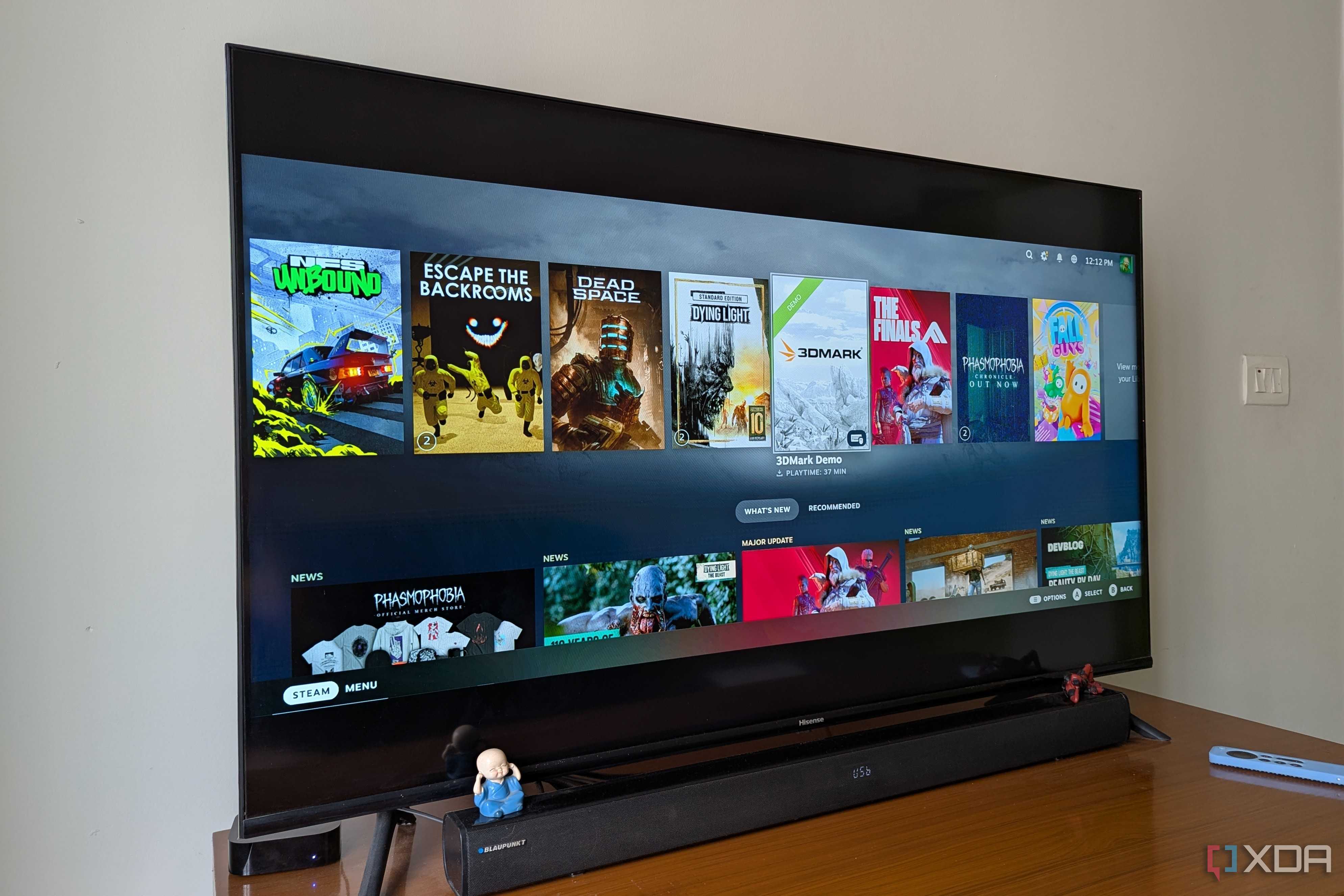
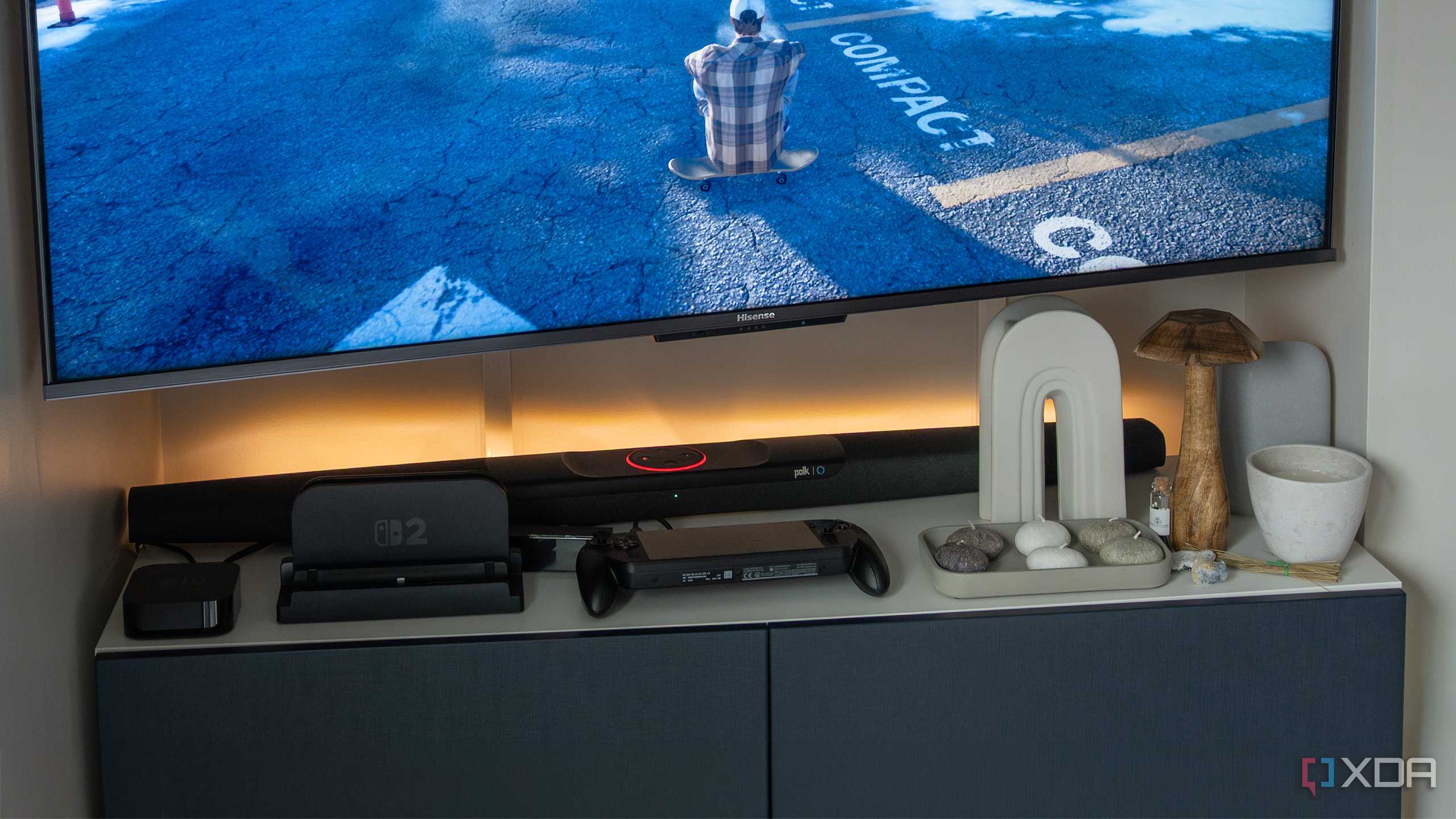
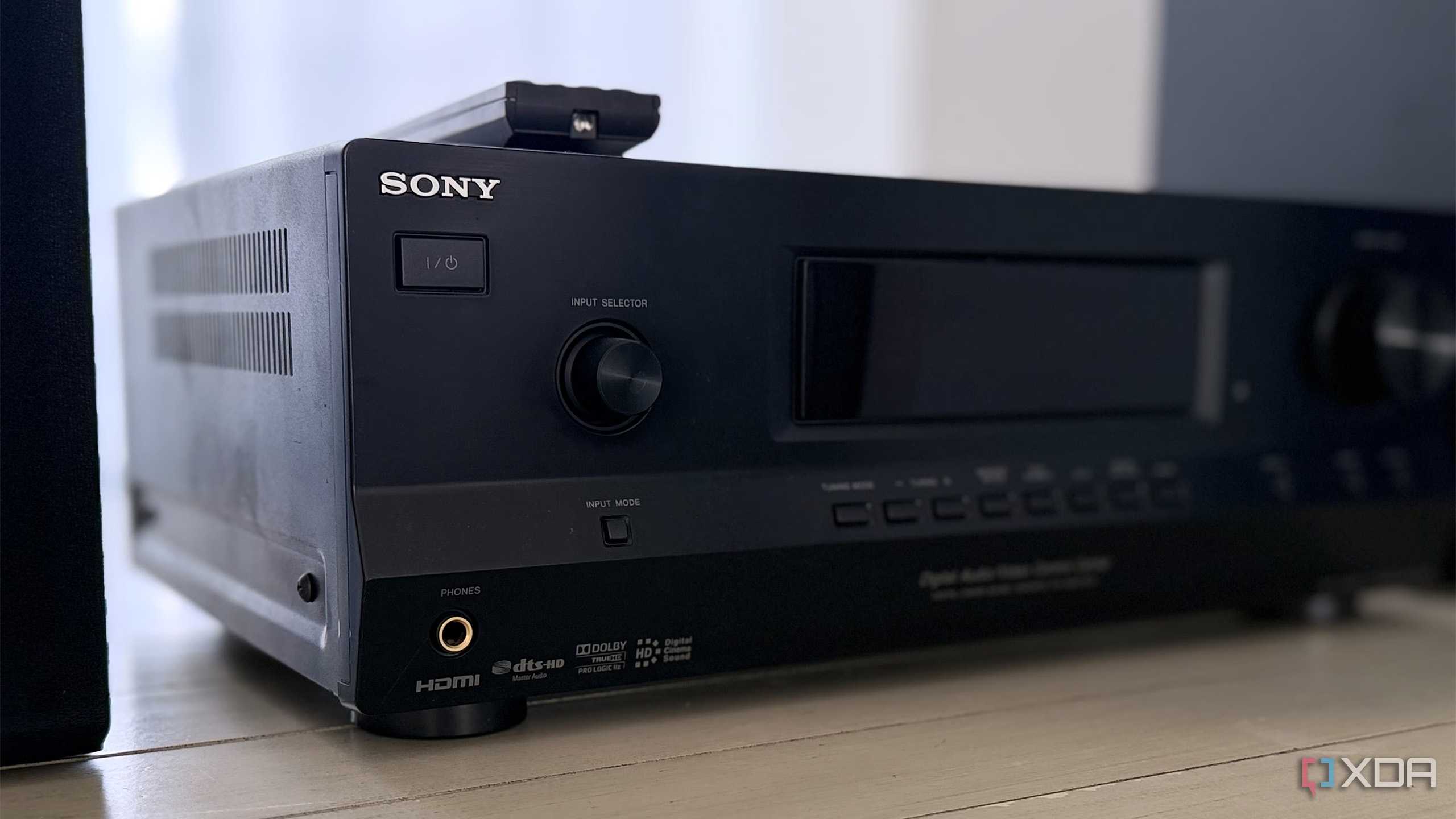
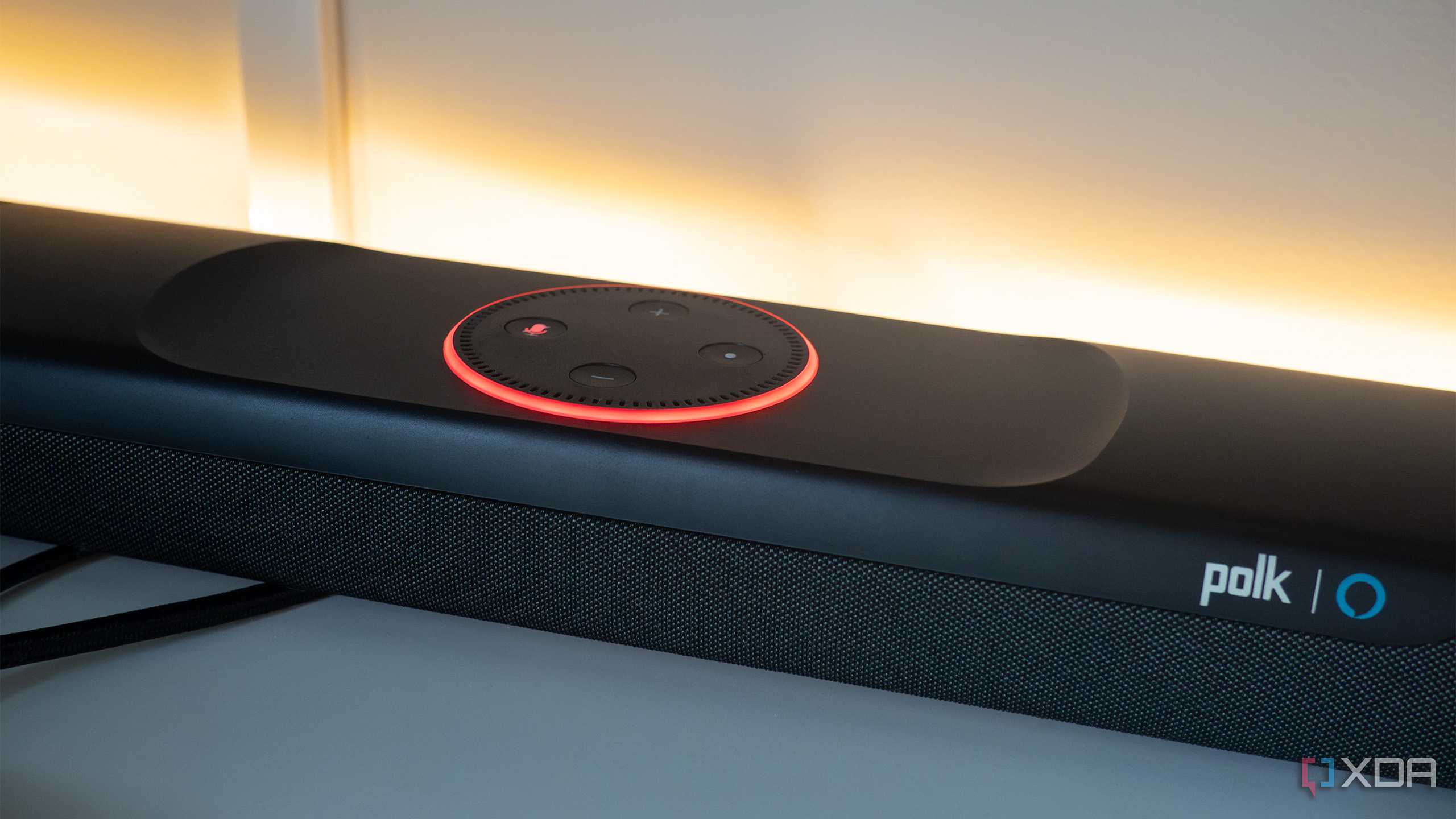
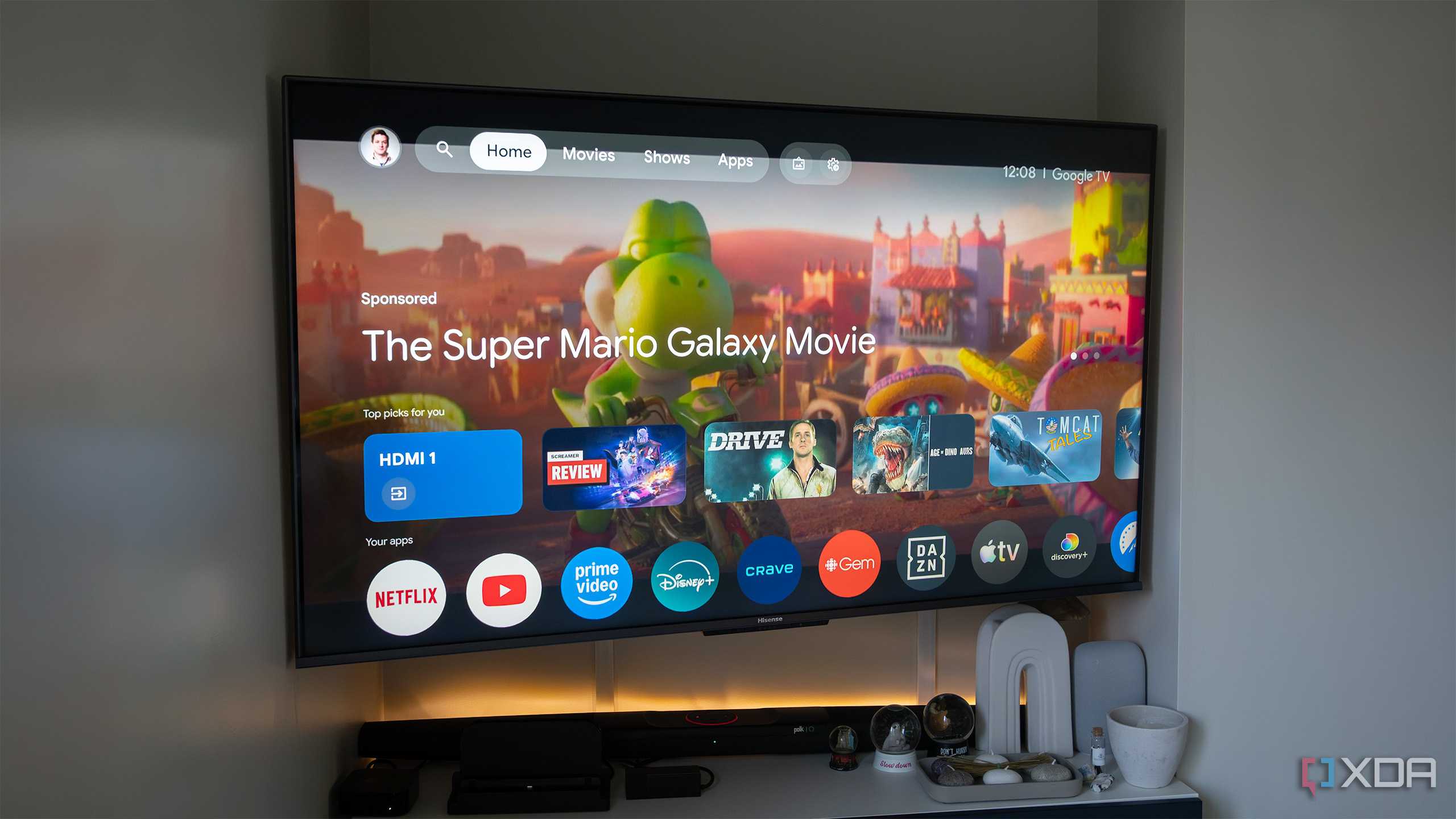
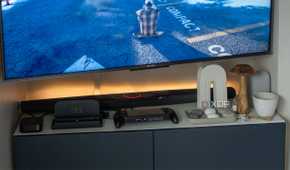
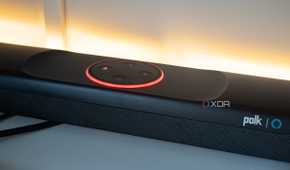
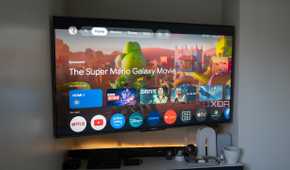
If you're using a soundbar or an AV receiver, chances are that your audio is actually being compressed without you realizing it. Standard ARC (Audio Return Channel) simply doesn't have the bandwidth to carry high-bitrate, uncompressed audio formats. That's where eARC (enhanced ARC) comes in. It allows your TV to send full-quality audio back through the same HDMI cable to your soundbar, and it even includes formats like Dolby Atmos and DTS:X.
With eARC, you get no compromises or downscaling in your audio quality, and it's a rather experiential difference. Dialogue feels immediately clearer, spatial audio becomes way more precise, and big, cinematic moments (I watch Godzilla doing something cool once every week) actually hit home in a way that standard ARC just doesn't deliver. Again, eARC isn't enabled by default, so if you've invested in good audio gear, this is the toggle that ensures you'll actually hear what you've paid all that money for.
Turning on ALLM for gaming
Your TV shouldn't be slowing your inputs down

If you game on your TV, even casually (or religiously like I do), ALLM is non-negotiable. ALLM, or Auto Low Latency Mode, ensures that your TV switches into its lowest-latency profile the moment it detects a gaming signal. Instead of digging through menus, or picking up the remote to toggle Game Mode on and off, ALLM makes sure that everything works just as well as it should.
Without it, your TV might still be applying image processing in the background. Things like motion interpolation, noise reduction, and sharpening don't sound harmful, but they do end up adding an amount of input lag. Once you notice that slight delay between pressing a button and seeing it on screen, it becomes rather impossible not to see and ignore. The beauty of ALLM is that it removes that friction completely. Your console tells the TV it's supposed to be displaying a game, and the TV ensures that everything feels tighter, more immediate, and far more in sync with what your hands (and controller) are doing.
Use the right HDMI port for the right device
Not all HDMI ports on your TV are created equal

This one isn't really a setting, but it is very well the most overlooked mistake I see people make. Not all HDMI ports on your TV are identical. While some likely support full HDMI 2.1 bandwidth, others are limited to HDMI 2.0, and one is usually reserved for eARC. With this in mind, high-end gaming PCs or consoles are supposed to go into the port that supports 4K at high refresh rates. Plug it into the wrong one, and you might be capped at 4K60Hz instead of 120Hz. Heck, you might not even see options like VRR show up.
It sounds obvious, but in practice, it's easy to overlook, especially when all the ports look the same. Taking a minute to match each device to the right port ensures everything else you’ve configured actually works as intended. Otherwise, you're solving the right problem in the wrong place.

You might not be fully using what you've paid for
It's rather surprising how uncomplicated these settings are, but that they're still hidden for a majority of users. They're not flashy, nor are they marketed front and center, and yet, they can fundamentally change your TV's entire viewing experience altogether.
After making these changes, you can feel everything click into place. The responsiveness, the clarity, and the audio will all start to feel more cohesive. That's really what you're chasing when you invest in good hardware: a setup that convinces you that you're getting the most for your money.
