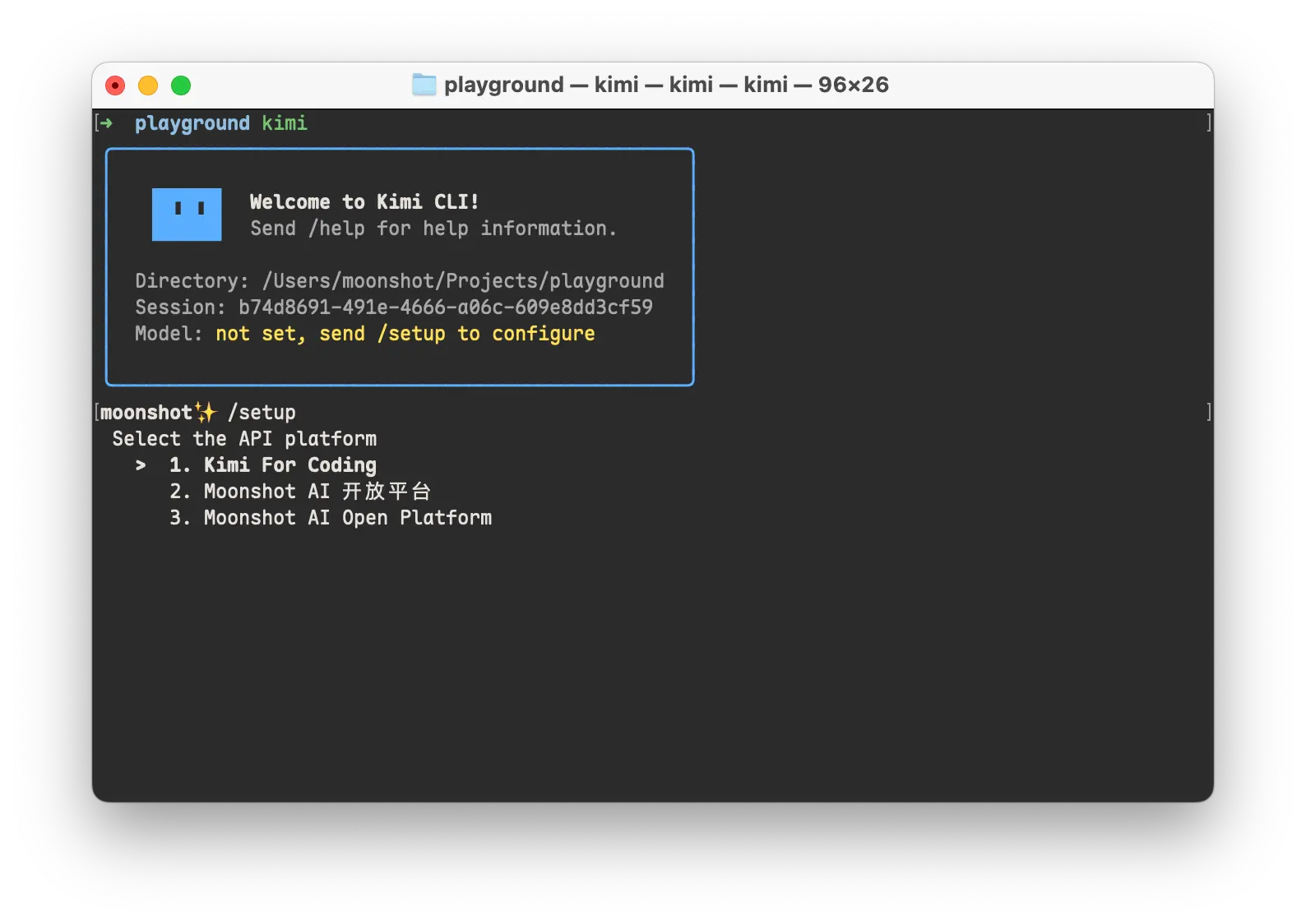
Kimi Code CLI is Moonshot AI’s open-source AI coding agent for the terminal. Open it inside a project and ask it to trace a bug, explain unfamiliar code, implement a feature, or refactor several files. The agent reads the relevant source files, runs commands, makes edits, and uses the results of each step to continue the task.
Its interactive terminal UI is the main workspace, with a local browser UI and ACP connections for editors such as Zed and JetBrains. Kimi models power the coding sessions, and the CLI can draw on MCP servers, project Skills, plugins, and specialized agents when a task calls for them.
Features
- Explores repositories, edits project files, and runs builds or tests in response to coding tasks.
- Tracks multi-step work through interactive sessions, Plan mode, and Goal mode.
- Uses Kimi Code models or configured third-party model providers.
- Opens sessions in the terminal, a local browser UI, or an ACP-connected editor.
- Connects to external services through MCP, including MCP OAuth authentication.
- Uses project instructions, Agent Skills, and installable plugins.
- Delegates focused work to subagents and coordinates larger jobs with swarm or experimental Tower mode.
- Accepts images and video clips when the selected model can process them.
Kimi Code CLI Quick Reference
| Task | Command |
|---|---|
| Open a coding session | kimi |
| Run one prompt | kimi -p "TASK" |
| Resume the latest session | kimi --continue |
| Open the local browser UI | kimi web |
| Connect an ACP editor | kimi acp |
| Check the installed version | kimi --version |
| Check for updates | kimi upgrade |
How Kimi Code CLI Works in a Project
A coding session begins in the current project directory. Ask Kimi to investigate an error, and it can search for the relevant functions, inspect nearby files, and run a test or command to check its findings. For an implementation task, the conversation can continue through file edits, command output, and follow-up changes. The agent has access to the project workspace and uses tool results as new context for its next action.
For example, a request to add a validation function and its unit tests gives the agent a concrete objective. It can inspect the project’s existing validation rules, write the function in the relevant module, update tests, and execute the test command. In an interactive session, read-only operations normally proceed automatically. File changes and shell commands follow the active approval mode.
Plan mode and longer tasks
Plan mode is useful before changing a large or unfamiliar codebase. Enter /plan or press Shift-Tab to have Kimi explore and draft an implementation plan. It waits for approval before carrying out the plan, even under Never Ask permissions. Goal mode handles an objective that needs continued work across multiple turns. For example, /goal can track a defined set of failing tests and continue the work toward the requested completion criteria.
The input box also has a shell mode: type ! in an empty prompt to run a shell command and bring its output into the conversation. Prior sessions can be resumed, forked, or compacted if the context becomes large.
Choosing a Kimi Model for Coding
Kimi Code currently has 6 model IDs. K3.1 Pro is the newest flagship for complex coding and long-running agent tasks. The model picker uses the exact IDs shown here.
| Model ID | Model and coding role |
|---|---|
k3.1-pro | K3.1 Pro · complex coding, debugging, long agent tasks |
k3.1-pro-highspeed | K3.1 Pro Highspeed · faster generated output |
k3 | K3 · large codebases and extended sessions |
k3-256k | K3 · routine work within 256K context |
kimi-for-coding | K2.8 Preview · code completion and daily development |
kimi-for-coding-highspeed | K2.7 Code Highspeed · faster responses from the older coding model |
How K3.1 Pro relates to K3 and the Coding models
K3.1 Pro is Kimi’s current flagship for difficult multi-file changes, long debugging sessions, and tasks that require substantial project context. K3.1 Pro Highspeed uses the K3.1 Pro model capabilities and produces generated output roughly two to three times faster. It consumes approximately twice the Kimi Code quota of the regular version. Build commands, tests, and other external tool operations take their usual execution time.
K3 is the preceding flagship. Its k3-256k variant works with the K3 model inside a 256K-token context window and uses approximately half the quota of the 1M K3 variant. The 256K context window is suited to short edits, routine testing, and changes within a few files. The 256K variant accepts image input, but it cannot process video clips.
Model access and how to switch
The Go plan has no coding quota. On current Kimi Code plans, Plus includes K3.1 Pro, K3, K3-256K, and K2.8 Preview. Pro unlocks K3.1 Pro Highspeed and K2.7 Code Highspeed. The full one-million-token context window for K3.1 Pro and K3 is available from Pro.
K3.1 Pro and Highspeed require thinking mode and accept low, high, and max reasoning effort. Requests that disable thinking receive an HTTP 400 response. K3 and K2.8 Preview support adjustable thinking effort as well.
Enter /model inside the terminal session to select a model. If K3.1 Pro is missing from the picker, sign out with /logout and sign in again using /login. A new session is recommended when moving from K3 or an older Coding model to K3.1 Pro: mixed reasoning history can affect responses, and a switch resets the context cache.
The setup for calling Kimi models from other coding agents is explained in How to Use Kimi K3.1 Pro in Codex & Claude Code.
How to Install and Start Kimi Code CLI
macOS and Linux
curl -fsSL https://code.kimi.com/kimi-code/install.sh | bashWindows
irm https://code.kimi.com/kimi-code/install.ps1 | iexnpm
The npm package requires Node.js 22.19.0 or newer.
npm install -g @moonshot-ai/kimi-codeYour first coding session
Run kimi from the repository you want to work on. The first session needs a model connection. Enter /login and select Kimi Code OAuth to authorize a membership in the browser, or enter a Kimi Platform API key. Once signed in, ask for a short explanation of the project structure to see how the agent reads the codebase.
kimi --version
cd your-project
kimi
Updating or removing the CLI
Run kimi upgrade for release updates. A global npm install can be updated or removed through npm.
kimi upgrade
npm install -g @moonshot-ai/kimi-code@latest
npm uninstall -g @moonshot-ai/kimi-code
Working in the Browser and Your Editor
Kimi sessions can run from a local browser tab or from an ACP editor. In Zed or JetBrains, the agent’s conversation appears alongside the source code, and file edits and shell commands run in the connected project workspace.
Local browser UI
Run kimi web in a terminal to start the local server and open the browser UI. The server stays in the foreground until you stop it. It provides session access through its REST and WebSocket service as well as the browser page.
kimi webZed and JetBrains IDEs
ACP lets an editor start Kimi Code CLI as a subprocess using kimi acp. The editor communicates with the agent through the Agent Client Protocol and reuses the login completed in the terminal. In Zed, place the following configuration in ~/.config/zed/settings.json and open the editor’s Agent panel.
{
  "agent_servers": {
    "Kimi Code CLI": {
      "type": "custom",
      "command": "kimi",
      "args": ["acp"],
      "env": {}
    }
  }
}
In JetBrains IDEs, open the AI Chat panel’s Configure ACP agents option and enter the agent configuration below. Use the actual absolute location of your kimi executable as the command.
{
  "agent_servers": {
    "Kimi Code CLI": {
      "command": "/Users/you/.local/bin/kimi",
      "args": ["acp"],
      "env": {}
    }
  }
}
Zsh shortcut
Moonshot AI’s zsh-kimi-cli plugin provides a Ctrl-X shortcut to open Kimi Code CLI from Zsh. For Oh My Zsh, clone the plugin into the custom plugin directory and enable kimi-cli in ~/.zshrc.
git clone https://github.com/MoonshotAI/zsh-kimi-cli.git \
  ${ZSH_CUSTOM:-~/.oh-my-zsh/custom}/plugins/kimi-cli
plugins=(... kimi-cli)Providers, MCP, Skills, and Plugins
Kimi Code CLI uses the current model provider for reasoning and its local tools for reading files, applying edits, and executing commands. The provider configuration can include Moonshot AI, Anthropic, OpenAI-compatible APIs, Google GenAI, and Vertex AI. Manage providers with /provider or the CLI’s kimi provider commands. Provider settings are stored in ~/.kimi-code/config.toml, with credentials optionally read from environment variables.
kimi provider list
kimi provider catalog list
kimi provider catalog add anthropic --api-key YOUR_API_KEY
MCP servers
MCP connections let Kimi use external services during a coding session. Open /mcp-config to register a server or complete its OAuth login, then use /mcp to inspect connection status. Once a server is configured, its tools can participate in tasks where repository files alone are insufficient.
Agent Skills and reusable instructions
A Skill is a directory containing a SKILL.md file with reusable instructions for a task. Kimi discovers Skills from the user folders ~/.kimi-code/skills/ and ~/.agents/skills/, project folders .kimi-code/skills/ and .agents/skills/, plus configured extra and built-in locations. Invoke a project Skill with /skill:skill-name. A plugin Skill uses /skill:plugin-id:skill-name starting in v2.3.0.
The CLI also ships built-in Skills for common maintenance tasks. Their commands are available directly from the terminal input when the agent is idle.
| Built-in skill command | What it does |
|---|---|
/mcp-config | Configures MCP servers and handles MCP OAuth login. |
/custom-theme | Creates or edits a TUI color theme. |
/update-config | Inspects or edits runtime and TUI configuration. |
/check-kimi-code-docs | Answers Kimi Code product questions against the official documentation. |
/import-from-cc-codex | Imports Claude Code and Codex instructions, Skills, and MCP settings. |
/sub-skill | Reviews or reorganizes local Skills into sub-skill bundles. |
Plugins
Plugins package Skills, custom agents, MCP server definitions, hooks, and slash commands in a kimi.plugin.json manifest. Open /plugins to install or manage packages from the built-in catalog or other repositories. Plugin-related MCP configuration changes become active after /reload or a new session.
Subagents, Swarm, and Tower Mode
A subagent takes on focused work with its own conversation context, such as exploring an unfamiliar module or reviewing a code change.
Swarm mode coordinates multiple agents within an interactive session. Activate it with /swarm on or pass an objective to /swarm <task>.
Experimental Tower collaboration
Tower mode is designed for parallel development in a Git repository. It assigns missions to agents working in their own branches and Git worktrees, requests independent reviews, and merges approved results into the designated local branch. The coordinator can accept changes to the objective while workers are active. This is an experimental feature, activated in /experiments or with the setting below. Restart the CLI after enabling it, then use /tower on in the repository.
[experimental]
tower = true
Remote Control
Remote Control keeps the agent running on your computer and makes its sessions available from a phone or another browser. Run kimi rc to display a URL and QR code, sign in on the other device with your Kimi account, and continue the conversation or respond to approval requests. Remote Control requires a paid Kimi membership, and the original computer needs to stay awake and online.
kimi rcMigrating from the Earlier Kimi CLI
Kimi Code CLI is the current TypeScript-based project. The earlier Python-based Kimi CLI stored its local data under ~/.kimi/. On first launch, the new CLI can detect that directory and offer to bring over configuration, MCP server entries, input history, and selected chat sessions. Run kimi migrate to open the migration flow later.
OAuth credentials, MCP authorizations, and old plugins need to be set up again. The migration leaves the original ~/.kimi/ directory intact, and the newer CLI keeps its state under ~/.kimi-code/.
| Aspect | Kimi Code CLI | Legacy Kimi CLI |
|---|---|---|
| Status | Current project | Legacy project with maintenance winding down |
| Implementation | TypeScript and Node.js | Python and uv |
| Local data | ~/.kimi-code/ | ~/.kimi/ |
| Migration | Imports selected legacy data with kimi migrate | Provides data from ~/.kimi/ |
More Kimi Code CLI Commands
| Command or option | What it does |
|---|---|
kimi --help | Shows command help. |
kimi -p "TEXT" --output-format stream-json | Returns non-interactive output as JSON lines. |
kimi --model NAME | Overrides the model for the current run. |
kimi --add-dir PATH | Adds another directory to the workspace scope. |
kimi --session [ID] | Opens the session picker or resumes a specified session. |
kimi --yolo | Starts in Ask When Needed mode for routine tool approvals. |
kimi --auto | Starts in Never Ask mode for autonomous execution. |
kimi --plan | Starts in Plan mode for read-only exploration and planning. |
kimi --skills-dir PATH | Loads Skills from the specified directory for that run in place of auto-discovered Skill directories. |
kimi login | Starts non-interactive Kimi Code OAuth login. |
kimi rc | Starts paid-member Remote Control for the local agent. |
kimi app [PATH] | Opens a new desktop chat in the selected project directory. |
kimi install-desktop | Opens the Kimi Code desktop download page. |
kimi doctor | Validates configuration files without starting the TUI. |
kimi export | Exports a session as a ZIP file. |
kimi migrate | Migrates local data from the legacy kimi-cli installation. |
kimi vis [sessionId] | Opens the session visualizer in a browser. |
kimi provider | Manages providers and model catalogs. |
Interactive Slash Commands
| Slash command | What it does |
|---|---|
/help | Shows shortcuts and available commands. |
/login | Signs in with Kimi Code OAuth or a Kimi Platform API key. |
/logout | Clears credentials for the selected account. |
/provider | Opens the provider manager. |
/model | Selects a model and offers session handling when switching. |
/settings | Opens the TUI settings panel. |
/permission | Selects a permission mode. |
/new | Starts a fresh session. |
/sessions | Browses and restores historical sessions. |
/tasks | Opens the background task list. |
/fork | Forks a new session while preserving history. |
/compact | Compacts the current context. |
/reload | Reloads the current session with updated configuration. |
/init | Analyzes the codebase and generates AGENTS.md. |
/add-dir | Adds another workspace directory to the current session. |
/web | Opens the current session in the web UI. |
/remote-control | Starts a browser-accessible remote session. |
/desktop | Opens the desktop app download page. |
/swarm on | Enables multi-agent swarm mode for interactive sessions. |
/yolo | Opens Ask When Needed permission mode. |
/auto | Opens Never Ask permission mode. |
/plan | Toggles Plan mode. |
/goal | Starts or manages an autonomous goal. |
/usage | Shows token, context, and quota usage. |
/status | Shows the current session runtime state. |
/mcp | Lists MCP server connection status. |
/mcp-config | Configures MCP servers and handles MCP OAuth. |
/plugins | Opens the plugin manager. |
/skill:<name> | Loads an external Skill; plugin Skills require a qualified name. |
Kimi Code CLI vs. Claude Code or Cursor
| Product | Primary workflow | Main distinction |
|---|---|---|
| Kimi Code CLI | Terminal, browser UI, and ACP editor sessions | MIT-licensed terminal agent with Kimi model selection, ACP, MCP, Skills, and plugins. |
| Claude Code | Terminal coding agent | Anthropic’s first-party coding agent for Claude workflows. |
| Cursor | AI coding editor | Editor-centered development environment with integrated coding-agent features. |
| Gemini CLI | Terminal coding agent | Google’s Gemini-focused command-line coding agent. |
| Qwen Code | Terminal coding agent | Command-line coding agent for the Qwen ecosystem. |
Pros
- MIT-licensed CLI with source code available on GitHub.
- Terminal sessions, browser access, and ACP editor integration.
- Flexible provider configuration, MCP servers, Skills, and plugins.
- Session controls and options for delegated coding work.
Cons
- Coding models require a Kimi membership or configured API credentials.
- Never Ask and experimental Tower modes can execute commands without individual approval.
FAQs
Is Kimi Code CLI free?
The CLI is free to install and is available under the MIT license. For model-backed coding sessions, use Kimi Code OAuth with a membership, a Kimi Open Platform API key, or credentials for a configured third-party provider. Model usage follows the account or provider’s billing rules.
Does Kimi Code CLI require an API key?
Kimi Code OAuth authorizes a membership through browser sign-in and does not require manually entering an API key. The Kimi Open Platform and third-party providers use API credentials.
Does Kimi Code CLI work on Windows?
Yes. Install the CLI from PowerShell and install Git for Windows to provide the Git Bash environment used by Kimi’s shell commands.
Can I use K3.1 Pro in an existing K3 coding session?
The model picker can change models during a session, but opening a fresh session is recommended for K3.1 Pro. Earlier model reasoning history can affect responses, and model switches invalidate the context cache.
Alternatives & Related Resources
- 10 Best CLI AI Coding Agents: Open-Source & Commercial
- How to Use Kimi K3.1 Pro in Codex & Claude Code
- Kimi Model Timeline: Kimi K3.1 Pro Release Dates and Version History
- AI LLM API Pricing: GPT, Gemini Argon, Claude & More
- AI Coding Plan Comparison: Prices, Limits, and Features
- Official Kimi Code Documentation
Last updated: October 26, 2026