SurfSense is a free, open-source NotebookLM (Gemini Notebook) for researching, creating, and editing documents with AI.
Import PDFs, Office files, recordings, and notes, ask questions with citations to your sources, or have an AI agent prepare a new document from what it finds.
Your document library and search index live on your computer, and a local AI model lets the app work offline.
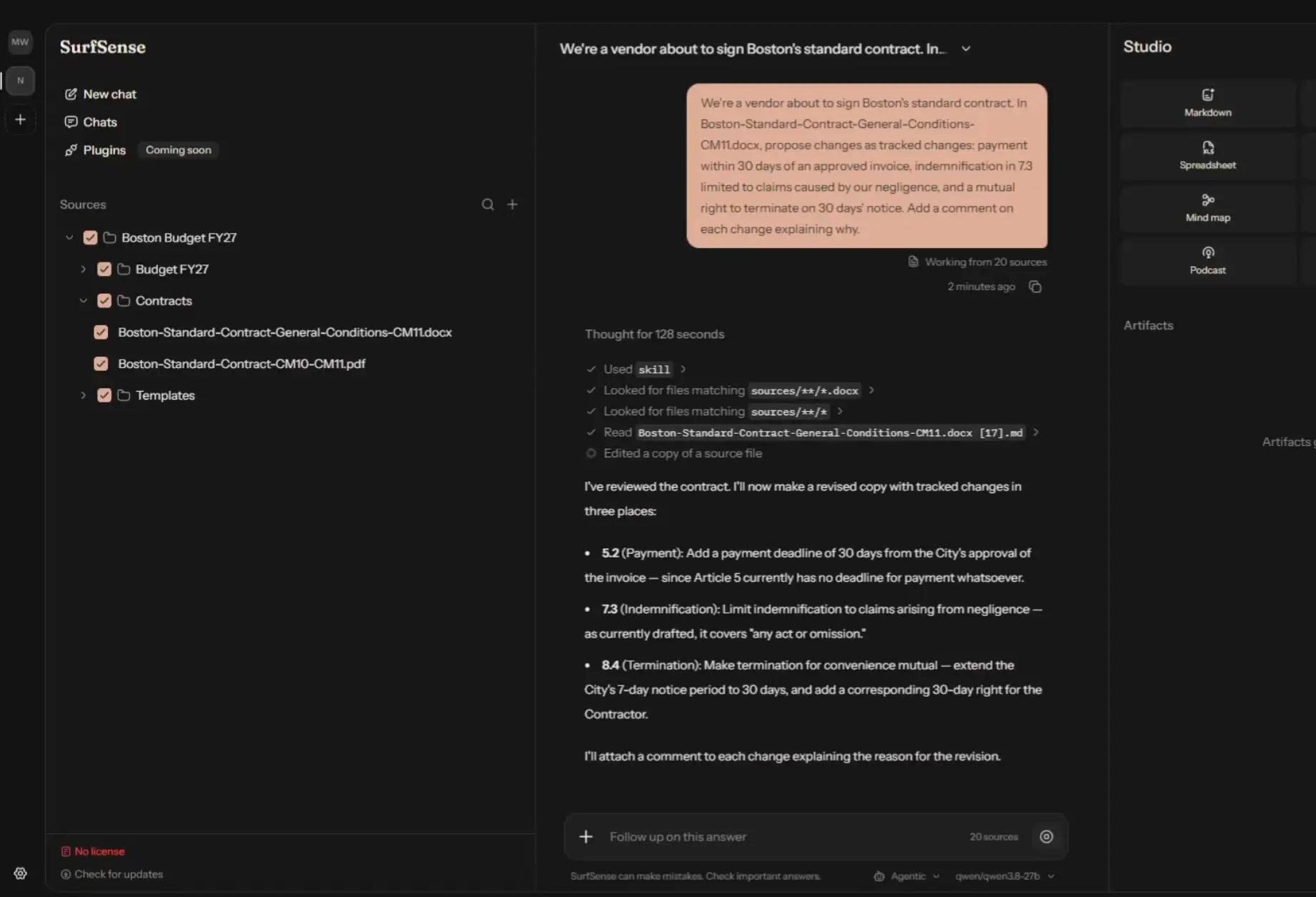
SurfSense also works directly with editable files. The agent can examine a contract and prepare a Word copy with tracked changes, review figures in an Excel workbook, or turn research into a presentation or HTML page.
You can inspect the results in the app and open the generated files in their usual editors. The source documents stay intact.
Key Features
- Search PDFs, Office documents, notes, images, and recordings with citations to relevant source passages.
- Ask an AI agent to investigate documents, revise existing files, and create new deliverables.
- Review Word edits as tracked changes and comments in a new
.docxfile. - Analyze Excel formulas and data, edit workbook copies, and create spreadsheets with native charts.
- Fill PDF forms, merge or extract pages, and stamp watermarks or page numbers.
- Generate reports, presentations, web pages, podcasts, mind maps, flashcards, and quizzes from selected sources.
- Run local AI models or connect hosted endpoints, ChatGPT plans, and eligible Claude plans.
- Bring public web research into the library and connect third-party MCP plugins.
- Work from a local desktop library with no SurfSense account required.
SurfSense vs NotebookLM
| SurfSense | NotebookLM | |
|---|---|---|
| Core setup | Desktop app | Web app |
| Where your data lives | On your machine by default | In Google’s cloud |
| Internet requirement | Can work offline after local setup | Cloud service, so internet access is required |
| Account requirement | No account required | Google account required |
| Model choice | Local models or your own hosted model keys | Gemini only |
| What it does with your sources | Q&A with citations plus reports, slides, podcasts, quizzes, images, and more | Q&A with citations plus notebook-style research outputs, including Audio Overviews |
| Live web data | Can pull search, web, shopping, maps, social, and job data through plugins | Focuses on sources you upload or add to a notebook |
| Sharing | Primarily a private local workspace | Built for cloud sharing and collaboration |
| Pricing | Core app is free and open source | Free tier available; higher limits and premium features come with Google AI or Workspace plans |
| Best fit | Private research, offline work, and flexible model choice | Fast cloud-based research inside Google’s ecosystem |
How SurfSense Works
A SurfSense workspace holds the source files, notes, chats, and generated documents for a research topic. When you import a document, SurfSense extracts its content, divides it into searchable passages, and builds an index on your computer. Keyword search finds matching terms, and vector search helps retrieve related passages even when your question uses different wording.
In Basic chat, select the sources you want to search or ask about the whole workspace. SurfSense retrieves relevant passages and sends that context to your selected language model. Answers include citations that point back to the material used, so you can inspect the evidence behind a clause, figure, or quotation.
Agentic mode handles multi-action requests. The agent can search your indexed library, read extracted source text, create editable files, and revise its work through the conversation. SurfSense includes an opencode-based runtime for these tasks. You choose Basic or Agentic when opening a chat, and the app suggests a default based on its model-capability assessment.
For example, you can ask the agent to find conflicting termination provisions across several agreements. After reviewing its cited findings, request a revised contract that records proposed changes in Word. The research conversation and the generated file belong to the workspace.
Research, Analyze, and Edit Your Files
SurfSense handles source research and document work from the same library. For Word documents, the agent can revise the body text in a new .docx copy and record suggested changes and comments. It can also create a document using an existing Word template. Excel work includes inspecting formulas, analyzing tabular data, and producing workbooks with formulas and native charts. PowerPoint editing can replace slide or speaker-note text and duplicate or remove slides.
PDF tools handle tasks such as form filling, page extraction, merging, rotation, and watermarking. Scanned PDFs and images use local OCR for Latin, Chinese, and Japanese writing. PDFs with a text layer are read from that layer. Audio recordings are transcribed locally before they become searchable sources.
| File Type | What SurfSense Can Do |
|---|---|
| Search text and scans, fill or flatten forms, merge and extract pages, and insert watermarks or page numbers. | |
Word (.docx) | Search, create from scratch or a template, and revise a copy with tracked changes and comments. |
Excel (.xlsx) | Read values and formulas, analyze data with pandas, edit workbook copies, and create formulas and native charts. |
PowerPoint (.pptx) | Search, create from a template, replace slide and note text, and duplicate or remove slides. |
| CSV | Search and analyze tabular data with pandas, then generate charts from the results. |
| Images | Read text in PNG, JPEG, TIFF, BMP, and WebP files through OCR and place images in generated documents. |
| Recordings | Transcribe WAV, MP3, FLAC, and Ogg Vorbis audio on your computer for source-based research. |
| Text, Markdown, and HTML | Index text-based sources and create Markdown documents or HTML web pages. |
Turn Sources Into Reports, Presentations, and Podcasts
Studio creates new material from documents you select in a workspace. Choose a format, select the source material, and describe what the result should focus on. SurfSense generates an artifact that you can inspect, save as a file when that format has an export, and use as a source for later questions.
Studio can produce an editable Word report, PowerPoint presentation, or Excel workbook from research materials. Word and PDF outputs can be refined in subsequent generations. The document agent can also prepare HTML web pages from the files it reads or from web material imported into the library.
For audio, SurfSense generates a podcast script and voices it through its audio runtime, with a local speech option. Image and infographic generation require an image-generation model, configured as a local model or remote endpoint.
| Studio Output | Result |
|---|---|
| Markdown | A written summary or briefing saved as .md. |
| Word | An editable .docx document. |
| Slides | An editable PowerPoint .pptx presentation. |
| Spreadsheet | An Excel .xlsx workbook. |
| Web page | A standalone .html file. |
| A PDF document. | |
| Mind map | A connected concept outline inside the app. |
| Flashcards | A question-and-answer deck. |
| Quiz | Questions and answers for reviewing source material. |
| Podcast | Spoken audio and a generated transcript. |
| Image | An image generated from an instruction and source context. |
| Infographic | An AI-generated graphic based on selected source information. |
Search the Web and Connect MCP Plugins
SurfSense can extend a document workspace with public web content. Choose Add from the web in the Sources panel, enter a Google search or a search within an available service, or paste a page URL. SurfSense displays candidate results for you to select.
For example: a YouTube video can enter the library as a transcript with comments, and a product page can contribute its details and reviews. Imported entries join your other searchable sources.
SurfSense’s web plugins handle this retrieval and require a SurfSense license. It now supports Google Search, Web Crawl, Reddit, YouTube, Instagram, TikTok, Google Maps, Amazon, Walmart, and Indeed. You can also use these connected plugins during Agentic conversations for current research.
In Settings > Plugins, connect third-party MCP servers from the registry, including DeepWiki and Notion, or enter the address of another MCP server.
Local Models, Hosted Models, and Subscription Access
SurfSense includes a llama.cpp runtime that can run downloaded GGUF language models directly on your computer. Its onboarding model selection takes available hardware and memory into account. After downloading the necessary weights, you can research locally stored documents offline.
The desktop installer includes the document parser, embedding model, and local speech runtimes used for indexing and audio-related tasks.
You can also connect AI providers through an OpenAI-compatible API endpoint. Enter the endpoint URL and an API key where one is required.
This works with hosted services and local model servers that implement the necessary endpoint operations. A remote text model receives the prompt and the source passages SurfSense sends to it, and the provider’s own usage or billing conditions apply.
Available subscription connectionss:
- ChatGPT Plus or Pro: Choose Use your ChatGPT plan and complete OpenAI’s sign-in flow. SurfSense can access the models available under that plan for chat, Studio, and agent tasks within the plan’s access and usage conditions.
- Claude Pro, Max, or Team: Choose Use your Claude plan after installing and signing into Claude Code on your computer. SurfSense uses the existing Claude Code authentication for its Claude model connection.
How to Get Started With SurfSense
1. Download the SurfSense desktop app.
2. Launch the app and complete onboarding. Download an appropriate local language model, connect a hosted API endpoint, or sign in through an eligible subscription connection.
3. Open the default workspace, import a PDF or other source file, and wait for SurfSense to finish indexing it.
4. In Basic chat, ask a source question such as “Which clauses describe termination rights?” The answer should cite passages in your imported file.
5. Open Agentic chat to request an edited document, or choose a Studio output format to create a report, presentation, or other artifact from the sources. Inspect the result in the workspace and open its exported file when available.
Use Cases
Review contracts and prepare tracked revisions
Import a contract, related policies, and reference agreements into one workspace. Ask SurfSense to find clauses that conflict with a policy or vary across agreements and cite the source paragraphs. An Agentic request can turn those findings into a revised Word copy with comments and tracked edits, leaving the original contract unchanged.
Check spreadsheet figures and draft a report
Import an Excel workbook alongside financial or operational reports. Ask SurfSense to examine figures and formulas, investigate inconsistencies, and produce an updated workbook or a new analysis with charts. Studio can use the findings to draft a presentation or PDF briefing.
Create study material from lectures
Import course readings, notes, and recorded lectures. SurfSense transcribes recordings locally and makes the text searchable alongside your documents. You can ask cited questions in chat and generate flashcards, a quiz, a mind map, or a narrated podcast from selected sources.
Research a topic online and generate a web page
Use an enabled web plugin to find relevant public pages and import specific results into the workspace. After reviewing the source material, ask the agent to prepare an HTML page that presents the research. SurfSense creates a standalone file you can inspect and edit further.
Pros
- Free open-source desktop app with local document research.
- Cited answers and editable document outputs in one workspace.
- Word tracked changes, Excel workbooks, PowerPoint files, and PDF tools.
- Local models, hosted APIs, and eligible subscription connections.
- Web research and third-party MCP extensions.
Cons
- Local AI generation speed depends on your CPU, memory, GPU, and selected model.
- SurfSense-operated web plugins require a license after the trial.
- Agent-authored document scripts are not fully sandboxed against local file and network access.
Alternatives & Related Resources
- Open Notebook: Private, Self-Hosted Gemini Notebook (NotebookLM) Alternative
- Open-Source Local AI Notebook for Research (NotebookLM Alternative) – Deta Surf
- Open Source Desktop AI Agent for Local Task Automation – WorkAny
- 7 Best Open-Source NotebookLM (Gemini Notebook) Alternatives