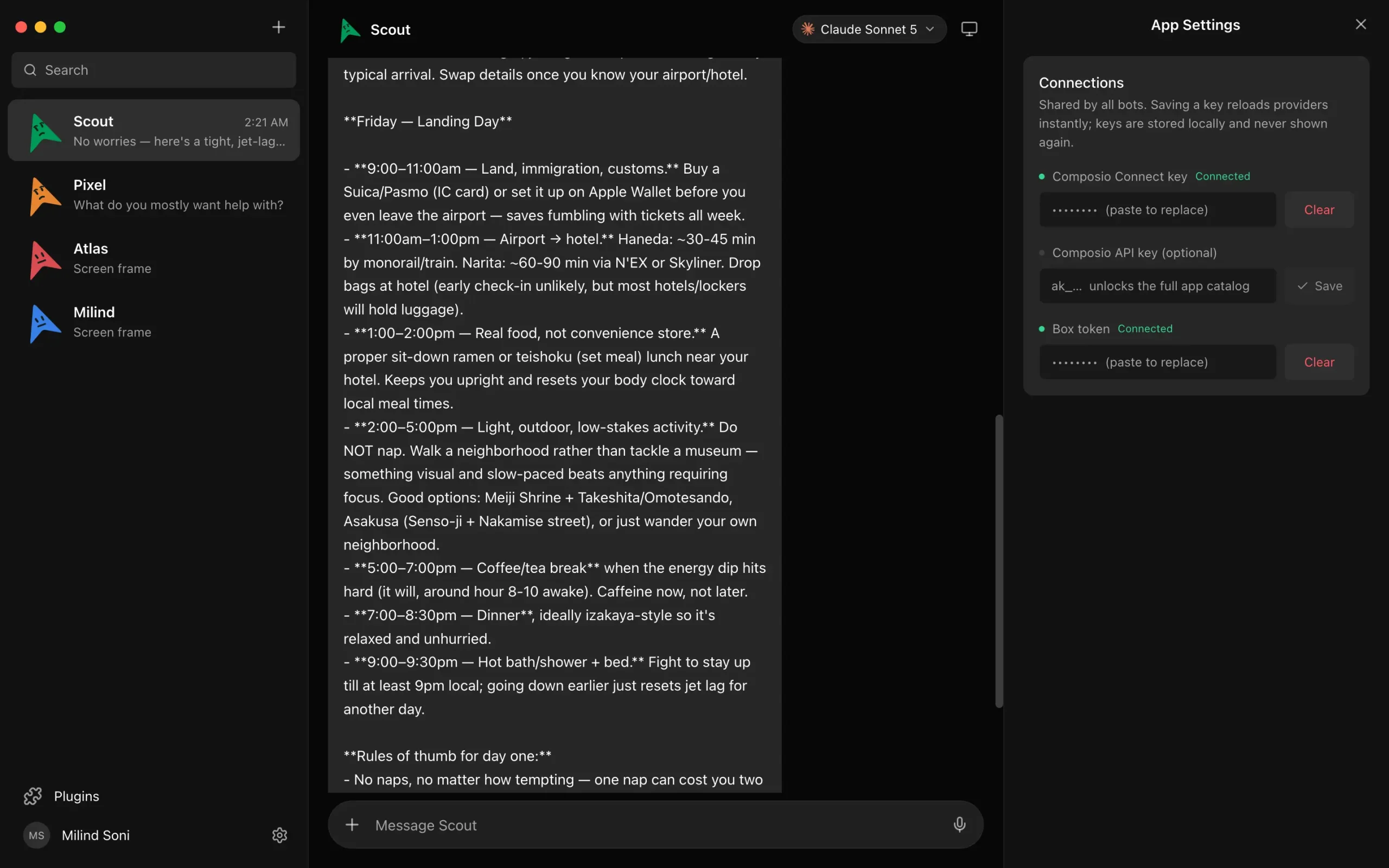
OpenMausBot, also called MausBot, is a free, open-source desktop app that organizes Claude Code, Codex, Grok, and other AI agents as persistent bots.
Each bot has its own role, model, instructions, and conversation threads, ready to pick up when you return.
For example, a repository bot can return to unfinished issues, a research bot can continue gathering sources, and an operations bot can work in connected apps.
You can add them to shared Rooms, schedule recurring tasks, and check their progress on your phone.
Key Features
- Create persistent AI bots with individual instructions, models, conversation threads, and working folders.
- Assign several bots to a Room or team and coordinate work through mentions and a Chief of Staff.
- Run scheduled routines or connect webhook triggers to recurring tasks.
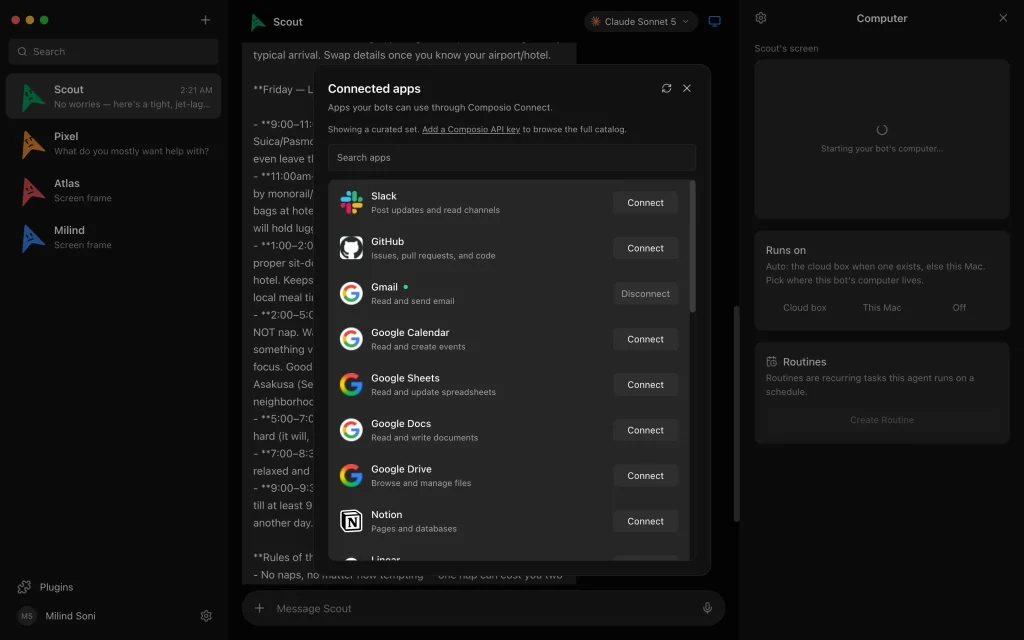
- Connect external services through Composio and use browser or computer tools for hands-on work.
- Create, import, and reuse Agent Skills, including automatic skill capture for Claude and Codex bots.
- Access bots from Android, iOS, or a mobile web app while their host is running.
- Analyze files and databases in a per-bot DuckDB workspace with SQL, tables, and charts.
- Choose a free local installation or an optional always-on MausBot Cloud workspace.
OpenMausBot vs. Grok Bot
OpenMausBot is an independent open-source alternative to xAI’s Grok Bot. Both organize persistent AI bots in a chat app. OpenMausBot lets you use your own agent accounts on a local computer or an optional hosted server. Grok Bot runs Grok-powered bots on xAI-managed infrastructure.
| OpenMausBot (MausBot) | Grok Bot | |
|---|---|---|
| License | Free desktop app, Apache 2.0 | Proprietary managed service |
| Models | Claude, Codex, Grok, and other compatible engines | Grok-powered bots |
| Execution | Local host, self-hosted server, or paid Cloud | xAI-managed cloud |
| Computers | Bot browser, optional remote desktop, local control where available | Managed bot computer |
| Team chats | Rooms, mentions, delegation | Group and team bots |
| Scheduled jobs | Local routines, optional always-on Cloud | Cloud routines |
| Mobile access | Android/iOS companions and mobile web app | Mobile apps |
How the Bots Work
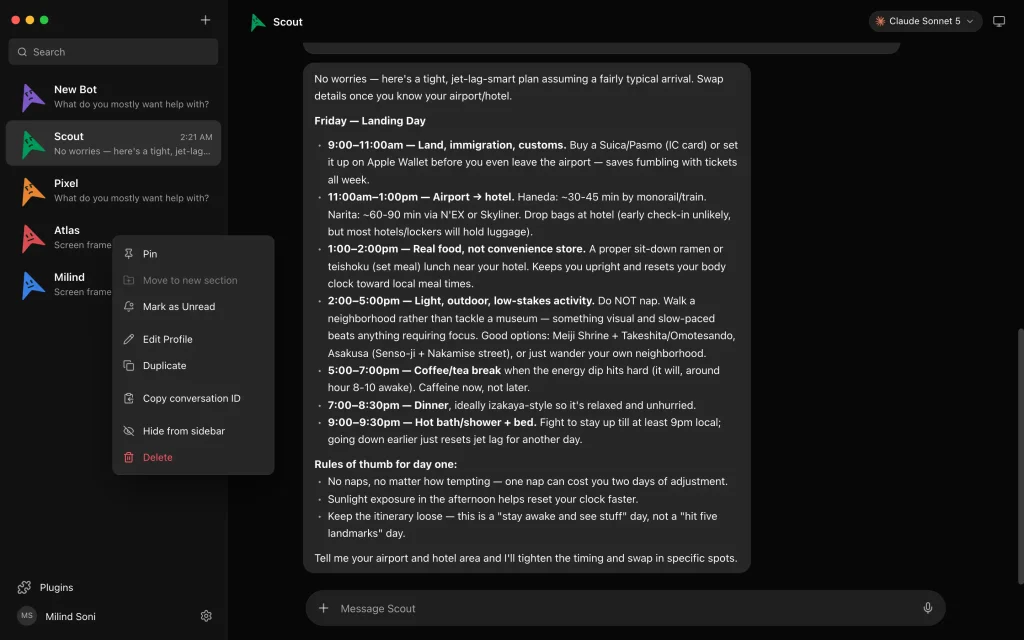
Create a bot, define its role, select a model, and send a request in chat. The bot keeps its instructions and can maintain multiple conversation threads. Return to an earlier thread for ongoing work or open a new one for a different task.
Chats stay organized under their bots in the sidebar. You can pin a frequent conversation, rename a thread, duplicate a bot, archive past work, or search for an earlier discussion.
Agents and Model Selection
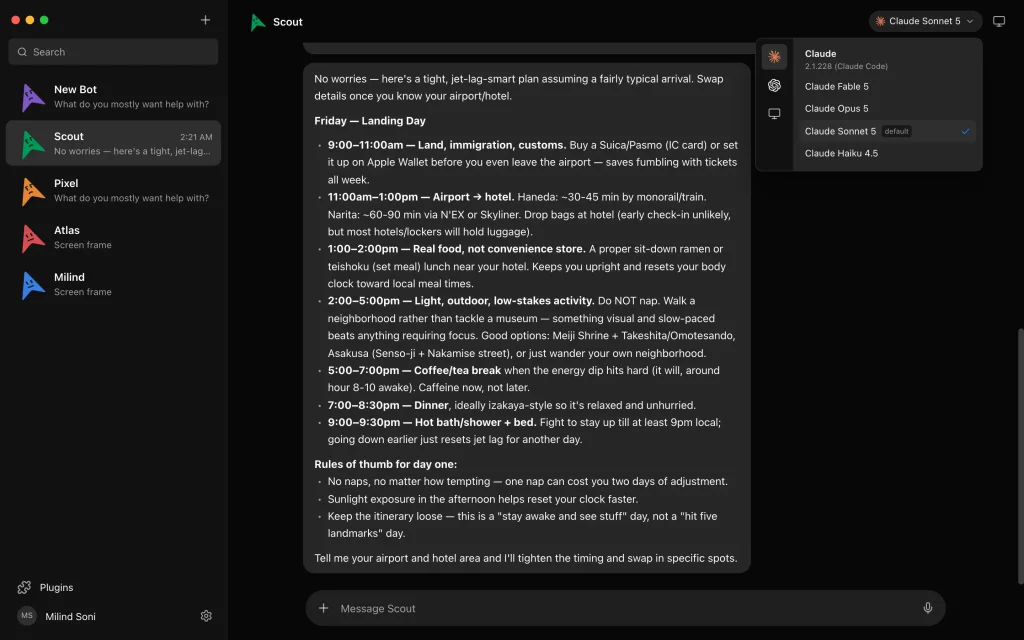
OpenMausBot runs agent engines such as Claude Code, Codex, and Grok through their authenticated CLIs. The engine choices also include Cline through ACP, Groq as an API provider, and Muse models through the Meta Model API. Each connection has its own sign-in or API-key requirements.
Choose a model when creating a bot, or change the selection in an existing conversation. Available models and tools depend on the engine, installed CLI, provider login, and account access. A change in model does not require you to discard the bot’s conversation history.
OpenMausBot does not include AI model usage. Connect your own supported provider account or API key. Usage limits and API fees follow that provider’s terms.
Example Bot Roles
- Repository bot: investigate issues, edit code, inspect pull requests, and prepare release work.
- Research bot: track a topic, collect source material, and organize findings.
- Operations bot: work through connected email, calendars, Slack, Notion, or Linear.
- Browser bot: complete web tasks using a browser or an available computer.
- Review bot: examine another agent’s result using a different model.
Rooms, Teams, and Shared Work
Rooms let several bots work in a shared conversation. Mention a bot with @ to direct a request, or let a coordinating bot delegate parts of a larger job. Channels organize work by project or topic, with their own conversations, shared instructions, working folders, and bot members.
A Chief of Staff can delegate jobs to other bots and report their progress. Delegated work can resume after an app restart or a pending approval. If one bot needs to stop, you can interrupt that participant and leave the other Room conversations running.
You can also import a prepared team from a Markdown playbook or share one you built. A shared package can contain bot profiles, instructions, skills, Rooms, and routine definitions. Imported routines are paused initially, and credentials and chat histories are not included in the exported team file.
Scheduled Routines, Triggers, and Agent Skills
OpenMausBot can schedule a bot to run once, on selected weekdays, or at a repeating interval. Routines can also begin when the app starts. Webhook triggers can launch work when an outside service sends an event. Results appear in the bot’s conversations and activity history.
Local schedules depend on the host staying awake and running. The paid Cloud workspace runs bots and scheduled jobs on an always-on server, even after your laptop shuts down. Creating a schedule in the free app does not automatically give it cloud execution.
Agent Skills store instructions for recurring tasks. Create a skill in bot settings, import a skill file, or run an existing one from the chat slash menu. Claude and Codex bots can also save successful sequences of tool actions as skills through background review.
Connected Apps and Website Sign-ins
Composio connects bots to external apps such as Gmail, GitHub, Slack, Notion, and Linear. Once you authorize an account, the bot can use the relevant integration tools with the permissions you grant. Basic conversations and local agent tasks do not require Composio.
When a website needs a login, the bot pauses and shows a Sign in needed card. Sign in through the bot’s browser and press Done to continue. You can save a login for that specific site or connect 1Password through a service account. Passwords do not need to be entered into the conversation.
| Connection | When it is needed |
|---|---|
| Agent provider login or API key | To run the selected Claude, Codex, Grok, or other engine |
| Composio account/key | To give bots access to connected external apps |
| Boat account/key | To use an independently provisioned remote cloud computer |
| 1Password service account | Optional saved website logins |
Computer and Browser Access
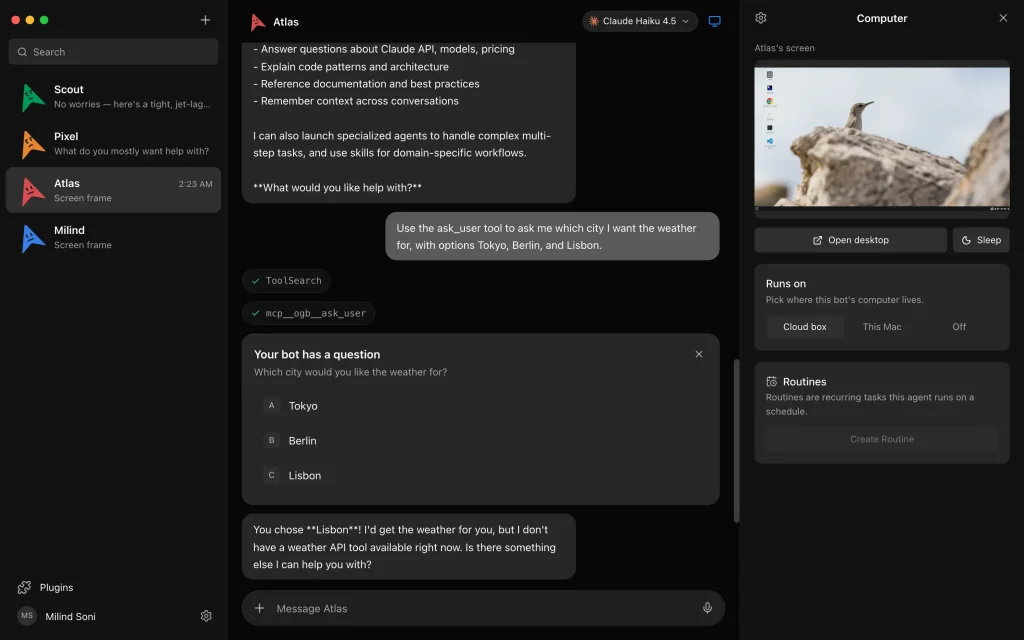
Bots use browser tools to navigate websites, fill in forms, and research online. For desktop tasks, you can connect a Boat cloud computer or assign a compatible local machine. The Computer panel shows a live preview, with manual takeover available for supported computers.
macOS supports local screen capture and computer control after you grant access. On Ubuntu GNOME, screen preview works with Xorg and Wayland. Local bot control requires explicit permission on Xorg and is disabled on Wayland. Windows supports the packaged app, browser tools, remote computers, and local screen previews.
Data Analysis and Voice
In the Data tab, each bot has a local DuckDB database for working with files and database tables. Ask the bot to run SQL, inspect the result as a table or chart, and edit a query when needed. Earlier results stay accessible in the panel’s History.
Bots can read their replies aloud through ElevenLabs, Fish Audio, xAI speech, built-in Mac voices, or a local Chatterbox server. On macOS, you can also hold a voice call with a bot. Hosted voice providers need their own credentials in the free desktop edition. Eligible Cloud plans include limited voice replies.
Approval Cards
When an agent needs permission for an action, OpenMausBot can put an approval card beside the relevant chat message. You can approve or deny an execution request and answer a question directly in the conversation. Approval behavior depends on the chosen engine, tools, and the bot’s access level.
When a delegated task stops for approval, the Chief of Staff can report which bot is waiting and what action needs a decision. Full access permits more actions to run automatically. The selected engine and tools determine which approvals apply.
Getting Started
Download the free desktop app for your computer. The initial setup checks for a compatible agent engine and helps you sign in before creating your first bot.
macOS
- Download the installer for Apple silicon or Intel.
- Drag OpenMausBot from the
.dmginto Applications and open it. - Connect Claude, Codex, Grok, or another available provider.
- Create a bot, select a model, and send a task.
Windows
- Download the 64-bit
.exeinstaller and run it. - If SmartScreen shows an unknown-publisher warning, verify the installer source before proceeding. Windows signing is not yet complete.
- Connect an AI provider, create a bot, and select a model.
Linux
For Ubuntu 24.04 x86-64, download the .deb package or AppImage. The .deb is the recommended browser-ready installation for Ubuntu GNOME. Other Linux distributions can try the AppImage. Bot control of the host desktop requires GNOME Xorg and explicit permission.
sudo apt install ./OpenMausBot-amd64.debRun From Source
Install Node.js 24 or newer, pnpm, and a supported agent CLI. Clone the repository and install dependencies:
git clone https://github.com/milind-soni/OpenMausBot.git
cd OpenMausBot
pnpm install
Run the following development processes in three separate terminals from the repository directory. Keep the server and web app running when you launch Electron.
| Terminal | Command |
|---|---|
| 1. Harness server | pnpm dev:server |
| 2. Web app | pnpm dev |
| 3. Electron app | pnpm dev:desktop |
Run From the Terminal
OpenMausBot also publishes an npm package. Run it with Node.js 24 or newer and follow the terminal prompts to configure an agent account and optional phone pairing. Keep the terminal host running for local bots and routines.
npx openmausbotUse It From Your Phone
Android (8.0+) and iOS (17.0+) companion apps connect to your running computer or server. The official download page links to the Discord where the mobile builds are shared. You can also install the phone web app on your home screen. Pair your phone with a running host to access its bots.
How OpenMausBot Works Behind the App
OpenMausBot uses React and Electron for its desktop app. A local harness launches agent processes and delivers chat messages, tool activity, and approval requests through an event stream. In development, the harness listens at 127.0.0.1:8799. An optional MCP server lets external clients such as Claude Desktop and Cursor inspect bots, send tasks, and manage selected team actions. It does not expose credentials or arbitrary permission grants.
| Component | Role |
|---|---|
| Agent drivers | Connect to individual CLIs and provider protocols |
| Harness and event stream | Run agents and deliver messages, tools, and approvals |
| React / Electron app | Display chats, teams, settings, and computer activity |
| MCP server | Let compatible external clients manage a bounded set of bot and team actions |
Free Desktop App, Cloud Plans, and Costs
The desktop edition is free under Apache License 2.0. MausBot Cloud is optional paid hosting for bots that need to run while your computer is off. Each cloud plan has a monthly computer-hour allowance. AI provider usage is charged separately.
| Plan | Monthly price | Computer-hours/month |
|---|---|---|
| Free desktop | $0 | Not included |
| Personal | $29 | 50 |
| Pro | $49 | 200 |
| Max | $99 | 500 |
Local Storage and Privacy
The local harness stores conversations, keys, and event data under ~/.openmausbot on your computer. Provider credentials are not displayed as chat messages. A hosted MausBot Cloud workspace keeps its own data on the hosted server.
AI prompts go to the model provider you connect. Composio integrations and third-party remote computers handle data needed for their tasks. Check account permissions and provider terms before assigning bots access to private repositories, documents, or business accounts.
Pros
- Persistent bots with multiple models and individual conversation threads.
- Team delegation, scheduled routines, and reusable Agent Skills.
- Computer access and hundreds of connected app integrations.
- Mobile companions and an optional always-on Cloud host.
- In-chat approvals and user-managed website sign-ins.
Cons
- Model usage needs a separate account, subscription, or API key.
- Free local bots stop running when their host sleeps or goes offline.
- Computer-control capabilities differ by operating system.
Alternatives & Related Resources
- Rakazo: Open-Source Grok Bot Alternative With Persistent AI Bots
- Wayland: Local-First AI Agent Command Center for Claude Code & Codex
- AionUi: Free Open-source Cowork App (Claude Cowork Alternative)
- Run Multiple AI Coding Agents in Parallel – Manaflow
- Aperant (Auto Claude): Open-Source AI Coding Agent Harness
- 10 Best CLI AI Coding Agents: Open-Source & Commercial
- The Ultimate Claude Code Resource List 2026: Agents, Skills, Plugins & More
- Grok Build: SpaceXAI’s Open-source Terminal AI Coding Agent
- Waku: Run Claude Code, Codex & More in One Native App
FAQs
Do I need a Grok subscription?
No. You can run bots through Claude Code, Codex, or another compatible agent engine using its own account or API credentials. Grok is one of the available choices.
Can bots run when my computer is turned off?
Locally hosted bots and schedules stop when their host shuts down. You can keep them running on an always-on self-hosted server or a paid MausBot Cloud workspace.
Does every bot need Composio or a cloud computer?
No. A bot can run with an authenticated agent engine alone. Composio is optional for connections to external services, and a third-party cloud computer is only needed for tasks that require that remote desktop.
Last Updated: Oct 13, 2026