


Wi-Fi is the backbone of my home network. I have a decent router — ASUS RT-AX88U, which I tweaked to get the best speeds I pay for. Speed tests show solid speeds. While outages are rare, I assumed I solved most of the home Wi-Fi issues and made it deliver peak performance.
Whenever I hear complaints about buffering video or audio, slow downloads, and slow web browsing, I restart the router. Like most of us. After running speed tests and checking those numbers, I seldom looked deeper into what’s actually happening inside my home network.
I thought my home network worked until I installed and ran Wireshark on my Mac. That network tool showed me problems I didn’t know my home Wi-Fi had.
What Wireshark shows and why it’s a bit scary
Devices can get chatty on the network


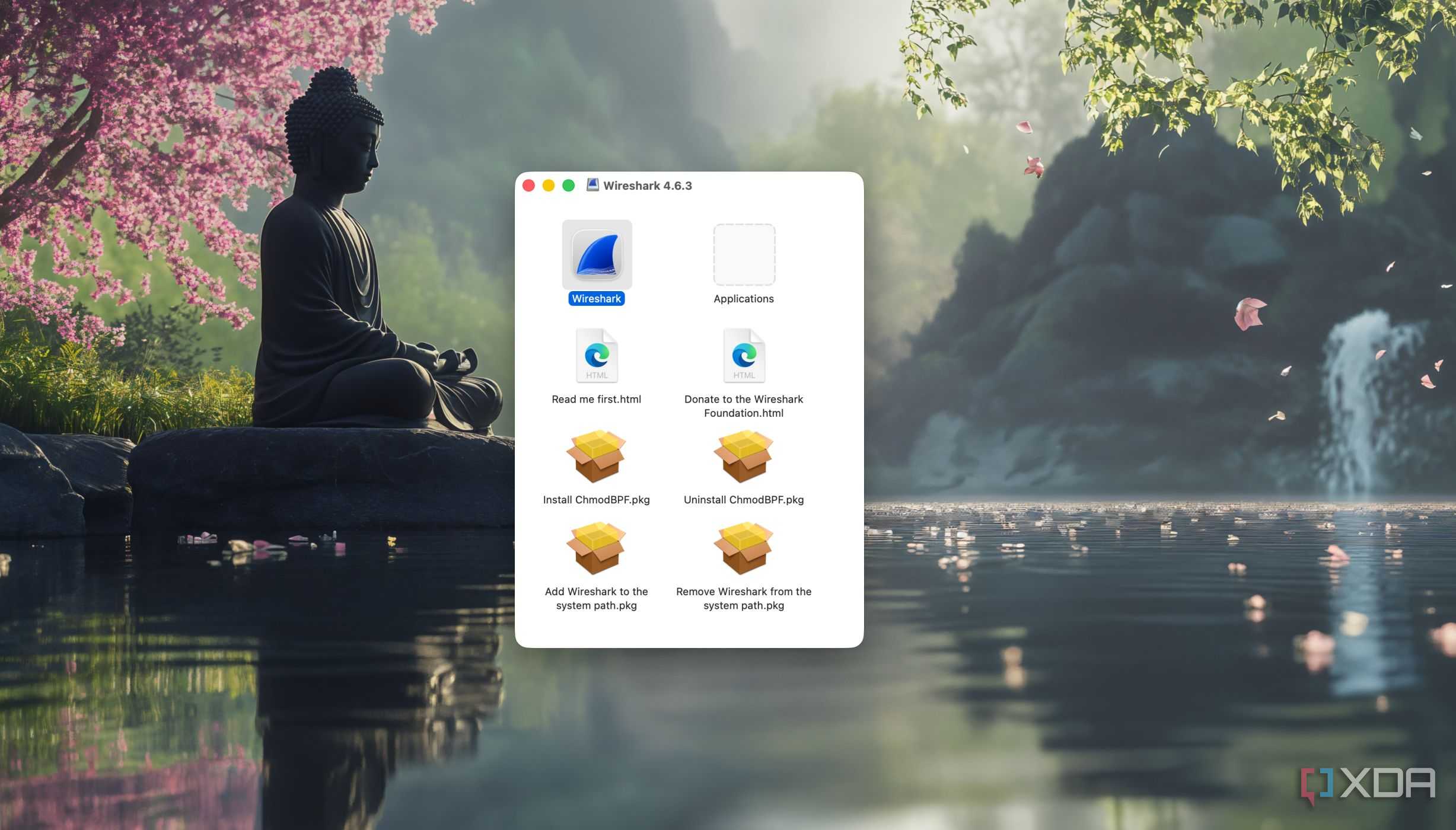
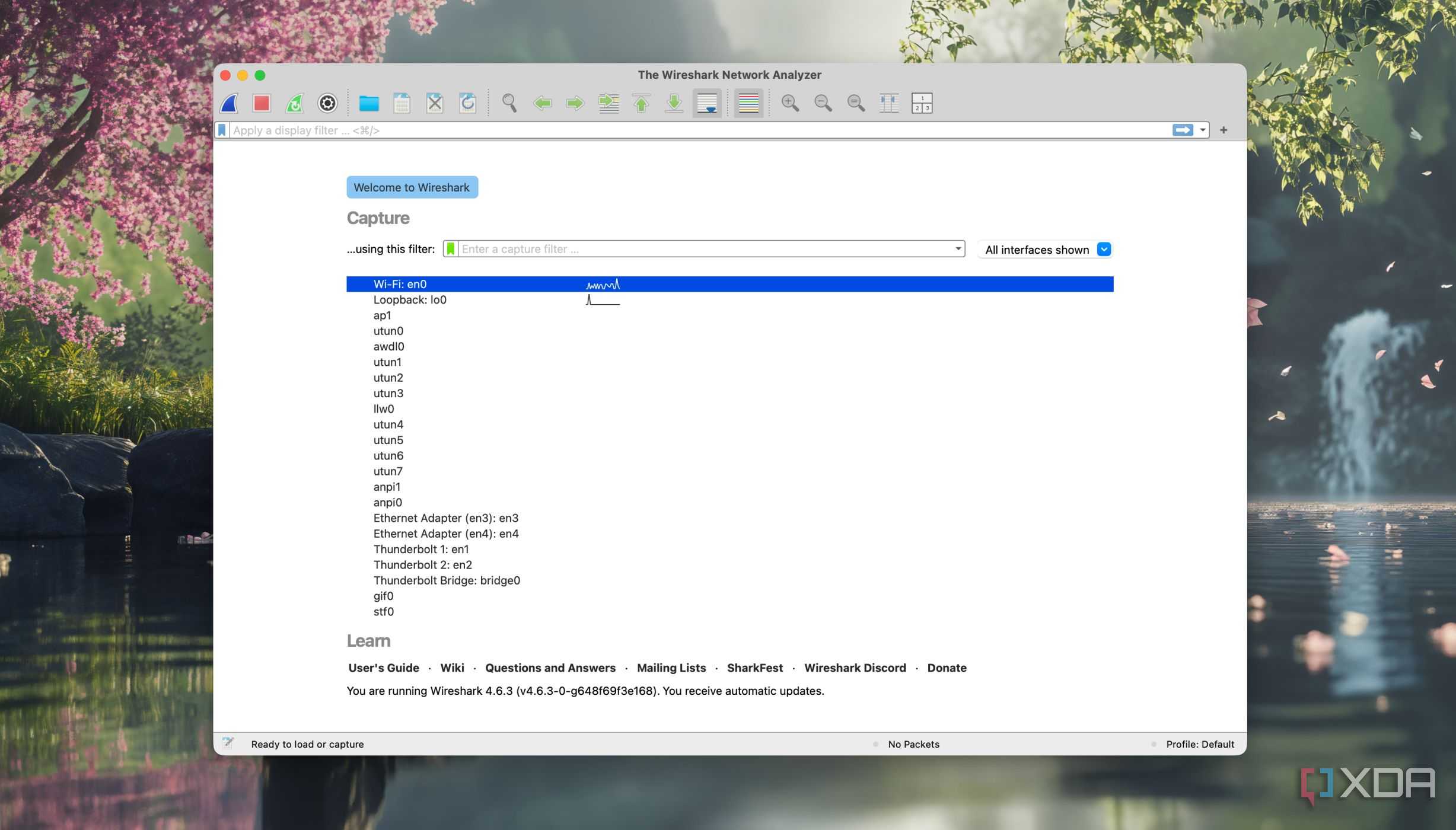
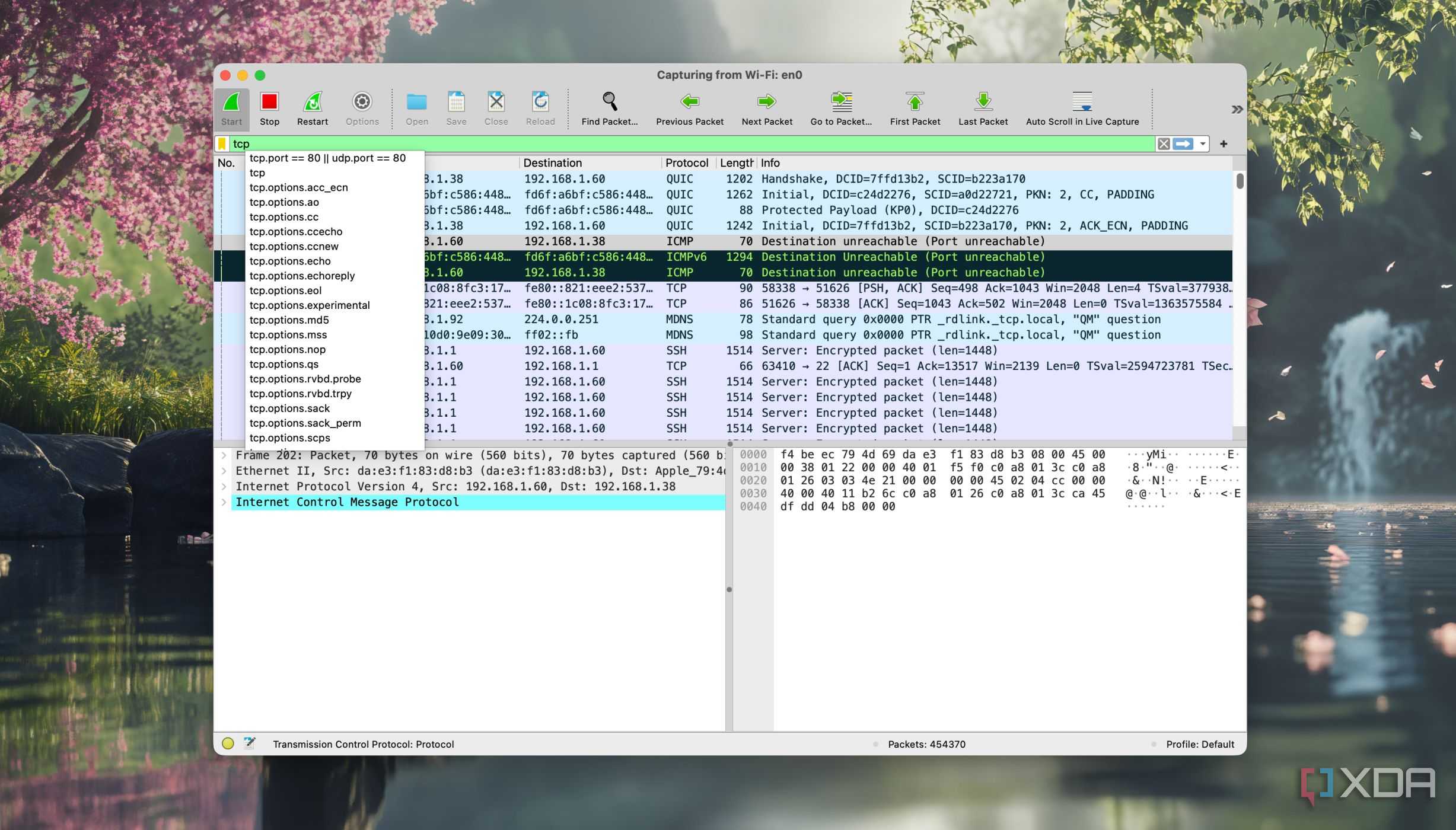

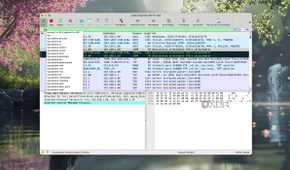
While speed tests mostly show how fast my internet is, it explains nothing else. I don’t know why some sites and apps are not as responsive as others. That’s why I picked Wireshark, an open-source tool, for network traffic analysis.
It captures and displays the data packets flowing through devices on my home network. That includes every app I launch, every DNS query, every data transfer, and every smart device traffic flowing into and out of a network.
Referring to the documentation now helps me spot patterns of repeated DNS requests and broadcast storms caused by smart devices flooding the LAN. Through deeper packet inspection, I gradually learned how they travel across the network and how to monitor the activities of every device on my home Wi-Fi.
Getting Wireshark to inspect my entire network
Requires a custom router firmware

Running Wireshark on macOS showed only traffic to and from my Mac. So, I used the network tool to capture my entire network's traffic.
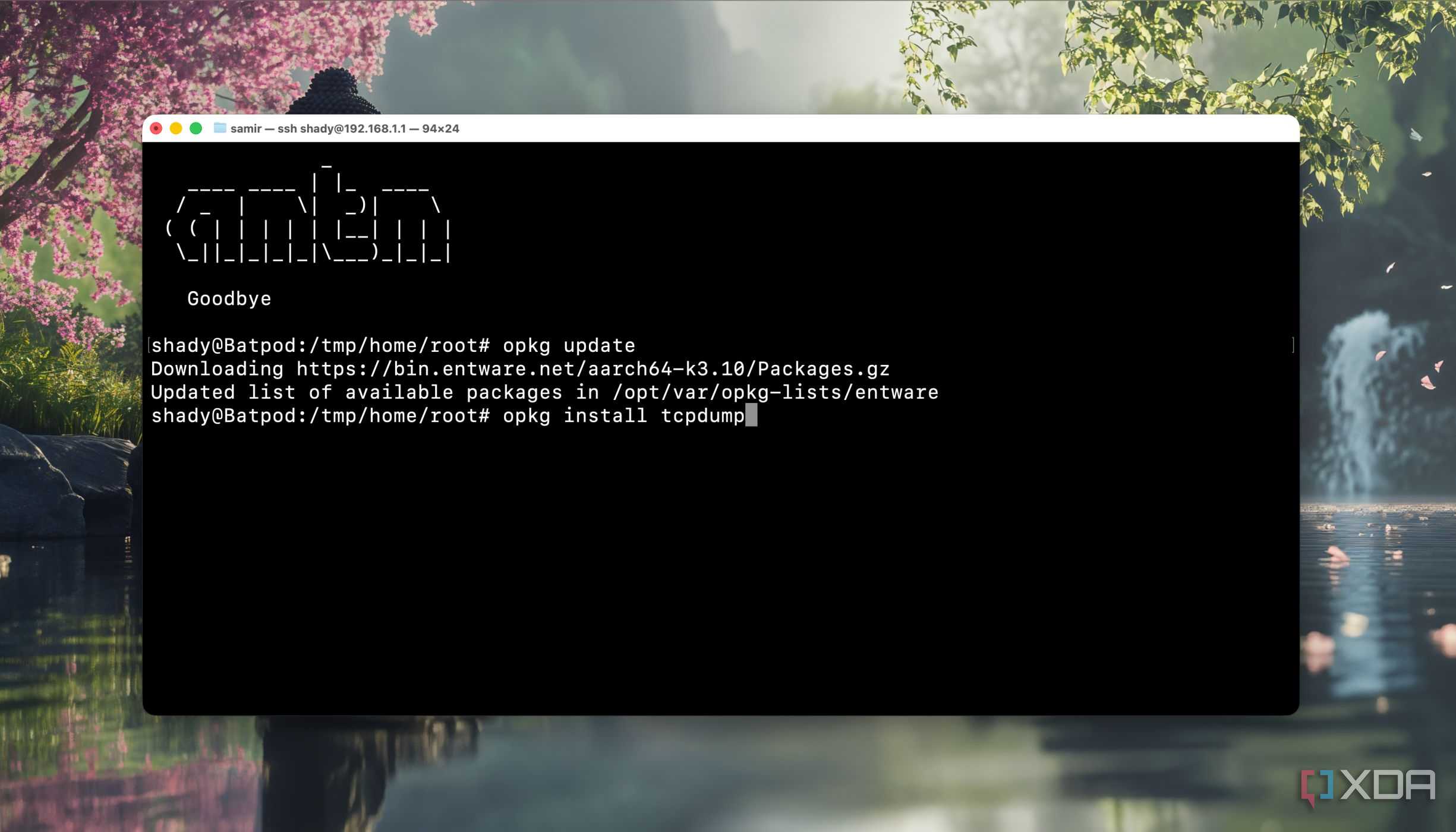
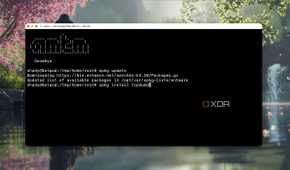
I run the AsusWRT-Merlin firmware on my ASUS router. That allows me to install Entware using amtm and tcpdump, a network packet sniffer and analyzer that intercepts and displays traffic in real time. It’s rather easier on routers that support OpenWRT and DD-WRT.
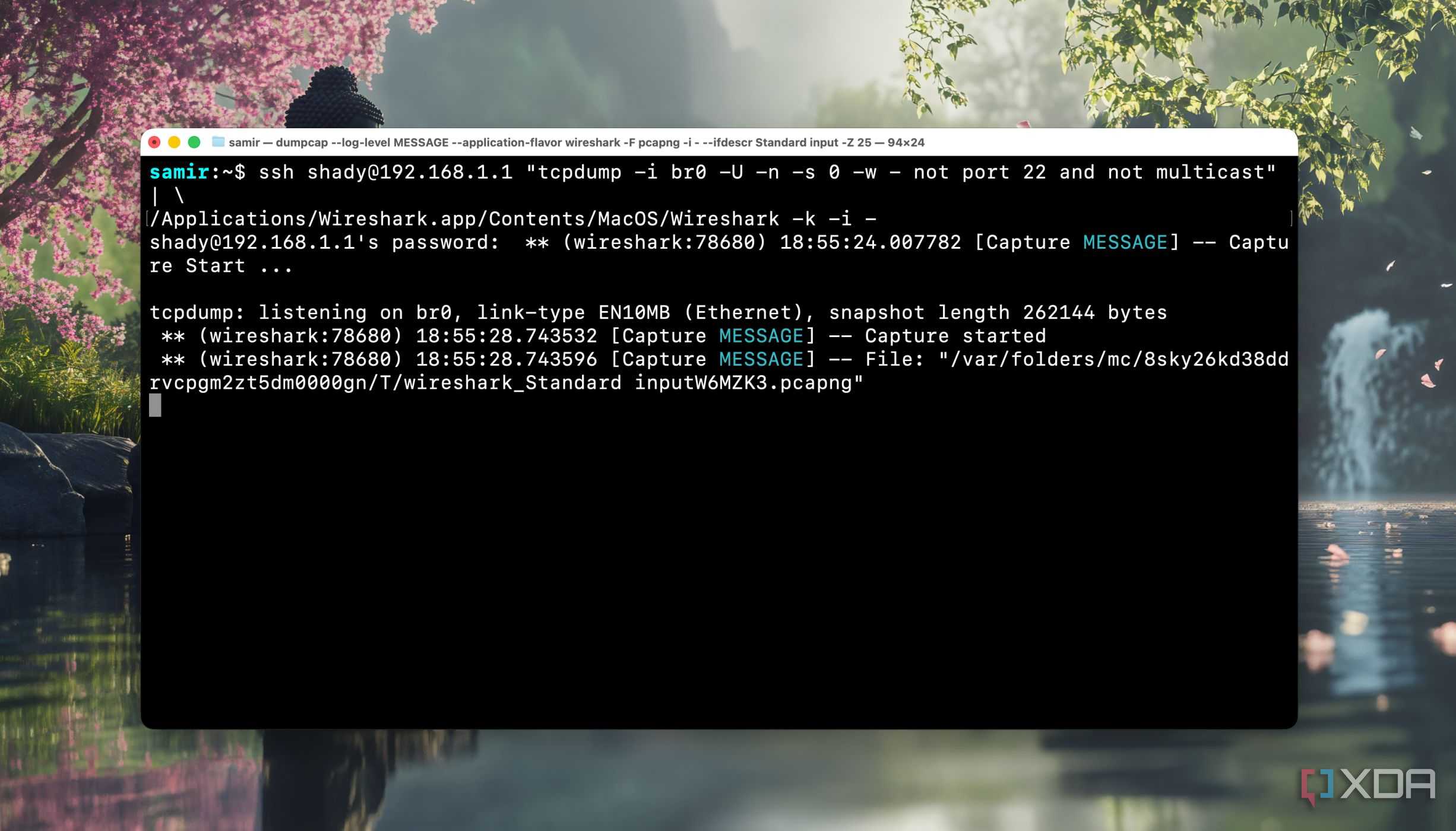
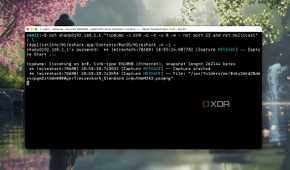
From the Mac, I used SSH to access the router to make tcpdump capture the network traffic and pipe it directly into the Wireshark app. I used the following command for that:
ssh routerusername@routerIP "tcpdump -i br0 -U -n -s 0 -w - not port 22" | \ /Applications/Wireshark.app/Contents/MacOS/Wireshark -k -i -
That performed a live capture of traffic from every device on my network from my router straight into the Wireshark app on my Mac (notice the path in the command).
The above command captures only data packets from my Wi-Fi network and is non-invasive. It doesn’t make any configuration changes and stops when I close Wireshark.
DNS resolution was slow and sluggish
Default DNS settings were to blame

Filtering DNS queries in Wireshark confirmed that using the ISP’s DNS services was slowing down my internet connectivity. The network tool also revealed that a handful of devices were incessantly making the same queries and performing excessive lookups.
When I switched to public DNS services, I noticed a zippier page load time. No more delays or buffering with online media streaming. Apps felt responsive, and downloads were swift.
For quicker local DNS resolution, I set up Pi-hole with Unbound, since I prefer using a GUI to view per-device logs and graphs, and it’s relatively easy to update.
The overall difference is noticeable, but not dramatic.
Smart devices are a chatty bunch
Crowding network with noise

Another round of combing through the capture revealed excessive mDNS, Simple Service Device Protocol, and broadcast traffic. After all, most of them are on Wi-Fi. HomePod, smart lights, smart TVs, voice assistants, phones, laptops, and even my Kindle crowded the network, announcing their presence.
Some searched for services, others checked in with cloud services outside and apps running inside the network. Turns out, the smart home devices were fighting for the same crowded Wi-Fi channel on the 2.4GHz band, causing it to slow down.
On checking the devices individually, that amounted to a few queries. But collectively, it amounted to a lot of traffic noise that causes unnecessary congestion internally. Even though that chaos doesn’t impact my internet bandwidth, the traffic congestion still impacts the CPU and RAM of my consumer-grade hardware.
Identifying hidden packet loss and resending queries
Signal strength doesn’t equal quality
Filtering the queries, color-coded in black, showed that some of the devices were resending packets. On closer inspection, it occurred mainly on my Mac and iPad. Both devices showed full Wi-Fi bars. But the signal strength is an incomplete indicator of signal quality.
Resending packets usually indicates a problem with the Wi-Fi channel, a weak signal, or interference. Mac and iPad showed full Wi-Fi signal bars and had no physical walls between them and the router.
I used a Wi-Fi analyzer tool to find the best channel and changed it for both frequency bands. Following that, the retransmission packet flags were reduced gradually.
Home Wi-Fi is mostly fine, unless you look closely
While I was convinced my home network was in top shape, Wireshark revealed hidden problems. Switching to public DNS improved response times, moving all smart devices to a VLAN reduced the network chatter, and I found that my tablet and laptop were secretly active in the background.
Though the solutions didn’t make a drastic difference, they did improve my home Wi-Fi setup. My home Wi-Fi wasn’t broken. Only after looking at it closely helped me iron out the kinks.

Wireshark
Wireshark is one of the best known network sniffer packages available on Windows, Linux, and macOS.
