

Selenium WebDriver is an automation tool used to control web browsers and perform testing actions. It supports multiple browsers and programming languages, making it flexible for testers and developers to automate web-based tasks efficiently.
- It allows direct interaction with web browsers using predefined commands and methods.
- Supports actions like clicking elements, navigating pages, and handling browser windows or tabs.
- Works across different browsers and languages, making it highly versatile for automation testing.
Let's dive into more details about WebDriver commands in this article, we will learn about the Selenium WebDriver Commands in detail.

Selenium WebDriver Commands
Selenium WebDriver Commands are predefined methods used to control and automate web browsers during testing.
They allow testers and developers to perform actions like opening websites, clicking buttons, entering text, navigating pages, and closing the browser using code instead of manual work.
Types of WebDriver Commands
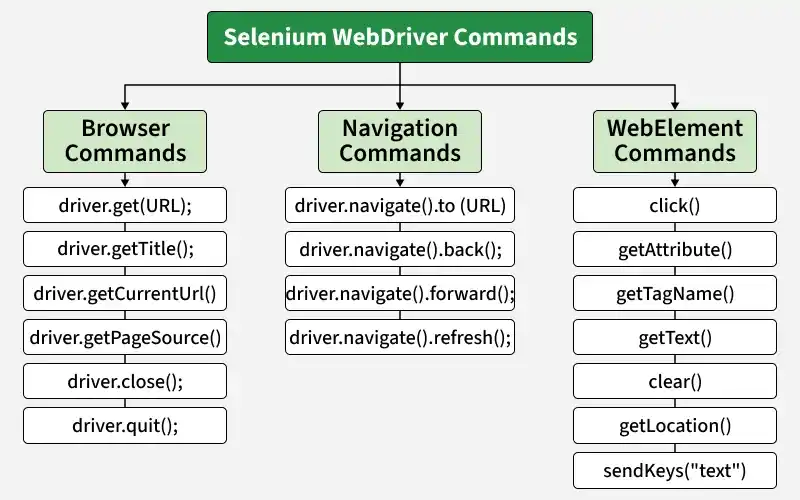
1. Browser Commands
Browser commands are used to control the browser and perform basic operations like opening web pages, getting page details, and closing the browser. They help in automating browser-level actions such as retrieving URLs, page titles, and page source code.
Common Browser Commands:
- get(String url) Command: It loads a new web page in the current browser window. It accepts a string parameter that specifies the URL of the web page to be loaded.
Syntax: driver.get(URL); - getTitle() Command: It returns the title of the current web page displayed in the browser. It does not accept any parameters.
Syntax: driver.getTitle(); - getCurrentUrl() Command: It returns the URL of the current web page loaded in the browser. It does not accept any parameters.
Syntax: driver.getCurrentUrl(); - getPageSource() Command: It returns the complete HTML source code of the current web page. It does not accept any parameters.
Syntax: driver.getPageSource(); - close() Command: It closes the current browser window or tab. It does not close the entire browser session.
Syntax: driver.close(); - quit() Command: It closes all browser windows and ends the WebDriver session completely.
Syntax: driver.quit();
2. Navigation Commands
Navigation commands are used to control browser movement between web pages. They help in handling browser history and page transitions efficiently.
Common Navigation Commands:
- navigate().to() Command: It loads a new web page in the current browser window. It works similar to get() method.
Syntax: driver.navigate().to(URL); - navigate().back() Command: It moves one step back in the browser history.
Syntax: driver.navigate().back(); - navigate().forward() Command: It moves one step forward in the browser history.
Syntax: driver.navigate().forward(); - navigate().refresh() Command: It reloads the current web page in the browser window.
Syntax: driver.navigate().refresh();
3. WebElement Commands
WebElement commands are used to interact with elements on a web page such as buttons, text boxes, links, checkboxes, and dropdowns. These commands help in performing user actions like clicking, typing, and reading element values.
Common WebElement Commands:
- sendKeys() Command: It enters text into input fields such as text boxes and search boxes.
Syntax: element.sendKeys("text"); - isDisplayed() Command: It checks whether a web element is visible on the page or not.
Syntax: element.isDisplayed(); - isSelected() Command: It checks whether a checkbox, radio button, or dropdown option is selected.
Syntax: element.isSelected(); - submit() Command: It is used to submit a web form.
Syntax: element.submit(); - isEnabled() Command: It checks whether a web element is enabled for interaction or not.
Syntax: element.isEnabled(); - getLocation() Command: It returns the X and Y coordinates of a web element on the page.
Syntax: element.getLocation(); - clear() Command: It clears the text from input fields or text areas.
Syntax: element.clear(); - getSize() Command: It returns the height and width of a web element.
Syntax: element.getSize(); - getAttribute() Command: It returns the value of a specified attribute of a web element.
Syntax: element.getAttribute("attributeName"); - click() Command: It performs a click action on a web element such as button, link, or checkbox.
Syntax: element.click();
Some of the most commonly used commands:
Selenium WebDriver Commands Example:
// Importing Libraries
import org.openqa.selenium.By;
import org.openqa.selenium.WebDriver;
import org.openqa.selenium.WebElement;
import org.openqa.selenium.chrome.ChromeDriver;

public class WebDriverExampleGFG {
    public static void main(String[] args) {
        // Set the path to the ChromeDriver executable
        System.setProperty("webdriver.chrome.driver", "path_to_chromedriver.exe");

        // Initialize a new WebDriver instance (in this case, ChromeDriver)
        WebDriver driver = new ChromeDriver();

        //  get(String url) command
        driver.get("https://www.example.com/");

        //  getTitle() Command
        String pageTitle = driver.getTitle();
        System.out.println("Page Title: " + pageTitle);

        //  getCurrentUrl() Command
        String currentUrl = driver.getCurrentUrl();
        System.out.println("Current URL: " + currentUrl);

        //  getPageSource() Command
        String pageSource = driver.getPageSource();
        System.out.println("Page Source: " + pageSource);

        //  sendKeys() command
        WebElement textBox = driver.findElement(By.id("TextBox"));
        textBox.sendKeys("GeeksForGeeks");

        //  isDisplayed() command
        WebElement element = driver.findElement(By.id("gfg"));
        boolean isDisplayed = element.isDisplayed();
        System.out.println("Element is displayed: " + isDisplayed);

        //  isSelected() command (for checkboxes, radio buttons, etc.)
        WebElement checkbox = driver.findElement(By.id("software-testing"));
        boolean isSelected = checkbox.isSelected();
        System.out.println("Checkbox is selected: " + isSelected);

        //  submit() command
        WebElement submitButton = driver.findElement(By.id("SubmitButton"));
        submitButton.submit();

        //  isEnabled() command
        WebElement isEnabledElement = driver.findElement(By.id("GFG"));
        boolean isEnabled = isEnabledElement.isEnabled();
        System.out.println("Element is enabled: " + isEnabled);

        //  getLocation() command
        WebElement locationElement = driver.findElement(By.id("Selenium"));
        int xCoordinate = locationElement.getLocation().getX();
        int yCoordinate = locationElement.getLocation().getY();
        System.out.println("X Coordinate: " + xCoordinate);
        System.out.println("Y Coordinate: " + yCoordinate);

        //  clear() command
        WebElement clearElement = driver.findElement(By.id("edittext"));
        clearElement.clear();

        //  getSize() command
        WebElement sizeElement = driver.findElement(By.id("SubmitButton"));
        int elementHeight = sizeElement.getSize().getHeight();
        int elementWidth = sizeElement.getSize().getWidth();
        System.out.println("Element Height: " + elementHeight);
        System.out.println("Element Width: " + elementWidth);

        //  getAttribute() command
        WebElement attributeElement = driver.findElement(By.id("Submit"));
        String attributeValue = attributeElement.getAttribute("id");
        System.out.println("Attribute Value: " + attributeValue);

        //  click() command
        WebElement clickElement = driver.findElement(By.id("GeeksForGeeks"));
        clickElement.click();

        // Close the current browser window/tab
        driver.close();

        // Quit the WebDriver session
        driver.quit();
    }
}
